Author: Saim Khalid

  • Two-way Data Binding in Angular

    Here you will learn how to do two-way data binding in Angular.

    Two-way data binding refers to sharing data between a component class and its template. If you change data in one place, it will automatically reflate at the other end. For example, if you change the value of the input box, then it will also update the value of the attached property in a component class.

    Two-way data binding performs the following actions:

    1. Sets a property of a component class
    2. Listens for a DOM element change event

    Angular v2+ supports two-way data binding using ngModel directive and also by having getter and setter methods.

    ngModel Directive

    The ngModel directive with [()] syntax (also known as banana box syntax) syncs values from the UI to a property and vice-versa. So, whenever the user changes the value on UI, the corresponding property value will get automatically updated.

    [()] = [] + () where [] binds attribute, and () binds an event.

    Example: Banana Box [()] Copy

    import { Component, OnInit} from '@angular/core';
    
    @Component({
      selector: 'app-greet',
      template: `
      User Name: <input type="text" [(ngModel)]="userName"  ><br/>
        {{userName}}
        `
    })
    export class GreetComponent implements OnInit {
    
      constructor() { }
    
      userName: string = "jbond";
    
      ngOnInit(): void {
      }
    
    }

    The [(ngModel)] syntax is the recommended way of two-way data binding.

    The ngModel directive with [] syntax is used for one-way data binding. [ngModel] binds a value to a property to UI control.

    Getter and Setter Methods

    For two-way data binding, declare a private property and access its value using get and set methods in the component class. Then, assign that property to [(ngModel)].

    For example, declare a private property with a get and set method, as shown below.

    Example: Private Property Copy

    private _userName: string = "bill gates";
    
      get userName(): string {
        return this._userName;
      }
    
      set userName(val: string) {
        //do some extra work here
        this._userName = val;
      }

    Now, assign userName to [(ngModel)] in the template.

    Example: [(ngModel)] Copy

    <input type="text" [(ngModel)]="userName" >

    The following is a full example of two-way data binding using get and set methods.

    Example: Two-way Data Binding Copy

    import { Component, OnInit } from '@angular/core';
    
    @Component({
      selector: 'app-greet',
      template: `
      User Name: <input type="text" [(ngModel)]="userName" ><br/>
        {{userName}}`
    })
    export class GreetComponent implements OnInit {
    
      constructor() { }
    
      private _userName: string = "bill gates";
    
      get userName(): string {
        return this._userName;
      }
      set userName(val: string) {
        //do some extra work here
        this._userName = val;
      }
      ngOnInit(): void {
      }
    }
    • Share
    • Tweet
    • Share
    • Whatsapp
  • Event Binding in Angular 2 (v11)

    Events are handled in Angular using the following special syntax.

    (target event name) = "template statement"

    Bind the target event name within parentheses on the left of an equal sign, and event handler method or statement on the right.

    Example: Binding Button Click Event Copy

    <button (click)="onShow()">Show</button>

    Above, (click) binds the button click event and onShow() statement calls the onShow() method of a component.

    Example: Handle Button Click Event in Component Copy

    @Component({
      selector: 'event-demo,
      template: '<button (click)="onShow()" >Show</button>'
    })
    export class EventBindingDemoComponent implements OnInit {
    
      constructor() { }
    
      ngOnInit(): void {
      }
    
      onShow() {
        alert('Show button clicked!');
      }
    
    }

    Alternatively, use the on- prefix, known as the canonical form:

    Example: on-event

    <button on-click="onShow()" >Show</button>

    By default, an event propagates up to the parent container event. In the following example, click event propagates to click of div and will call both the onShow() and onDivClick() methods.

    Example: Event Bubbling

    <div (click)="onDivClick()">
        <button (click)="onShow()" >Show</button>
    </div>

    $event

    Mostly, when an event is raised, you may need to pass some value to the event handler function. This value can be number, string, or an object that contains information about an event.

    You can pass the number or string value to the event handler function, as shown below.

    Example: Passing Event Data

    <button (click)="onShow(20)">Show</button>

    Angular includes $event that contains the information about an event. The type of $event depends on the target event, e.g., if the target event is a native DOM element event, then it is an object.

    Example: $event

    <button (click)="onShow($event)">Show</button>

    A component should define the onShow(event) method where the type of the parameter can be KeyboardEvent, MouseEvent, etc. If you don’t know the exact event type, they use “any” type, as shown below.

    Example: event Parameter

    onShow(event:any) {
        console.log(event);
      }

    If event is a native DOM element event then $event.target get DOM element reference using which you can access element’s property e.g. $event.target.innerHTML returns the value of innerHTML property of a DOM element.

    Example: Event Handling

    <button (click)="onShow($event)">Show</button>
    
    //component method
    onShow(event:any) {
            alert(event.target.innerHTML); // returns Show
      }

    You can use $event.target in the template statement. The following example binds a component property to $event.target.value of the input box on the input event without using ngModel.

    Example: Bind Event without ngModel

    <input type="text" (input)="userName=$event.target.value"><br/>
    {{userName}} 
  • HTML Templates in Angular 2 (v11)

    In the previous chapter, you have created an HTML template for the component. Here, you will learn HTML template in detail.

    HTML template is nothing but a regular HTML code with additional Angular specific syntax to communicate with the component class.

    HTML Template = HTML + Angular Bindings and Directives.

    Angular API interprets an HTML template of a component, generates the HTML and render it.

    You can create an HTML template in a component in two ways:

    1. Inline Template
    2. Linked Template

    Inline Template

    An inline HTML template for a component is defined using template config in @Component decorator, as shown below.

    It can be a single line template wrapped inside double quotes or single quotes.

    Example: Inline Template Copy

    @Component({
        selector: "app-greet",
        template: "Enter Your Name: <input value={{name}} />"
    })

    It can also be a multi-line template wrapped inside backticks char `.

    Example: Multi-line Template Copy

    @Component({
        selector: "app-greet",
        template: `<div>
        Enter Your Name: <input type="text" value={{name}} /> <br/>
        <button (click)="greet()">Greet Me!</button>
        </div>`
    })

    Linked Template

    A component can have a separate HTML file to include an HTML template of a component. Use the templateUrl parameter to declare the path of the HTML template file, as shown below.

    Example: Linked Template Copy

    @Component({
        selector: "app-greet",
        templateUrl: "./mycomponent.component.html"
    })

    It is a best practice to have a separate .html file for a template. It will be easy to work with HTML tags and also maintain it.

    SVG in HTML Template

    A component can also use the SVG file as a template file.

    Example: SVG Template Copy

    @Component({
      selector: 'app-svg',
      templateUrl: './draw.component.svg',
      styleUrls: ['./draw.component.css']
    })
    • Share
    • Tweet
    • Share
    • Whatsapp
  • Angular 2 Components

    Here, you will learn about the Angular component and how to create a custom component using Angular CLI.

    Angular is a SPA framework, and a view is made of one or more component. An Angular component represents a portion of a view.

    Generally, an interactive web page is made of HTML, CSS, and JavaScript. Angular component is no different.

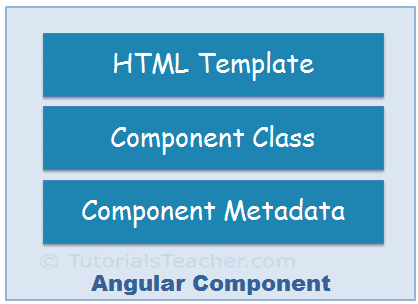
    Angular Component = HTML Template + Component Class + Component Metadata

    HTML Template

    HTML template is nothing but a regular HTML code with additional Angular specific syntax to communicate with the component class.

    Class

    Essentially, a component class is a TypeScript class that includes properties and methods. Properties store data and methods include the logic for the component. Eventually, this class will be compiled into JavaScript.

     Note:
    TypeScript is an open-source, object-oriented language developed and maintained by Microsoft. It is a typed superset of JavaScript that compiles to plain JavaScript.

    Metadata

    Metadata is some extra data for a component used by Angular API to execute the component, such as the location of HTML and CSS files of the component, selector, providers, etc.

    Generate Angular Component using Angular CLI

    You can create files for a component manually or using the Angular CLI command. Angular CLI reduces the development time. So, let’s use Angular CLI to create a new component.

    Use the following CLI command to generate a component.

    ng generate component <component name>

    All Angular CLI command starts with nggenerate or g is a command, component is an argument and then the name of the component.

    The following executes the ng g command to generate the greet component in VS Code.

    Create Angular Component

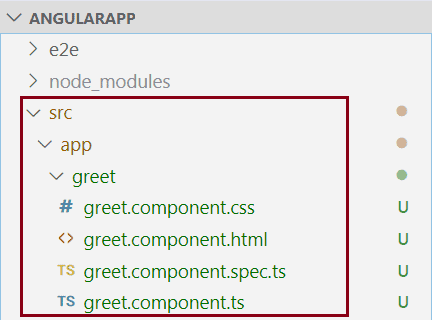
    The above command will create a new “greet” folder and app folder and create four files, as shown below.

    Component Files

    Above, greet.component.css is a CSS file for the component, greet.component.html is an HTML file for the component where we will write HTML for a component, greet.component.spec.ts is a test file where we can write unit tests for a component, and greet.component.ts is the class file for a component.

     Note:
    A component can have a single file or multiple files. A single TypeScript file can include an HTML template, component class, and component metadata.

    Component Naming Convention

    All the component files in Angular should follow the following format:

    <component-name>.component.<file-type>

    A component file should include .component in name prefixed with the component name and followed by file type. For example, a TypeScript file for our greet component is named greet.component.ts. As you have noticed, all the files of greet component are having the same naming conventions. Visit Angular Style guide to know more about it.

    Now, open greet.component.ts file in VS Code, and you will see the following code.

    Example: Component Class
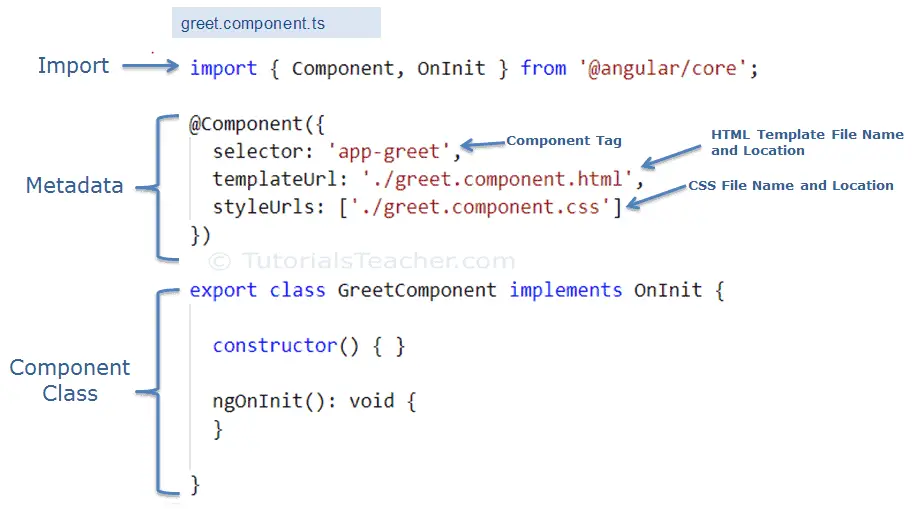
    import { Component, OnInit } from '@angular/core'; @Component({   selector: 'app-greet',   templateUrl: './greet.component.html',   styleUrls: ['./greet.component.css'] }) export class GreetComponent implements OnInit {   constructor() { }   ngOnInit(): void {   } }

    The following figure illustrates the important part of the component class.

    The greet.component.ts includes the following parts:

    Component Class: GreetComponent is the component class. It contains properties and methods to interact with the view through an Angular API. It implements the OnInit interface, which is a lifecycle hook.

    Component Metadata: The @Component is a decorator used to specify the metadata for the component class defined immediately below it. It is a function and can include different configs for the component. It instructs Angular where to get required files for the component, create and render component. All Angular components must have @Component decorator above the component class.

    The import statement gets the required feature from the Angular or other libraries. Import allows us to use exported members from external modules. For example, @Component decorator and OnInit interface are contained in @angular/core library. So, we can use them after importing it.

    Now, let’s add a property and method in the component class, as shown below.

    Example: Add Properties and Methods in the Component Class
    export class GreetComponent implements OnInit {   constructor() { }   ngOnInit(): void {   }   name: string = "Steve";   greet(): void {       alert("Hello " + this.name);   }; }

    Above, we have added the name property and the greet method in the component class. Let’s use these in the HTML template.

    Open greet.component.html file, remove existing code and add the following code.

    greet.component.ts
    <div>     Enter Your Name: <input type="text" value={{name}} /> <br />     <button (click)="greet()">Greet Me!</button> </div>

    In the above HTML template, we used name property in the {{ }} interpolation to display its value and greet() function as click event. Lean more about it in event binding section.

    Bootstrapping Component

    Now, it’s time to load our component, but before that, we need to host our application and load the root component. This process is called bootstrapping.

    Angular is a single page application (SPA) framework. So, we need to host our application in index.html, and then we need to define a root module to bootstrap our root component. Index.html will be the only web page in an Angular application, and that’s why it is called SPA.

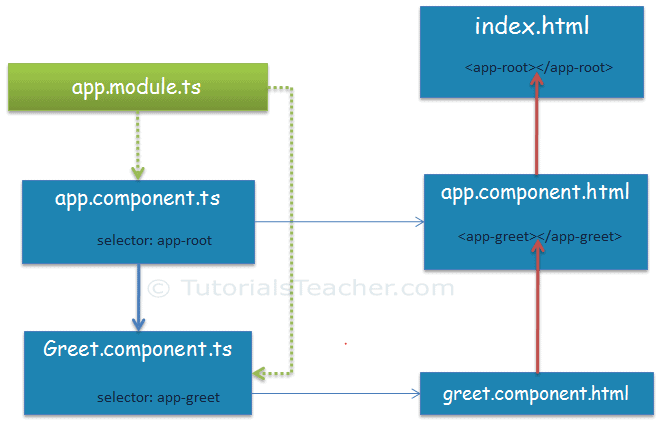
    When you generate Angular application using Angular CLI, it automatically creates index.html, root component app.component.ts, root module app.module.ts, and HTML template app.component.html for you. The AppComponent class in app.component.ts is a root component, and the AppModule class in app.module.ts is a root module.

    Here, we will load our greet component into the root component in two steps.

    1. Declare a component in the root module.

    We want to load our new GreetComponent into the root component. So, the root module must know about it. We can do it by adding the GreetComponent in the declarations array in app.module.ts, as shown below.

    Example: Add Component in the root module app.module.ts
    import { BrowserModule } from '@angular/platform-browser'; import { NgModule } from '@angular/core'; import { AppRoutingModule } from './app-routing.module'; import { AppComponent } from './app.component'; import { GreetComponent } from './greet/greet.component'; //import GreetComponent @NgModule({   declarations: [     AppComponent,     GreetComponent  // <- include GreetComponent in declarations   ],   imports: [     BrowserModule,     AppRoutingModule   ],   providers: [],   bootstrap: [AppComponent] }) export class AppModule { }

    2. Add component tag in the root HTML template.

    After adding a component declaration, use component tag <app-greet></app-greet> in the HTML file of the root component, which is app.component.html, as shown below.

    app.component.html
    <div>     <app-greet></app-greet> </div>

    The following figure illustrates the component bootstrap process:

    Run the app by executing npm start command in the terminal of VS Code. After successful compilation, open the browser and enter http://localhost:4200. The following page will be displayed.

    This is how we can create and use custom components in Angular.

    We can also create a single component file greet.component.ts if the HTML code of a component is less. Use the template parameter in the @Component decorator to include HTML of the component. The following greet component gives the same result as above.

    Example: Component Class with HTML Template
    import { Component } from '@angular/core'; @Component({     selector: "app-greet",     template: `<div>     Enter Your Name: <input type="text" value={{name}} /> <br/>     <button (click)="greet()">Greet Me!</button>     </div>` }) export class GreetComponent {     name: string = "Steve";     greet(): void {         alert("Hello " + this.name);     }; }

  • Create Angular 2 Application

    Here you will learn to create an Angular 2 (valid in the Angular 11 too) application using Angular CLI.

    Angular CLI helps us to set up a workspace and an initial application quickly, which includes necessary NPM libraries and other dependencies for the application.

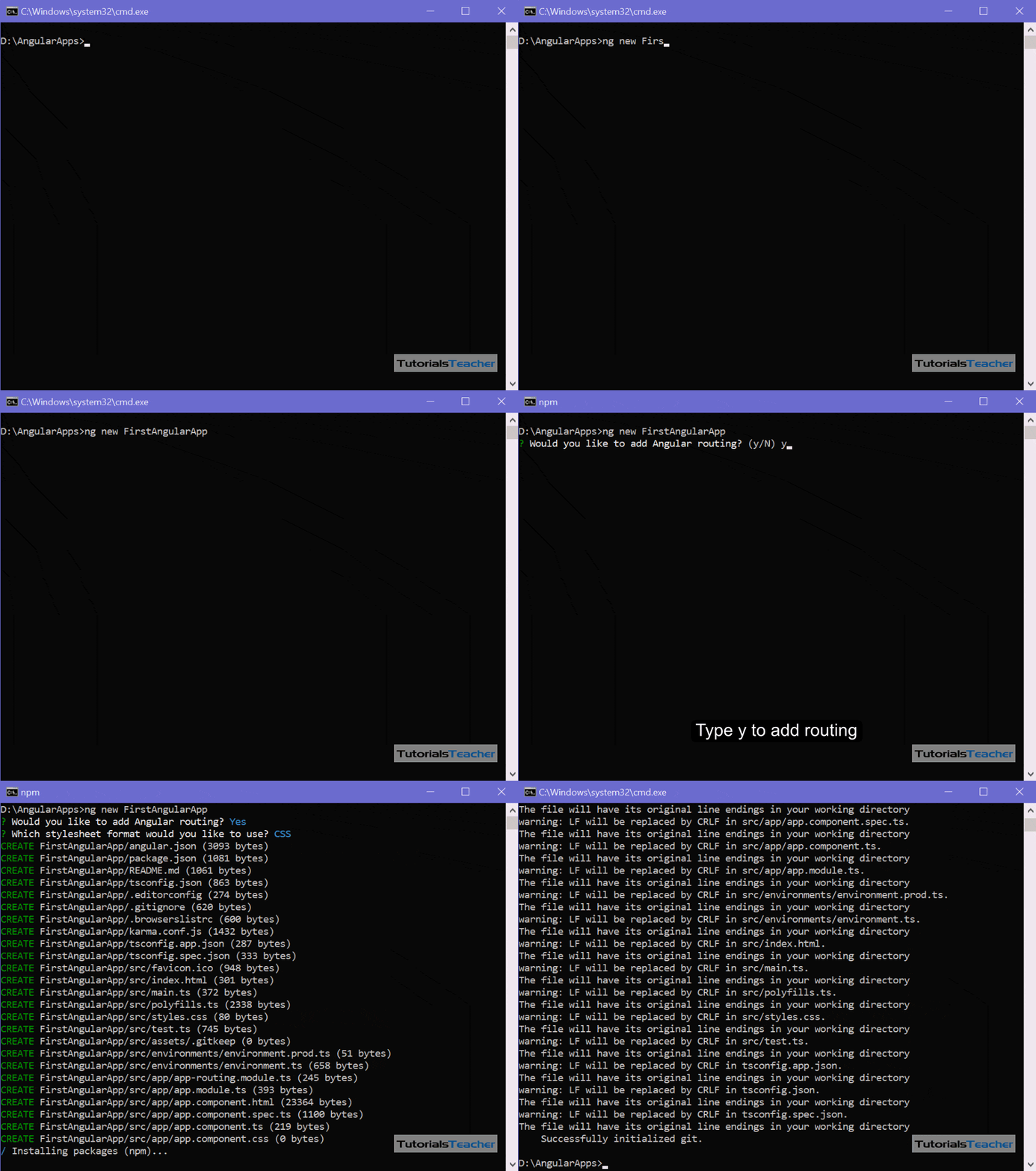
    To create an initial application, navigate to the folder where you want to create an application, and execute the ng new <project name> command in the terminal/command window.

    The following creates a new angular application named “FirstAngularApp” in the AngularApps folder.D:\AngularApps> ng new FirstAngularApp

    The ng new command prompts you for information about features to include in the initial app project. You can accept the defaults by pressing an Enter key, as shown below.

    Generate Angular App using Angular CLI

    The above command may take 2-3 minutes to create a project and install necessary libraries. To open this project in VS Code, navigate to the project folder in the terminal/command window and type code ..D:\AngularApps\FirstAngularApp\>code .

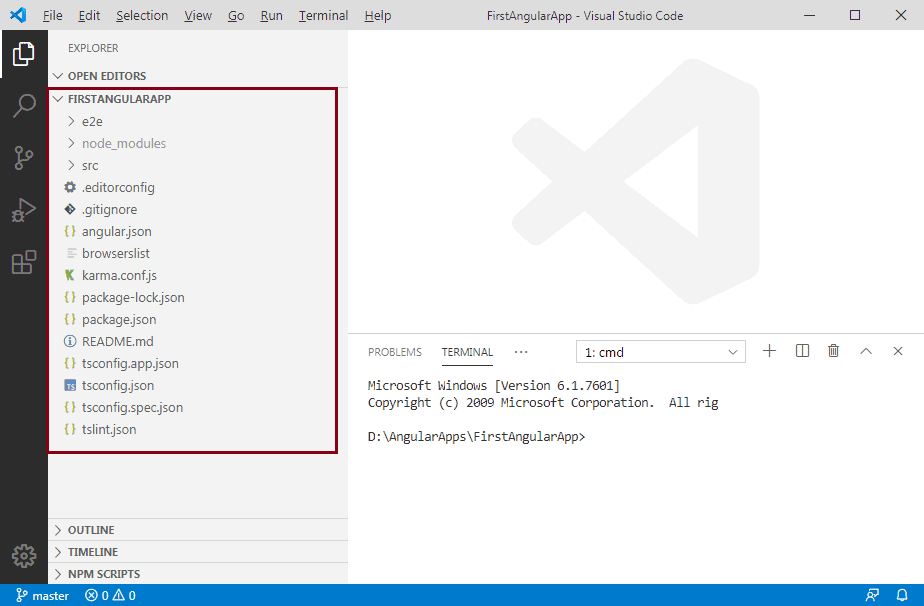
    Your new project in VS Code will look like below.

    Angular Project in VS Code

    The left pane in VS Code shows the files and folders created by Angular CLI. Learn about the Angular project folder structure here.

    Run Angular Application

    To run an Angular application in the browser, you first need to build it.

    You can build and run applications either using Angular CLI command or NPM command. You can use the terminal/command window to execute these commands. However, if you are using VS Code then you can execute commands from its terminal.

    Use Angular CLI command ng serve -o to build an application. The -o indicates to open it automatically in the default browser.

    Use NPM command npm start to build an application. Internally, it uses ng serve command only. Open a browser and navigate to http://localhost:4200 to see the application home page. The http://localhost:4200 is the default URL of an Angular application created using Angular CLI.

    Open the terminal in VS Code from menu Terminal -> New Terminal, and type ng serve -o command and press enter, as shown below.

    The ng serve command builds the app, starts the development server, watches the source files, and rebuilds the app as you make changes to those files. It will open your Angular application in the default browser, as shown below.

    The ng serve command keep watching source files, so if you make any changes in any file of the project, it will rebuild it and refresh the browser automatically to reflect the changes.

    To stop the automatic build process, press Ctrl + c in the terminal of VS Code.

    Thus, you can create a workspace and an initial Angular project and run it using VS Code.

    • Share
    • Tweet
    • Share
    • Whatsapp
  • Install Angular 2 (v11)

    Here you will learn how to install the latest version of Angular 2.

    Before installing Angular, you need to install some prerequisites. Angular uses NPM (Node Package Manager) to install libraries, packages and also to execute scripts. So, you need to install NPM before installing Angular.

    Angular requires a current, active LTS or maintenance LTS version of Node.js and NPM.

    Open terminal/command window and type node -v command to check whether the Node.js is installed on your local machine or not. If it is already installed, then it will display the version number, as shown below.C:

    \Users\xyz> node -v
    v14.18.0

    If the above command does not display the version number then it means Node.js is not installed. To install the latest version of Node.js, go to https://nodejs.org and download the installer for your platform and install it. This will install Node.js and NPM (Node Package Manager) on your local machine.

    Update NPM

    Angular requires NPM v6.11 or later. Check the NPM version on your local machine by opening a terminal/command window and type the following command:

    >npm -v
    6.14.4

    This will display the version number of NPM installed on your local machine. If you don’t have the latest version of NPM, then update it using the following command on Windows.npm install -g npm

    If you are on MAC, use sudo npm install -g npm command.

    After installing Node.js and NPM, install the Angular CLI.

    Install Angular CLI

    Angular provides many libraries and packages for application development. You can install libraries required for your application using Angular CLI (Command Line Interface). Angular CLI is also used to generate, build, run, and deploy Angular application.

    To install the Angular CLI globally using NPM, open a terminal/command window, and enter the following command:npm install -g @angular/cli@latest

    In the above command -g indicates global, so that you can use angular CLI anywhere on your local machine. @latest is specifies to install the latest verion of angular CLI.

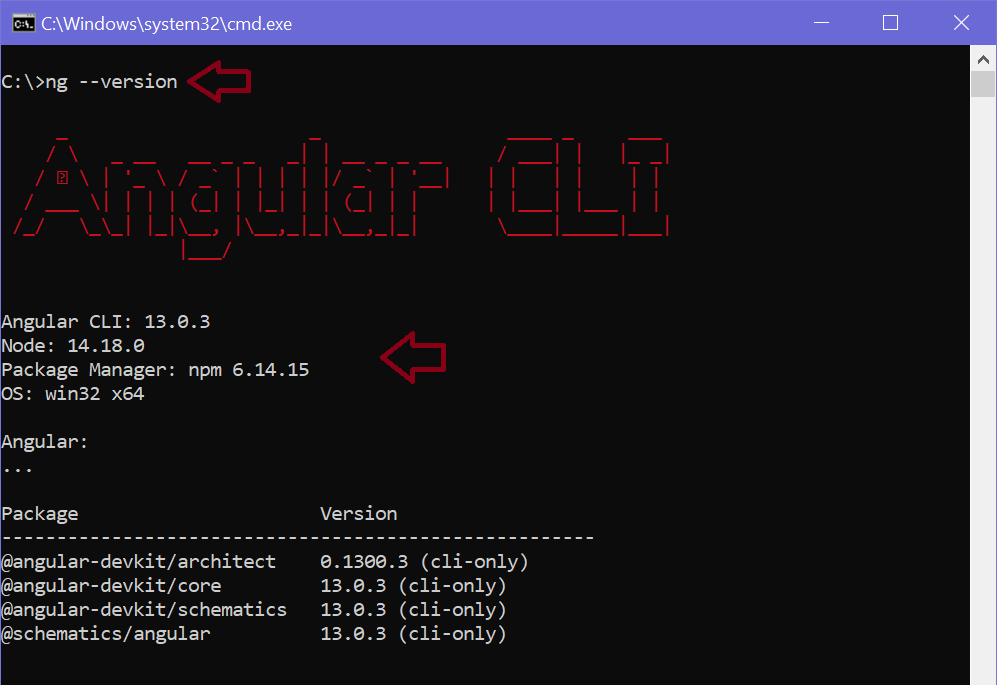
    After the installation, check the Angular version using the ng --version command in the terminal/command window, as shown below.

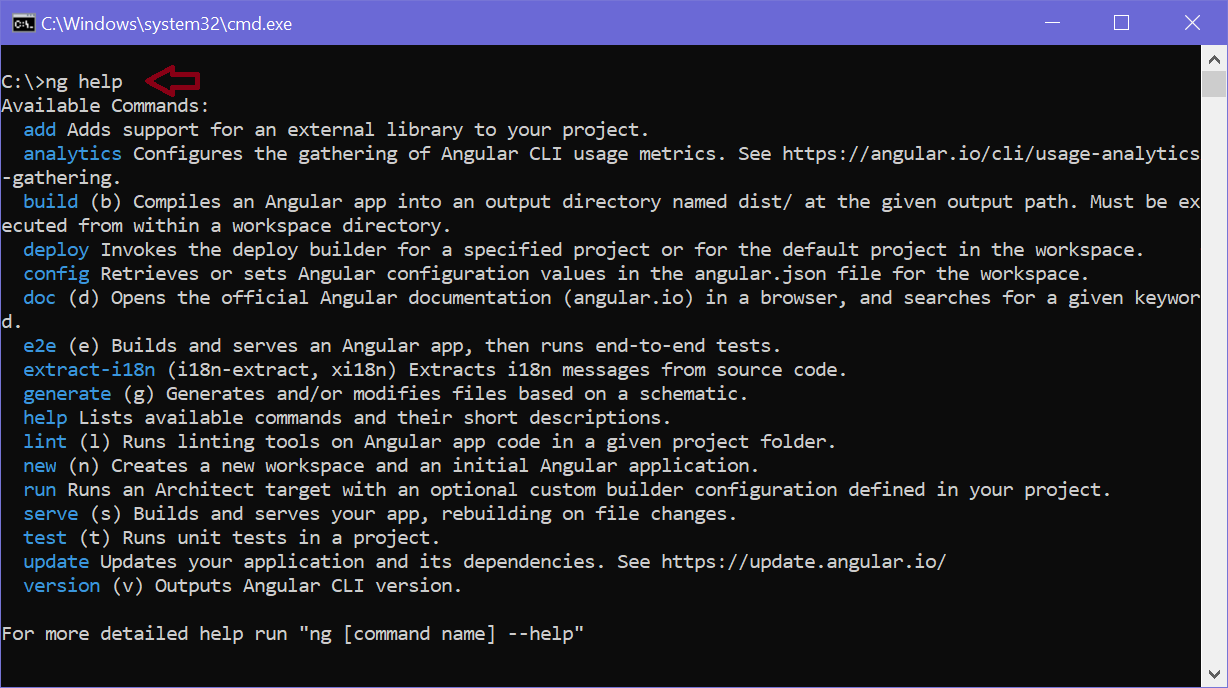
    Use ng help command to see all the CLI commands, as shown below.

     Note:

    Angular CLI use Package.json in your application to install all the necessary libraries and packages for your application, including the required Angular framework libraries.

    Visual Studio Code

    Most Angular developers prefer to use Visual Studio Code for Angular application development. It’s free and open-source.

    To install VS Code, go to https://code.visualstudio.com , download, and install it.

    Now, you are ready to develop Angular applications. Learn how to generate an initial angular application using Angular CLI next.

    • Share
    • Tweet
    • Share
    • Whatsapp
  • Angular 11 Tutorial

    Angular is an open-source JavaScript MVC framework for the web applications. It extends the HTML and makes it dynamic. Angular is used to create Single Page Applications.

    These tutorials will help you learn the essentials of the latest version of Angular 2, starting from the basics to the advanced level. These tutorials are broken down into sections, where each section contains a number of related topics that are packed with easy to understand explanations, real-world examples, useful tips, informative notes section.

    These tutorials are designed for beginners and professionals who want to learn Angular v11 step by step.

    Prerequisites

    Basic knowledge of HTML, JavaScript, CSS, and web application is required.

  • JavaScript Objects

    What is an Object?

    JavaScript is an object-based language and in JavaScript almost everything is an object or acts like an object. So, to work with JavaScript effectively and efficiently we need to understand how objects work as well as how to create your own objects and use them.

    A JavaScript object is just a collection of named values. These named values are usually referred to as properties of the object. If you remember from the JavaScript arrays chapter, an array is a collection of values, where each value has an index (a numeric key) that starts from zero and increments by one for each value. An object is similar to an array, but the difference is that you define the keys yourself, such as name, age, gender, and so on. In the following sections we’ll learn about objects in detail.

    Creating Objects

    An object can be created with curly brackets {} with an optional list of properties. A property is a “key: value” pair, where the key (or property name) is always a string, and value (or property value) can be any data type, like strings, numbers, Booleans or complex data type like arrays, functions, and other objects. Additionally, properties with functions as their values are often called methods to distinguish them from other properties. A typical JavaScript object may look like this:

    Example

    let person = {
        name: "Peter",
        age: 28,
        gender: "Male",
        displayName: function() {
            alert(this.name);
        }
    };

    The above example creates an object called person that has three properties nameage, and gender and one method displayName(). The displayName() method displays the value of this.name, which resolves to person.name. This is the easiest and preferred way to create a new object in JavaScript, which is known as object literals syntax.

    The property names generally do not need to be quoted unless they are reserved words, or if they contain spaces or special characters (anything other than letters, numbers, and the _ and $ characters), or if they start with a number, as shown in the following example:

    Example

    let person = {
        "first name": "Peter",
        "current age": 28,
        gender: "Male"
    };

    Note: Since ECMAScript 5, reserved words can be used as object’s property names without quoting. However, you should avoid doing this for better compatibility.


    Accessing Object’s Properties

    To access or get the value of a property, you can use the dot (.), or square bracket ([]) notation, as demonstrated in the following example:

    Example

    let book = {
        "name": "Harry Potter and the Goblet of Fire",
        "author": "J. K. Rowling",
        "year": 2000
    };
    
    // Dot notation
    document.write(book.author);  // Prints: J. K. Rowling
    
    // Bracket notation
    document.write(book["year"]); // Prints: 2000

    The dot notation is easier to read and write, but it cannot always be used. If the name of the property is not valid (i.e. if it contains spaces or special characters), you cannot use the dot notation; you’ll have to use bracket notation, as shown in the following example:

    Example

    let book = {
        name: "Harry Potter and the Goblet of Fire",
        author: "J. K. Rowling",
        "publication date": "8 July 2000"
    };
    
    // Bracket notation
    document.write(book["publication date"]); // Prints: 8 July 2000

    The square bracket notation offers much more flexibility than dot notation. It also allows you to specify property names as variables instead of just string literals, as shown in the example below:

    Example

    let person = {
        name: "Peter",
        age: 28,
        gender: "Male"
    };
    
    let key = prompt("Enter any property name to get its value");
    alert(person[key]); // Outputs: Peter (if enter "name")

    Looping Through Object’s Properties

    You can iterate through the key-value pairs of an object using the for...in loop. This loop is specially optimized for iterating over object’s properties. Here’s an example:

    Example

    let person = {
        name: "Peter",
        age: 28,
        gender: "Male"
    };
    
    // Iterating over object properties
    for(let i in person) {  
        document.write(person[i] + "<br>"); // Prints: name, age and gender
    }

    Setting Object’s Properties

    Similarly, you can set the new properties or update the existing one using the dot (.) or bracket ([]) notation, as demonstrated in the following example:

    Example

    let person = {
        name: "Peter",
        age: 28,
        gender: "Male"
    };
    
    // Setting a new property
    person.country = "United States";
    document.write(person.country); // Prints: United States
    
    person["email"] = "[email protected]";
    document.write(person.email); // Prints: [email protected]
    
    // Updating existing property
    person.age = 30;
    document.write(person.age); // Prints: 30
    
    person["name"] = "Peter Parker";
    document.write(person.name); // Prints: Peter Parker

    Deleting Object’s Properties

    The delete operator can be used to completely remove properties from an object. Deleting is the only way to actually remove a property from an object. Setting the property to undefined or null only changes the value of the property. It does not remove property from the object.

    Example

    let person = {
        name: "Peter",
        age: 28,
        gender: "Male",
        displayName: function() {
            alert(this.name);
        }
    };
    
    // Deleting property
    delete person.age;
    alert(person.age); // Outputs: undefined

    Note: The delete operator only removes an object property or array element. It has no effect on variables or declared functions. However, you should avoid delete operator for deleting an array element, as it doesn’t change the array’s length, it just leaves a hole in the array.


    Calling Object’s Methods

    You can access an object’s method the same way as you would access properties—using the dot notation or using the square bracket notation. Here’s an example:

    Example

    let person = {
        name: "Peter",
        age: 28,
        gender: "Male",
        displayName: function() {
            alert(this.name);
        }
    };
    
    person.displayName(); // Outputs: Peter
    person["displayName"](); // Outputs: Peter

    Manipulating by Value vs. Reference

    JavaScript objects are reference types that mean when you make copies of them, you’re really just copying the references to that object. Whereas primitive values like strings and numbers are assigned or copied as a whole value. To better understand all this, let’s check out the following example:

    Example

    let message = "Hello World!";
    
    let greet = message; // Assign message variable to a new variable
    greet = "Hi, there!";
    
    document.write(message);  // Prints: Hello World!
    document.write(greet);  // Prints: Hi, there!

    In the above example, we have made a copy of a variable message and changed the value of that copy (i.e. variable greet). The two variables remain distinct and separate. But, if we do the same thing with an object, we will get a different result, as you see in the following example:

    Example

    let person = {
        name: "Peter",
        age: 28,
        gender: "Male"
    };
    
    let user = person; // Assign person variable to a new variable
    user.name = "Harry";
    
    document.write(person.name);  // Prints: Harry
    document.write(user.name);  // Prints: Harry

    You can clearly see, any changes made to the variable user also change the person variable; it happens because both variables reference the same object. So, simply copying the object does not actually clone it but copies the reference to that object.

  • JavaScript Functions

    What is Function?

    A function is a group of statements that perform specific tasks and can be kept and maintained separately form main program. Functions provide a way to create reusable code packages which are more portable and easier to debug. Here are some advantages of using functions:

    • Functions reduces the repetition of code within a program — Function allows you to extract commonly used block of code into a single component. Now you can perform the same task by calling this function wherever you want within your script without having to copy and paste the same block of code again and again.
    • Functions makes the code much easier to maintain — Since a function created once can be used many times, so any changes made inside a function automatically implemented at all the places without touching the several files.
    • Functions makes it easier to eliminate the errors — When the program is subdivided into functions, if any error occur you know exactly what function causing the error and where to find it. Therefore, fixing errors becomes much easier.

    The following section will show you how to define and call functions in your scripts.

    Defining and Calling a Function

    The declaration of a function start with the function keyword, followed by the name of the function you want to create, followed by parentheses i.e. () and finally place your function’s code between curly brackets {}. Here’s the basic syntax for declaring a function:

    function functionName() {
    // Code to be executed
    }

    Here is a simple example of a function, that will show a hello message:

    Example

    // Defining function
    function sayHello() {
        alert("Hello, welcome to this website!");
    }
     
    // Calling function
    sayHello(); // 0utputs: Hello, welcome to this website!

    Once a function is defined it can be called (invoked) from anywhere in the document, by typing its name followed by a set of parentheses, like sayHello() in the example above.

    Note: A function name must start with a letter or underscore character not with a number, optionally followed by the more letters, numbers, or underscore characters. Function names are case sensitive, just like variable names.


    Adding Parameters to Functions

    You can specify parameters when you define your function to accept input values at run time. The parameters work like placeholder variables within a function; they’re replaced at run time by the values (known as argument) provided to the function at the time of invocation.

    Parameters are set on the first line of the function inside the set of parentheses, like this:

    function functionName(parameter1parameter2parameter3) {
    // Code to be executed
    }

    The displaySum() function in the following example takes two numbers as arguments, simply add them together and then display the result in the browser.

    Example

    // Defining function
    function displaySum(num1, num2) {
        let total = num1 + num2;
        alert(total);
    }
     
    // Calling function
    displaySum(6, 20); // 0utputs: 26
    displaySum(-5, 17); // 0utputs: 12

    You can define as many parameters as you like. However for each parameter you specify, a corresponding argument needs to be passed to the function when it is called, otherwise its value becomes undefined. Let’s consider the following example:

    Example

    // Defining function
    function showFullname(firstName, lastName) {
        alert(firstName + " " + lastName);
    }
     
    // Calling function
    showFullname("Clark", "Kent"); // 0utputs: Clark Kent
    showFullname("John"); // 0utputs: John undefined

    Default Values for Function Parameters ES6

    With ES6, now you can specify default values to the function parameters. This means that if no arguments are provided to function when it is called these default parameters values will be used. This is one of the most awaited features in JavaScript. Here’s an example:

    Example

    function sayHello(name = 'Guest') {
        alert('Hello, ' + name);
    }
    
    sayHello(); // 0utputs: Hello, Guest
    sayHello('John'); // 0utputs: Hello, John

    While prior to ES6, to achieve the same we had to write something like this:

    Example

    function sayHello(name) {
        let name = name || 'Guest'; 
        alert('Hello, ' + name);
    }
    
    sayHello(); // 0utputs: Hello, Guest
    sayHello('John'); // 0utputs: Hello, John

    To learn about other ES6 features, please check out the JavaScript ES6 features chapter.


    Returning Values from a Function

    A function can return a value back to the script that called the function as a result using the return statement. The value may be of any type, including arrays and objects.

    The return statement usually placed as the last line of the function before the closing curly bracket and ends it with a semicolon, as shown in the following example.

    Example

    // Defining function
    function getSum(num1, num2) {
        let total = num1 + num2;
        return total;
    }
     
    // Displaying returned value
    alert(getSum(6, 20)); // 0utputs: 26
    alert(getSum(-5, 17)); // 0utputs: 12

    A function can not return multiple values. However, you can obtain similar results by returning an array of values, as demonstrated in the following example.

    Example

    // Defining function
    function divideNumbers(dividend, divisor){
        let quotient = dividend / divisor;
        let arr = [dividend, divisor, quotient];
        return arr;
    }
     
    // Store returned value in a variable
    let all = divideNumbers(10, 2);
     
    // Displaying individual values
    alert(all[0]); // 0utputs: 10
    alert(all[1]); // 0utputs: 2
    alert(all[2]); // 0utputs: 5

    Working with Function Expressions

    The syntax that we’ve used before to create functions is called function declaration. There is another syntax for creating a function that is called a function expression.

    Example

    // Function Declaration
    function getSum(num1, num2) {
        let total = num1 + num2;
        return total;
    }
     
    // Function Expression
    let getSum = function(num1, num2) {
        let total = num1 + num2;
        return total;
    };

    Once function expression has been stored in a variable, the variable can be used as a function:

    Example

    let getSum = function(num1, num2) {
        let total = num1 + num2;
        return total;
    };
     
    alert(getSum(5, 10)); // 0utputs: 15
     
    let sum = getSum(7, 25);
    alert(sum); // 0utputs: 32

    Note: There is no need to put a semicolon after the closing curly bracket in a function declaration. But function expressions, on the other hand, should always end with a semicolon.

    Tip: In JavaScript functions can be stored in variables, passed into other functions as arguments, passed out of functions as return values, and constructed at run-time.

    The syntax of the function declaration and function expression looks very similar, but they differ in the way they are evaluated, check out the following example:

    Example

    declaration(); // Outputs: Hi, I'm a function declaration!
    function declaration() {
        alert("Hi, I'm a function declaration!");
    }
     
    expression(); // Uncaught TypeError: undefined is not a function
    let expression = function() {
        alert("Hi, I'm a function expression!");
    };

    As you can see in the above example, the function expression threw an exception when it was invoked before it is defined, but the function declaration executed successfully.

    JavaScript parse declaration function before the program executes. Therefore, it doesn’t matter if the program invokes the function before it is defined because JavaScript has hoisted the function to the top of the current scope behind the scenes. The function expression is not evaluated until it is assigned to a variable; therefore, it is still undefined when invoked.

    ES6 has introduced even shorter syntax for writing function expression which is called arrow function, please check out the JavaScript ES6 features chapter to learn more about it.


    Understanding the Variable Scope

    However, you can declare the variables anywhere in JavaScript. But, the location of the declaration determines the extent of a variable’s availability within the JavaScript program i.e. where the variable can be used or accessed. This accessibility is known as variable scope.

    By default, variables declared within a function have local scope that means they cannot be viewed or manipulated from outside of that function, as shown in the example below:

    Example

    // Defining function
    function greetWorld() {
        let greet = "Hello World!";
        alert(greet);
    }
     
    greetWorld(); // Outputs: Hello World!
     
    alert(greet); // Uncaught ReferenceError: greet is not defined

    However, any variables declared in a program outside of a function has global scope i.e. it will be available to all script, whether that script is inside a function or outside. Here’s an example:

    Example

    let greet = "Hello World!";
     
    // Defining function
    function greetWorld() {
        alert(greet);
    }
     
    greetWorld();  // Outputs: Hello World!
     
    alert(greet); // Outputs: Hello World!
  • JavaScript Loops

    Different Types of Loops in JavaScript

    Loops are used to execute the same block of code again and again, as long as a certain condition is met. The basic idea behind a loop is to automate the repetitive tasks within a program to save the time and effort. JavaScript now supports five different types of loops:

    • while — loops through a block of code as long as the condition specified evaluates to true.
    • do…while — loops through a block of code once; then the condition is evaluated. If the condition is true, the statement is repeated as long as the specified condition is true.
    • for — loops through a block of code until the counter reaches a specified number.
    • for…in — loops through the properties of an object.
    • for…of — loops over iterable objects such as arrays, strings, etc.

    In the following sections, we will discuss each of these loop statements in detail.


    The while Loop

    This is the simplest looping statement provided by JavaScript.

    The while loop loops through a block of code as long as the specified condition evaluates to true. As soon as the condition fails, the loop is stopped. The generic syntax of the while loop is:

    while(condition) {
    // Code to be executed
    }

    The following example defines a loop that will continue to run as long as the variable i is less than or equal to 5. The variable i will increase by 1 each time the loop runs:

    Example

    let i = 1;
    while(i <= 5) {    
        document.write("<p>The number is " + i + "</p>");
        i++;
    }

    Note: Make sure that the condition specified in your loop eventually goes false. Otherwise, the loop will never stop iterating which is known as infinite loop. A common mistake is to forget to increment the counter variable (variable i in our case).


    The do…while Loop

    The do-while loop is a variant of the while loop, which evaluates the condition at the end of each loop iteration. With a do-while loop the block of code executed once, and then the condition is evaluated, if the condition is true, the statement is repeated as long as the specified condition evaluated to is true. The generic syntax of the do-while loop is:

    do {
    // Code to be executed
    }
    while(condition);

    The JavaScript code in the following example defines a loop that starts with i=1. It will then print the output and increase the value of variable i by 1. After that the condition is evaluated, and the loop will continue to run as long as the variable i is less than, or equal to 5.

    Example

    let i = 1;
    do {
        document.write("<p>The number is " + i + "</p>");
        i++;
    }
    while(i <= 5);

    Difference Between while and do…while Loop

    The while loop differs from the do-while loop in one important way — with a while loop, the condition to be evaluated is tested at the beginning of each loop iteration, so if the conditional expression evaluates to false, the loop will never be executed.

    With a do-while loop, on the other hand, the loop will always be executed once even if the conditional expression evaluates to false, because unlike the while loop, the condition is evaluated at the end of the loop iteration rather than the beginning.


    The for Loop

    The for loop repeats a block of code as long as a certain condition is met. It is typically used to execute a block of code for certain number of times. Its syntax is:

    for(initializationconditionincrement) {
    // Code to be executed
    }

    The parameters of the for loop statement have following meanings:

    • initialization — it is used to initialize the counter variables, and evaluated once unconditionally before the first execution of the body of the loop.
    • condition — it is evaluated at the beginning of each iteration. If it evaluates to true, the loop statements execute. If it evaluates to false, the execution of the loop ends.
    • increment — it updates the loop counter with a new value each time the loop runs.

    The following example defines a loop that starts with i=1. The loop will continued until the value of variable i is less than or equal to 5. The variable i will increase by 1 each time the loop runs:

    Example

    for(let i=1; i<=5; i++) {
        document.write("<p>The number is " + i + "</p>");
    }

    The for loop is particularly useful for iterating over an array. The following example will show you how to print each item or element of the JavaScript array.

    Exampl

    // An array with some elements
    let fruits = ["Apple", "Banana", "Mango", "Orange", "Papaya"];
     
    // Loop through all the elements in the array 
    for(let i=0; i<fruits.length; i++) {
        document.write("<p>" + fruits[i] + "</p>");
    }

    The for…in Loop

    The for-in loop is a special type of a loop that iterates over the properties of an object, or the elements of an array. The generic syntax of the for-in loop is:

    for(variable in object) {
    // Code to be executed
    }

    The loop counter i.e. variable in the for-in loop is a string, not a number. It contains the name of current property or the index of the current array element.

    The following example will show you how to loop through all properties of a JavaScript object.

    Example

    // An object with some properties 
    let person = {"name": "Clark", "surname": "Kent", "age": "36"};
     
    // Loop through all the properties in the object  
    for(let prop in person) {  
        document.write("<p>" + prop + " = " + person[prop] + "</p>"); 
    }

    Similarly, you can loop through the elements of an array, like this:

    Example

    // An array with some elements
    let fruits = ["Apple", "Banana", "Mango", "Orange", "Papaya"];
     
    // Loop through all the elements in the array 
    for(let i in fruits) {  
        document.write("<p>" + fruits[i] + "</p>");
    }

    Note: The for-in loop should not be used to iterate over an array where the index order is important. You should better use a for loop with a numeric index.


    The for…of Loop ES6

    ES6 introduces a new for-of loop which allows us to iterate over arrays or other iterable objects (e.g. strings) very easily. Also, the code inside the loop is executed for each element of the iterable object.

    The following example will show you how to loop through arrays and strings using this loop.

    Example

    // Iterating over array
    let letters = ["a", "b", "c", "d", "e", "f"];
    
    for(let letter of letters) {
        console.log(letter); // a,b,c,d,e,f
    }
    
    // Iterating over string
    let greet = "Hello World!";
    
    for(let character of greet) {
        console.log(character); // H,e,l,l,o, ,W,o,r,l,d,!
    }

    To learn about other ES6 features, please check out the JavaScript ES6 features chapter.