Author: Saim Khalid

  • HTML Paragraphs

    Creating Paragraphs

    Paragraph element is used to publish text on the web pages.

    Paragraphs are defined with the <p> tag. Paragraph tag is a very basic and typically the first tag you will need to publish your text on the web pages. Here’s an example:

    Example

    <p>This is a paragraph.</p>
    <p>This is another paragraph.</p>

    Note: Browsers built-in style sheets automatically create some space above and below the content of a paragraph (called margin), but you can override it using CSS.


    Closing a Paragraph Element

    In HTML 4 and earlier versions, it was enough to initiate a new paragraph using the opening tag. Most browsers will display HTML correctly even if you forget the end tag. For example:

    Example

    <p>This is a paragraph.
    <p>This is another paragraph.

    The HTML code in the example above will work in most of the web browsers, but don’t rely on it. Forgetting the end tag can produce unexpected results or errors.

    Note: For the purposes of forwards-compatibility and good coding practice, it’s advisable to use both the opening and closing tags for the paragraphs.


    Creating Line Breaks

    The <br> tag is used to insert a line break on the web page.

    Since the <br> is an empty element, so there is no need of corresponding </br> tag.

    Example

    <p>This is a paragraph <br> with line break.</p>
    <p>This is <br>another paragraph <br> with line breaks.</p>

    Note: Don’t use the empty paragraph i.e. <p></p> to add extra space in your web pages. The browser may ignore the empty paragraphs since it is logical tag. Use the CSS margin property instead to adjust the space around the elements.


    Creating Horizontal Rules

    You can use the <hr> tag to create horizontal rules or lines to visually separate content sections on a web page. Like <br>, the <hr> tag is also an empty element. Here’s an example:

    Example

    <p>This is a paragraph.</p>
    <hr>
    <p>This is another paragraph.</p>

    Managing White Spaces

    Normally the browser will display the multiple spaces created inside the HTML code by pressing the space-bar key or tab key on the keyboard as a single space. Multiple line breaks created inside the HTML code through pressing the enter key is also displayed as a single space.

    The following paragraphs will be displayed in a single line without any extra space:

    Example

    <p>This paragraph contains  multiple   spaces    in the source code.</p>
    <p>
        This paragraph
        contains multiple tabs and line breaks
        in the source code.
    </p>

    Insert &nbsp; for creating extra consecutive spaces, while insert <br> tag for creating line breaks on your web pages, as demonstrated in the following example:

    Example

    <p>This paragraph has multiple&nbsp;&nbsp;&nbsp;spaces.</p>
    <p>This paragraph has multiple<br><br>line<br><br><br>breaks.</p>

    Defining Preformatted Text

    Sometimes, using &nbsp;<br>, etc. for managing spaces isn’t very convenient. Alternatively, you can use the <pre> tag to display spaces, tabs, line breaks, etc. exactly as written in the HTML file. It is very helpful in presenting text where spaces and line breaks are important like poem or code.

    The following example will display the text in the browser as it is in the source code:

    Example

    <pre>
        Twinkle, twinkle, little star, 
        How I wonder what you are! 
        Up above the world so high, 
        Like a diamond in the sky.
    </pre>
  • HTML Headings

    Organizing Content with Headings

    Headings help in defining the hierarchy and the structure of the web page content.

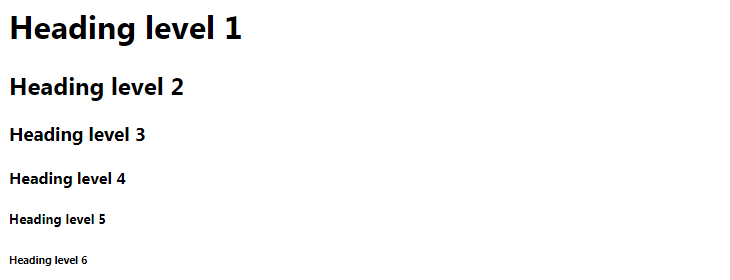
    HTML offers six levels of heading tags, <h1> through <h6>; the lower the heading level number, the greater its importance — therefore <h1> tag defines the most important heading, whereas the <h6> tag defines the least important heading in the document.

    By default, browsers display headings in larger and bolder font than normal text. Also, <h1> headings are displayed in largest font, whereas <h6> headings are displayed in smallest font.

    Example

    <h1>Heading level 1</h1>
    <h2>Heading level 2</h2>
    <h3>Heading level 3</h3>
    <h4>Heading level 4</h4>
    <h5>Heading level 5</h5>
    <h6>Heading level 6</h6>

    — The output of the above example will look something like this:

    HTML Headings
  • HTML Attributes

    What are Attributes

    Attributes define additional characteristics or properties of the element such as width and height of an image. Attributes are always specified in the start tag (or opening tag) and usually consist of name/value pairs like name="value". Attribute values should always be enclosed in quotation marks.

    Also, some attributes are required for certain elements. For instance, an <img> tag must contain a src and alt attributes. Let’s take a look at some examples of the attributes usages:

    Example

    <img src="images/smiley.png" width="30" height="30" alt="Smiley">
    <a href="https://www.google.com/" title="Search Engine">Google</a>
    <abbr title="Hyper Text Markup Language">HTML</abbr>
    <input type="text" value="John Doe">

    In the above example src inside the <img> tag is an attribute and image path provided is its value. Similarly href inside the <a> tag is an attribute and the link provided is its value, and so on.

    Tip: Both single and double quotes can be used to quote attribute values. However, double quotes are most common. In situations where the attribute value itself contains double quotes it is necessary to wrap the value in single quotes, e.g., value='John "Williams" Jr.'

    There are several attributes in HTML5 that do not consist of name/value pairs but consist of just a name. Such attributes are called Boolean attributes. Examples of some commonly used Boolean attributes are checkeddisabledreadonlyrequired, etc.

    Example

    <input type="email" required>
    <input type="submit" value="Submit" disabled>
    <input type="checkbox" checked>
    <input type="text" value="Read only text" readonly>

    You will learn about all these elements in detail in upcoming chapters.

    Note: Attribute values are generally case-insensitive, except certain attribute values, like the id and class attributes. However, World Wide Web Consortium (W3C) recommends lowercase for attributes values in their specification.


    General Purpose Attributes

    There are some attributes, such as idtitleclassstyle, etc. that you can use on the majority of HTML elements. The following section describes their usage.

    The id Attribute

    The id attribute is used to give a unique name or identifier to an element within a document. This makes it easier to select the element using CSS or JavaScript.

    Example

    <input type="text" id="firstName">
    <div id="container">Some content</div>
    <p id="infoText">This is a paragraph.</p>

    Note: The id of an element must be unique within a single document. No two elements in the same document can be named with the same id, and each element can have only one id.

    The class Attribute

    Like id attribute, the class attribute is also used to identify elements. But unlike id, the class attribute does not have to be unique in the document. This means you can apply the same class to multiple elements in a document, as shown in the following example:

    Example

    <input type="text" class="highlight">
    <div class="box highlight">Some content</div>
    <p class="highlight">This is a paragraph.</p>

    Tip: Since a class can be applied to multiple elements, therefore any style rules that are written for that class will be applied to all the elements having that class.

    The title Attribute

    The title attribute to is used to provide advisory text about an element or its content. Try out the following example to understand how this actually works.

    Example

    <abbr title="World Wide Web Consortium">W3C</abbr>
    <a href="images/kites.jpg" title="Click to view a larger image">
        <img src="images/kites-thumb.jpg" alt="kites">
    </a>

    Tip: The value of the title attribute (i.e. title text) is displayed as a tooltip by the web browsers when the user place mouse cursor over the element.

    The style Attribute

    The style attribute allows you to specify CSS styling rules such as color, font, border, etc. directly within the element. Let’s check out an example to see how it works:

    Example

    <p style="color: blue;">This is a paragraph.</p>
    <img src="images/sky.jpg" style="width: 300px;" alt="Cloudy Sky">
    <div style="border: 1px solid red;">Some content</div>

    You will learn more about styling HTML elements in HTML styles chapter.

    The attributes we’ve discussed above are also called global attributes. For more global attributes please check out the HTML5 global attributes reference.

    A complete list of attributes for each HTML element is listed inside HTML5 tag reference.

  • HTML 5 Example

    Let’s see a simple example of HTML5.

    1. <!DOCTYPE>  
    2. <html>  
    3. <body>  
    4. <h1>Write Your First Heading</h1>  
    5. <p>Write Your First Paragraph.</p>  
    6. </body>  
    7. </html>
  • Why use HTML5

    It is enriched with advance features which makes it easy and interactive for designer/developer and users.

    It allows you to play a video and audio file.

    It allows you to draw on a canvas.

    It facilitate you to design better forms and build web applications that work offline.

    It provides you advance features for that you would normally have to write JavaScript to do.

    The most important reason to use HTML 5 is, we believe it is not going anywhere. It will be here to serve for a long time according to W3C recommendation.

  • HTML5 Tutorial

    HTML5 tutorial provides details of all 40+ HTML tags including audio, video, header, footer, data, datalist, article etc. This HTML tutorial is designed for beginners and professionals.

    HTML5 is a next version of HTML. Here, you will get some brand new features which will make HTML much easier. These new introducing features make your website layout clearer to both website designers and users. There are some elements like <header>, <footer>, <nav> and <article> that define the layout of a website.

  • HTML JavaScript

    A Script is a small program which is used with HTML to make web pages more attractive, dynamic and interactive, such as an alert popup window on mouse click. Currently, the most popular scripting language is JavaScript used for websites.

    Example:

    <!DOCTYPE html>  
    
    <html>  
    
    <body>  
    
    <h1>JavaScript Date and Time example</h1>  
    
    <button type="button"  
    
    onclick="document.getElementById('demo').innerHTML = Date()">  
    
    Click me to display Date and Time.</button>  
    
    <p id="demo"></p>  
    
    </body>  
    
    </html>

    HTML <script> Tag

    The HTML <script> tag is used to specify a client-side script. It may be an internal or external JavaScript which contains scripting statements, hence we can place <script> tag within <body> or <head> section.

    It is mainly used to manipulate images, form validation and change content dynamically. JavaScript uses document.getElementById() method to select an HTML element.

    Example:


    1. <!DOCTYPE html>  
    2. <html>  
    3. <body>  
    4. <h2>Use JavaScript to Change Text</h2>  
    5. <p id="demo"></p>  
    6. <script>  
    7. document.getElementById("demo").innerHTML = "Hello JavaTpoint";  
    8. </script>  
    9. </body>  
    10. </html>

    HTML events with JavaScript

    An event is something which user does, or browser does such as mouse click or page loading are examples of events, and JavaScript comes in the role if we want something to happen on these events.

    HTML provides event handler attributes which work with JavaScript code and can perform some action on an event.

    Syntax:

    <element event = "JS code">   

    Example:

    <input type="button" value="Click" onclick="alert('Hi, how are you')"> 

    Output:

    Click Event Example

    Click on the button and you csn see a pop-up window with a message

    HTML can have following events such as:

    • Form events: reset, submit, etc.
    • Select events: text field, text area, etc.
    • Focus event: focus, blur, etc.
    • Mouse events: select, mouseup, mousemove, mousedown, click, dblclick, etc.

    Following are the list for Window event attributes:

    Event Event NameHandler NameOccurs when
    onBlurblurWhen form input loses focus
    onClickclickWhen the user clicks on a form element or a link
    onSubmitsubmitWhen user submits a form to the server.
    onLoadloadWhen page loads in a browser.
    onFocusfocusWhen user focuses on an input field.
    onSelectselectWhen user selects the form input filed.

    Note: You will learn more about JavaScript Events in our JavaScript tutorial.

    Let’s see what JavaScript can do:

    1) JavaScript can change HTML content.

    Example:

    <!DOCTYPE html>  
    
    <html>  
    
    <body>  
    
    <p>JavaScript can change the content of an HTML element:</p>  
    
    <button type="button" onclick="myFunction()">Click Me!</button>  
    
    <p id="demo"></p>  
    
    <script>  
    
    function myFunction() {   
    
        document.getElementById("demo").innerHTML = "Hello JavaTpoint!";  
    
    }  
    
    </script>  
    
    </body>  
    
    </html>

    2) JavaScript can change HTML style

    Example:

    <!DOCTYPE html>  
    
    <html>  
    
    <body>  
    
    <p id="demo">JavaScript can change the style of an HTML element.</p>  
    
    <script>  
    
    function myFunction() {  
    
        document.getElementById("demo").style.fontSize = "25px";   
    
        document.getElementById("demo").style.color = "brown";  
    
        document.getElementById("demo").style.backgroundColor = "lightgreen";         
    
    }  
    
    </script>  
    
    <button type="button" onclick="myFunction()">Click Me!</button>  
    
    </body>  
    
    </html>

    3) JavaScript can change HTML attributes.

    Example:

    <!DOCTYPE html>  
    
    <html>  
    
    <body>  
    
    <script>  
    
    function light(sw) {  
    
        var pic;  
    
        if (sw == 0) {  
    
            pic = "pic_lightoff.png"  
    
        } else {  
    
            pic = "pic_lighton.png"  
    
        }  
    
        document.getElementById('myImage').src = pic;  
    
    }  
    
    </script>  
    
    <img id="myImage" src="pic_lightoff.png" width="100" height="180">  
    
    <p>  
    
    <button type="button" onclick="light(1)">Light On</button>  
    
    <button type="button" onclick="light(0)">Light Off</button>  
    
    </p>  
    
    </body>  
    
    </html>

    Use External Script

    Suppose, you have various HTML files which should have same script, then we can put our JavaScript code in separate file and can call in HTML file. Save JavaScript external files using .js extension.

    Note: Do not add <script> tag in the external file, and provide the complete path where you have put the JS file.

    Syntax:

    1. <script type=”text/javascript” src=”URL “></script>  

    Example:

    <!DOCTYPE html>  
    
    <html>  
    
       <head>  
    
        <script type="text/javascript" src="external.js"></script>  
    
        </head>  
    
         <body>  
    
          <h2>External JavaScript Example</h2>  
    
           <form onsubmit="fun()">  
    
             <label>Enter your name:</label><br>  
    
          <input type="text" name="uname" id="frm1"><br>  
    
           <label>Enter your Email-address:</label><br>    
    
          <input type="email" name="email"><br>  
    
          <input type="submit">  
    
      </form>  
    
     </body>  
    
     </html>

    JavaScript code:

    function fun() {  
    
           var x = document.getElementById("frm1").value;  
    
            alert("Hi"+" "+x+ "you have successfully submitted the details");  
    
        }

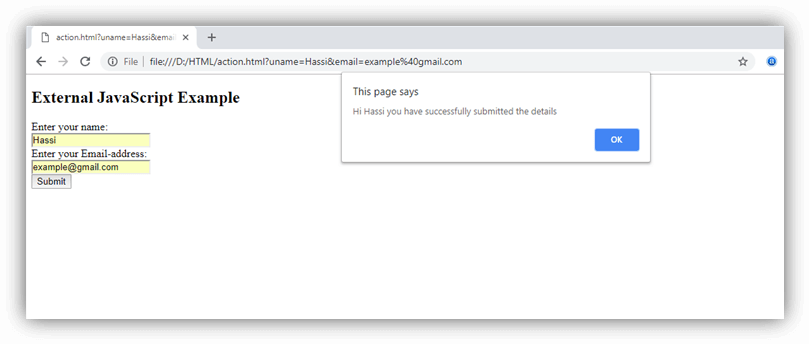
    Output:

    HTML JavaScript

    HTML <noscript> Tag

    HTML <noscript> tag is used to write disabled script in the browser. The text written within <noscript></noscript> tag is not displayed on the browser.

    Example:

    <!DOCTYPE html>  
    
    <html>  
    
    <body>  
    
    <p id="demo"></p>  
    
    <script>  
    
    document.getElementById("demo").innerHTML = "Hello JavaScript!";  
    
    </script>  
    
    <noscript>This text is not visible in the browser.</noscript>  
    
    </body>  
    
    </html>
  • HTML iframes

    HTML Iframe is used to display a nested webpage (a webpage within a webpage). The HTML <iframe> tag defines an inline frame, hence it is also called as an Inline frame.

    An HTML iframe embeds another document within the current HTML document in the rectangular region.

    The webpage content and iframe contents can interact with each other using JavaScript.

    Iframe Syntax

    An HTML iframe is defined with the <iframe> tag:

    <iframe src="URL"></iframe>  

    Here, “src” attribute specifies the web address (URL) of the inline frame page.

    Set Width and Height of iframe

    You can set the width and height of iframe by using “width” and “height” attributes. By default, the attributes values are specified in pixels but you can also set them in percent. i.e. 50%, 60% etc.

    Example: (Pixels)

    <!DOCTYPE html>    
    
    <html>    
    
    <body>    
    
    <h2>HTML Iframes example</h2>    
    
    <p>Use the height and width attributes to specify the size of the iframe:</p>    
    
    <iframe src="https://www.javatpoint.com/" height="300" width="400"></iframe>    
    
    </body>    
    
    </html>

    Example: (Percentage)

    <!DOCTYPE html>    
    
    <html>    
    
    <body>    
    
    <h2>HTML Iframes</h2>    
    
    <p>You can use the height and width attributes to specify the size of the iframe:</p>    
    
    <iframe src="https://www.javatpoint.com/" height="50%" width="70%"></iframe>    
    
    </body>    
    
    </html>

    You can also use CSS to set the height and width of the iframe.

    Example:


    1. <!DOCTYPE html>    
    2. <html>    
    3. <body>    
    4. <h2>HTML Iframes</h2>    
    5. <p>Use the CSS height and width properties to specify the size of the iframe:</p>    
    6. <iframe src="https://www.javatpoint.com/" style="height:300px;width:400px"></iframe>    
    7. </body>    
    8. </html> 

    Remove the border of iframe

    By default, an iframe contains a border around it. You can remove the border by using <style> attribute and CSS border property.

    Example:


    1. <!DOCTYPE html>    
    2. <html>    
    3. <body>    
    4. <h2>Remove the Iframe Border</h2>    
    5. <p>This iframe example doesn't have any border</p>     
    6. <iframe src="https://www.javatpoint.com/" style="border:none;"></iframe>    
    7. </body>    
    8. </html> 

    You can also change the size, color, style of the iframe’s border.

    Example:

    <!DOCTYPE html>    
    
    <html>    
    
    <body>    
    
    <h2>Custom Iframe Border</h2>    
    
    <iframe src="https://www.javatpoint.com/" style="border:2px solid tomato;"></iframe>    
    
    </body>    
    
    </html>

    Iframe Target for a link

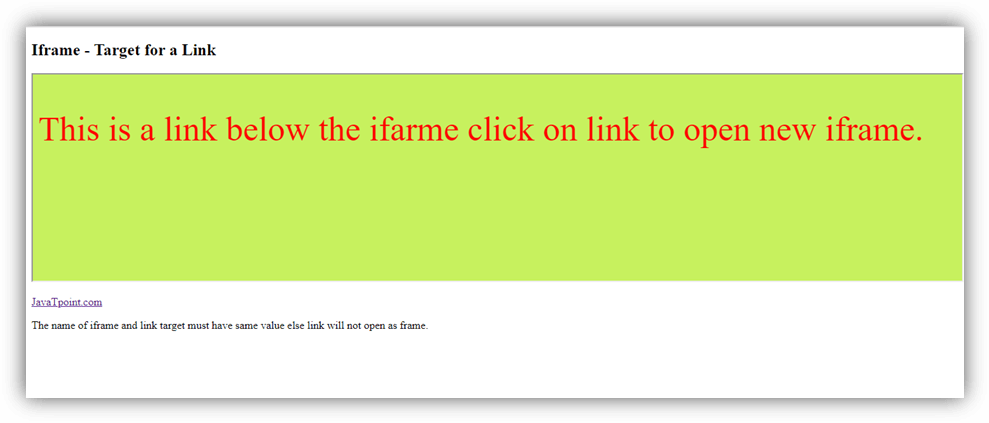
    You can set a target frame for a link by using iframe. Your specified target attribute of the link must refer to the name attribute of the iframe.

    Example:

    <!DOCTYPE html>  
    
    <html>  
    
    <body>  


    <h2>Iframe - Target for a Link</h2>  
    
    <iframe height="300px" width="100%" src="new.html" name="iframe_a"></iframe>  
    
    <p><a href="https://www.javatpoint.com" target="iframe_a">JavaTpoint.com</a></p>  
    
    <p>The name of iframe and link target must have same value else link will not open as a frame. </p>  


    </body>  
    
    </html>
    HTML iframes

    new.hmtl output code:

    <!DOCTYPE html> <html> <head> <style> p{ font-size: 50px; color: red;} </style> </head> <body style="background-color: #c7f15e;"> <p>This is a link below the ifarme click on link to open new iframe. </p> </body> </html>

    Embed YouTube video using iframe

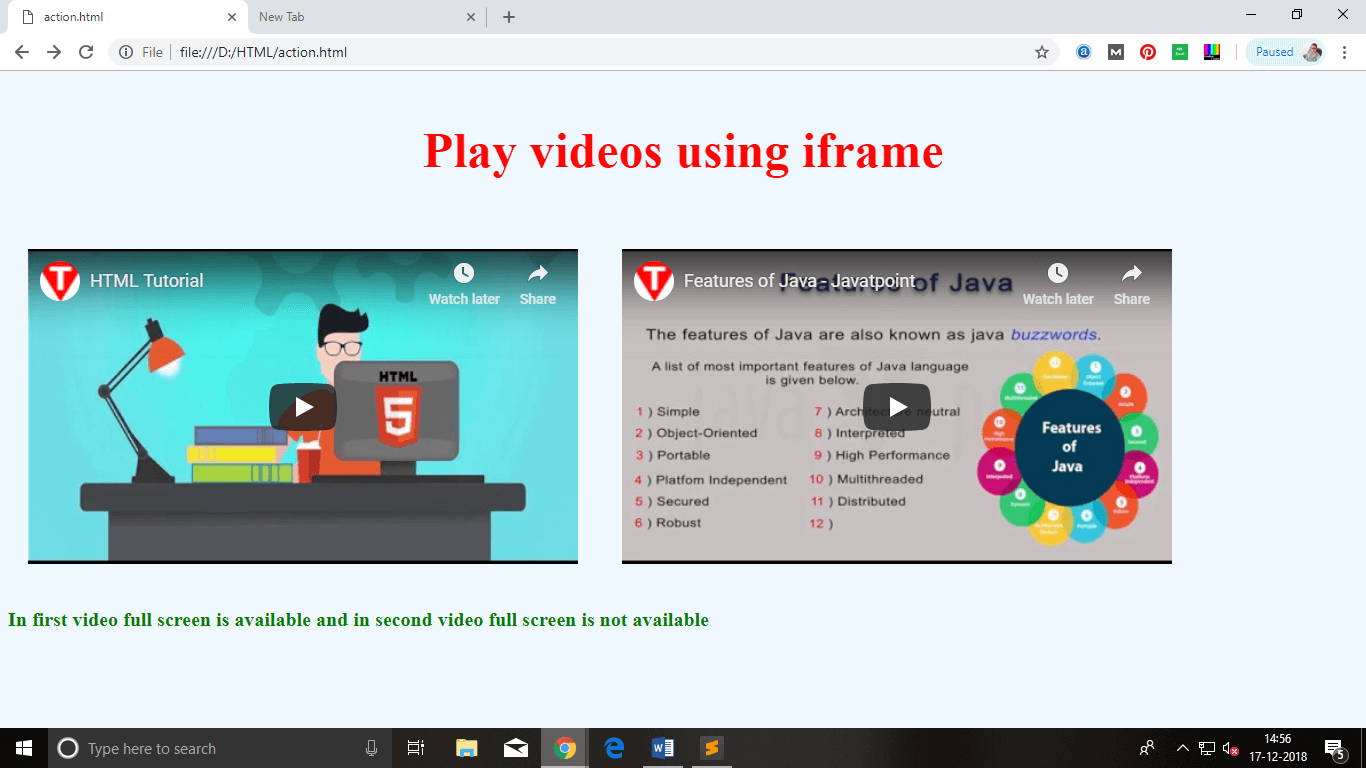
    You can also add a YouTube video on your webpage using the <iframe> tag. The attached video will be played at your webpage and you can also set height, width, autoplay, and many more properties for the video.

    Following are some steps to add YouTube video on your webpage:

    • Goto YouTube video which you want to embed.
    • Click on SHARE ➦ under the video.
    • Click on Embed <> option.
    • Copy HTML code.
    • Paste the code in your HTML file
    • Change height, width, and other properties (as per requirement).

    Example:

    1. <iframe width=”550″ height=”315″ src=”https://www.youtube.com/embed/JHq3pL4cdy4″ frameborder=”0″ allow=”accelerometer; autoplay; encrypted-media; gyroscope; picture-in-picture” allowfullscreen style=”padding:20px;”></iframe>  
    2.         <iframe width=”550″ height=”315″ src=”https://www.youtube.com/embed/O5hShUO6wxs” frameborder=”0″ allow=”accelerometer; autoplay; encrypted-media; gyroscope; picture-in-picture” style=”padding:20px;”>></iframe> 

    Output:

    HTML iframes

    Attributes of <iframe>

    Attribute nameValueDescription
    allowfullscreenIf true then that frame can be opened in full screen.
    heightPixelsIt defines the height of the embedded iframe, and the default height is 150 px.
    nametextIt gives the name to the iframe. The name attribute is important if you want to create a link in one frame.
    frameborder1 or 0It defines whether iframe should have a border or not. (Not supported in HTML5).
    WidthPixelsIt defines the width of embedded frame, and default width is 300 px.
    srcURLThe src attribute is used to give the path name or file name which content to be loaded into iframe.
    sandbox
    This attribute is used to apply extra restrictions for the content of the frame
    allow-formsIt allows submission of the form if this keyword is not used then form submission is blocked.
    allow-popupsIt will enable popups, and if not applied then no popup will open.
    allow-scriptsIt will enable the script to run.
    allow-same-originIf this keyword is used then the embedded resource will be treated as downloaded from the same source.
    srcdocThe srcdoc attribute is used to show the HTML content in the inline iframe. It overrides the src attribute (if a browser supports).
    scrolling
    It indicates that browser should provide a scroll bar for the iframe or not. (Not supported in HTML5)
    autoScrollbar only shows if the content of iframe is larger than its dimensions.
    yesAlways shows scroll bar for the iframe.
    noNever shows scrollbar for the iframe.
  • HTML Id Attribute

    The id attribute is used to specify the unique ID for an element of the HTML document. It allocates the unique identifier which is used by the CSS and the JavaScript for performing certain tasks.

    Note: In the Cascading Style sheet (CSS), we can easily select an element with the specific id by using the # symbol followed by id.

    Note: JavaScript can access an element with the given ID by using the getElementById() method.

    Syntax

    <tag id="value">  

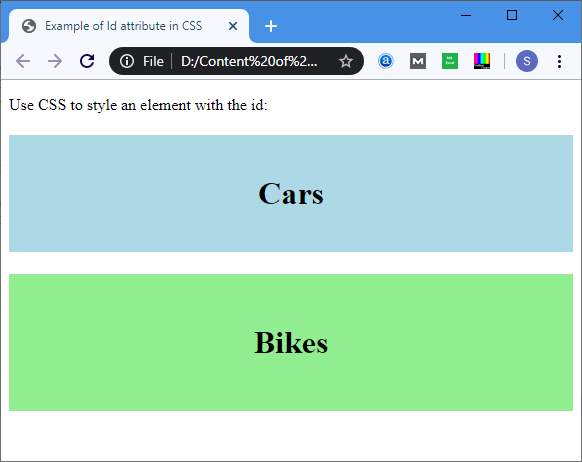
    Example 1: The following example describes how to use the id attribute in CSS document:

    <!DOCTYPE html>  
    
    <html>  
    
    <head>  
    
    <title>  
    
    Example of Id attribute in CSS  
    
    </title>  
    
    <style>  
    
    #Cars {  
    
    padding: 40px;  
    
    background-color: lightblue;  
    
    color: black;      
    
    text-align: center;  
    
    }   


    #Bikes  
    
    {  
    
    padding: 50px;  
    
    background-color: lightGreen;  
    
    text-align: center;  
    
    }  
    
    </style>  
    
    </head>  
    
    <body>  
    
    <p> Use CSS to style an element with the id: </p>  
    
    <h1 id="Cars"> Cars </h1>  
    
    <h1 id="Bikes"> Bikes </h1>  
    
    </body>  
    
    </html>

    Output:

    HTML Id Attribute

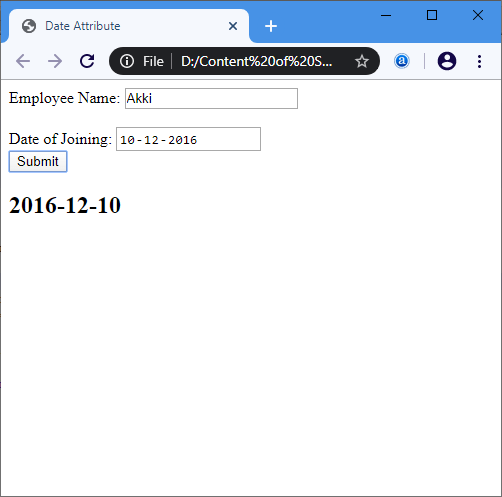
    Example 2: The following example describes how to use the ID attribute in JavaScript.

    <!DOCTYPE html>  
    
    <html>   
    
    <head>   
    
    <title> Date Attribute </title>   
    
    <script>   
    
    function viewdate() {   
    
    var x = document.getElementById("dob").value;   
    
    document.getElementById("demo").innerHTML = x;   
    
    </script>   
    
    </head>   
    
    <body>   
    
    Employee Name: <input type="text" placeholder="Your Good name"/>   
    
    <br>  
    
    <br>  
    
    Date of Joining:   
    
    <input type="date" id="dob">  
    
    <br>   
    
    <button onclick="viewdate()"> Submit   
    
    </button>   
    
    <br>  
    
    <h2 id="demo"> </h2>   
    
    </body>   
    
    </html>

    Output:

    HTML Id Attribute
  • HTML style using CSS

    Let’s suppose we have created our web page using a simple HTML code, and we want something which can present our page in a correct format, and visibly attractive. So to do this, we can style our web page with CSS (Cascading Stylesheet) properties.

    CSS is used to apply the style in the web page which is made up of HTML elements. It describes the look of the webpage.

    CSS provides various style properties such as background color, padding, margin, border-color, and many more, to style a webpage.

    Each property in CSS has a name-value pair, and each property is separated by a semicolon (;).

    Note: In this chapter, we have given a small overview of CSS. You will learn everything in depth about CSS in our CSS tutorial.

    Example:

    <body style="text-align: center;">  
    
          <h2 style="color: red;">Welcome to javaTpoint</h2>  
    
          <p style="color: blue; font-size: 25px; font-style: italic ;">This is a great website to learn technologies in very simple way. </p>  
    
    </body>

    In the above example, we have used a style attribute to provide some styling format to our code.

    Output:

    Welcome to javaTpoint

    This is a great website to learn technologies in very simple way.


    Three ways to apply CSS

    To use CSS with HTML document, there are three ways:

    • Inline CSS: Define CSS properties using style attribute in the HTML elements.
    • Internal or Embedded CSS: Define CSS using <style> tag in <head> section.
    • External CSS: Define all CSS property in a separate .css file, and then include the file with HTML file using tag in section.

    Inline CSS:

    Inline CSS is used to apply CSS in a single element. It can apply style uniquely in each element.

    To apply inline CSS, you need to use style attribute within HTML element. We can use as many properties as we want, but each property should be separated by a semicolon (;).

    Example:

    <h3 style="color: red;  
    
                font-style: italic;  
    
                text-align: center;  
    
                font-size: 50px;  
    
                padding-top: 25px;">Learning HTML using Inline CSS</h3>

    Output:

    Learning HTML using Inline CSS


    Internal CSS:

    An Internal stylesheets contains the CSS properties for a webpage in <head> section of HTML document. To use Internal CSS, we can use class and id attributes.

    We can use internal CSS to apply a style for a single HTML page.

    Example:


    1. <!DOCTYPE html>  
    2. <html>  
    3. <head>  
    4.                   <style>  
    5.       /*Internal CSS using element name*/  
    6.             body{background-color:lavender;  
    7.              text-align: center;}  
    8.              h2{font-style: italic;  
    9.               font-size: 30px;  
    10.               color: #f08080;}  
    11.             p{font-size: 20px;}  
    12.         /*Internal CSS using class name*/  
    13.             .blue{color: blue;}  
    14.             .red{color: red;}  
    15.             .green{color: green;}  
    16.       </style>  
    17.     </head>  
    18.   <body>  
    19.    <h2>Learning HTML with internal CSS</h2>  
    20.     <p class="blue">This is a blue color paragraph</p>  
    21.     <p class="red">This is a red color paragraph</p>  
    22.     <p class="green">This is a green color paragraph</p>  
    23.   </body>  
    24. </html>

    Note: In the above example, we have used a class attribute which you will learn in the next chapter.


    External CSS:

    An external CSS contains a separate CSS file which only contains style code using the class name, id name, tag name, etc. We can use this CSS file in any HTML file by including it in HTML file using <link> tag.

    If we have multiple HTML pages for an application and which use similar CSS, then we can use external CSS.

    There are two files need to create to apply external CSS

    • First, create the HTML file
    • Create a CSS file and save it using the .css extension (This file only will only contain the styling code.)
    • Link the CSS file in your HTML file using tag in header section of HTML document.

    Example:

    <!DOCTYPE html>  
    
    <html>  
    
    <head>  
    
        <link rel="stylesheet" type="text/css" href="style.css">  
    
        </head>  
    
      <body>  
    
       <h2>Learning HTML with External CSS</h2>  
    
        <p class="blue">This is a blue color paragraph</p>  
    
        <p class="red">This is a red color paragraph</p>  
    
        <p class="green">This is a green color paragraph</p>  
    
      </body>  
    
    </html>

    CSS file:

    body{
    background-color:lavender;
    text-align: center;
    }
    h2{
    font-style: italic;
    size: 30px;
    color: #f08080;
    }
    p{
    font-size: 20px;
    }
    .blue{
    color: blue;
    }
    .red{
    color: red;
    }
    .green{
    color: green;
    }

    Commonly used CSS properties:

    Properties-nameSyntaxDescription
    background-colorbackground-color:red;It defines the background color of that element.
    colorcolor: lightgreen;It defines the color of text of an element
    paddingpadding: 20px;It defines the space between content and the border.
    marginmargin: 30px; margin-left:It creates space around an element.
    font-familyfont-family: cursive;Font-family defines a font for a particular element.
    Font-sizefont-size: 50px;Font-size defines a font size for a particular element.
    text-aligntext-align: left;It is used to align the text in a selected position.