The HTML5 drag and drop feature allows the user to drag and drop an element to another location. The drop location may be a different application. While dragging an element a translucent representation of the element is follow the mouse pointer.
Let’s try out the following example to understand how it basically works:
Example
<!DOCTYPE html>
<html lang="en">
<head>
<meta charset="utf-8">
<title>Using Drag and Drop</title>
<script>
    function dragStart(e) {
        // Sets the operation allowed for a drag source
        e.dataTransfer.effectAllowed = "move";

        // Sets the value and type of the dragged data
        e.dataTransfer.setData("Text", e.target.getAttribute("id"));
    }
    function dragOver(e) {
        // Prevent the browser default handling of the data
        e.preventDefault();
        e.stopPropagation();
    }
    function drop(e) {
        // Cancel this event for everyone else
        e.stopPropagation();
        e.preventDefault();

        // Retrieve the dragged data by type
        var data = e.dataTransfer.getData("Text");

        // Append image to the drop box
        e.target.appendChild(document.getElementById(data));
    }
</script>
<style>
    #dropBox {
        width: 300px;
        height: 300px;
        border: 5px dashed gray;
        background: lightyellow;
        text-align: center;
        margin: 20px 0;
        color: orange;
    }
    #dropBox img {
        margin: 25px;
    }
</style>
</head>
<body>
    <h2>Drag and Drop Demo</h2>
    <p>Drag and drop the image into the drop box:</p>
    <div id="dropBox" ondragover="dragOver(event);" ondrop="drop(event);">
        <!--Dropped image will be inserted here-->
    </div>
    <img src="../images/kites.jpg" id="dragA" draggable="true" ondragstart="dragStart(event);" width="250" height="250" alt="Flying Kites">
</body>
</html>
Tip: You can make an element draggable by setting the draggable attribute to true, like draggable="true". However, in most web browsers, text selections, images, and anchor elements with an href attribute are draggable by default.
Drag and Drop Events
A number of events are fired during the various stages of the drag and drop operation. But mouse events such as mousemove are not fired during a drag operation.
The following table provides you a brief overview of all the drag and drop events.
Event
Description
ondragstart
Fires when the user starts dragging an element.
ondragenter
Fires when a draggable element is first moved into a drop listener.
ondragover
Fires when the user drags an element over a drop listener.
ondragleave
Fires when the user drags an element out of drop listener.
ondrag
Fires when the user drags an element anywhere; fires constantly but can give X and Y coordinates of the mouse cursor.
ondrop
Fires when the user drops an element into a drop listener successfully.
ondragend
Fires when the drag action is complete, whether it was successful or not. This event is not fired when dragging a file to the browser from the desktop.
The HTML5 geolocation feature lets you find out the geographic coordinates (latitude and longitude numbers) of the current location of your website’s visitor.
This feature is helpful for providing better browsing experience to the site visitor. For example, you can return the search results that are physically close to the user’s location.
Finding a Visitor’s Coordinates
Getting the position information of the site visitor using the HTML5 geolocation API is fairly simple. It utilizes the three methods that are packed into the navigator.geolocation object — getCurrentPosition(), watchPosition() and clearWatch().
The following is a simple example of geolocation that displays your current position. But, first you need to agree to let the browser tell the web server about your position.
Example
<!DOCTYPE html>
<html lang="en">
<head>
<meta charset="utf-8">
<title>Get Current Position</title>
<script>
    function showPosition() {
        if(navigator.geolocation) {
            navigator.geolocation.getCurrentPosition(function(position) {
                var positionInfo = "Your current position is (" + "Latitude: " + position.coords.latitude + ", " + "Longitude: " + position.coords.longitude + ")";
                document.getElementById("result").innerHTML = positionInfo;
            });
        } else {
            alert("Sorry, your browser does not support HTML5 geolocation.");
        }
    }
</script>
</head>
<body>
    <div id="result">
        <!--Position information will be inserted here-->
    </div>
    <button type="button" onclick="showPosition();">Show Position</button>
</body>
</html>
Note: The web browsers won’t share the visitor location with a web page unless the visitor gives it explicit permission. The geolocation standard makes it an official rule to get user permission for every website that wants location data.
Dealing with Errors and Rejections
There may be a situation when a user does not want to share his location data with you. To deal with such situations, you can supply two functions when you call the getCurrentLocation() function.
The first function is called if your geolocation attempt is successful, while the second is called if your geolocation attempt ends in failure. Let’s check out an example:
Example
<!DOCTYPE html>
<html lang="en">
<head>
<meta charset="utf-8">
<title>Handling Geolocation Errors</title>
<script>
    // Set up global variable
    var result;

    function showPosition() {
        // Store the element where the page displays the result
        result = document.getElementById("result");

        // If geolocation is available, try to get the visitor's position
        if(navigator.geolocation) {
            navigator.geolocation.getCurrentPosition(successCallback, errorCallback);
            result.innerHTML = "Getting the position information...";
        } else {
            alert("Sorry, your browser does not support HTML5 geolocation.");
        }
    };

    // Define callback function for successful attempt
    function successCallback(position) {
        result.innerHTML = "Your current position is (" + "Latitude: " + position.coords.latitude + ", " + "Longitude: " + position.coords.longitude + ")";
    }

    // Define callback function for failed attempt
    function errorCallback(error) {
        if(error.code == 1) {
            result.innerHTML = "You've decided not to share your position, but it's OK. We won't ask you again.";
        } else if(error.code == 2) {
            result.innerHTML = "The network is down or the positioning service can't be reached.";
        } else if(error.code == 3) {
            result.innerHTML = "The attempt timed out before it could get the location data.";
        } else {
            result.innerHTML = "Geolocation failed due to unknown error.";
        }
    }
</script>
</head>
<body>
    <div id="result">
        <!--Position information will be inserted here-->
    </div>
    <button type="button" onclick="showPosition();">Show Position</button>
</body>
</html>
Showing Location on Google Map
You can do very interesting things with geolocation data, like showing the user location on Google map. The following example will show your current location on Google map based the latitude and longitude data retrieved through the HTML5 geolocation feature.
Example
<!DOCTYPE html>
<html lang="en">
<head>
<meta charset="utf-8">
<title>Using the Google Maps</title>
<script>
    function showPosition() {
        navigator.geolocation.getCurrentPosition(showMap);
    }

    function showMap(position) {
        // Get location data
        var latlong = position.coords.latitude + "," + position.coords.longitude;

        // Set Google map source url
        var mapLink = "https://maps.googleapis.com/maps/api/staticmap?center="+latlong+"&zoom=16&size=400x300&output=embed";

        // Create and insert Google map
        document.getElementById("embedMap").innerHTML = "<img alt='Map Holder' src='"+ mapLink +"'>";
    }
</script>
</head>
<body>
    <button type="button" onclick="showPosition();">Show My Position on Google Map</button>
    <div id="embedMap">
        <!--Google map will be embedded here-->
    </div>
</body>
</html>
The above example will simply show the location on the Google map using a static image. However, you can also create interactive Google maps with dragging, zoom in/out and other features that you have come across in your real life. Let’s take a look at the following example:
Example
<!DOCTYPE html>
<html lang="en">
<head>
<meta charset="utf-8">
<title>Using the Google Maps</title>
<script src="https://maps.google.com/maps/api/js?sensor=false"></script>
<script>
function showPosition() {
    if(navigator.geolocation) {
        navigator.geolocation.getCurrentPosition(showMap, showError);
    } else {
        alert("Sorry, your browser does not support HTML5 geolocation.");
    }
}

// Define callback function for successful attempt
function showMap(position) {
    // Get location data
    lat = position.coords.latitude;
    long = position.coords.longitude;
    var latlong = new google.maps.LatLng(lat, long);

    var myOptions = {
        center: latlong,
        zoom: 16,
        mapTypeControl: true,
        navigationControlOptions: {
            style:google.maps.NavigationControlStyle.SMALL
        }
    }

    var map = new google.maps.Map(document.getElementById("embedMap"), myOptions);
    var marker = new google.maps.Marker({ position:latlong, map:map, title:"You are here!" });
}

// Define callback function for failed attempt
function showError(error) {
    if(error.code == 1) {
        result.innerHTML = "You've decided not to share your position, but it's OK. We won't ask you again.";
    } else if(error.code == 2) {
        result.innerHTML = "The network is down or the positioning service can't be reached.";
    } else if(error.code == 3) {
        result.innerHTML = "The attempt timed out before it could get the location data.";
    } else {
        result.innerHTML = "Geolocation failed due to unknown error.";
    }
}
</script>
</head>
<body>
    <button type="button" onclick="showPosition();">Show My Position on Google Map</button>
    <div id="embedMap" style="width: 400px; height: 300px;">
        <!--Google map will be embedded here-->
    </div>
</body>
</html>
Please check out the following URL to learn more about the Google Maps Javascript API: https://developers.google.com/maps/documentation/javascript/reference.
Monitoring the Visitor’s Movement
All the examples we’ve used so far have relied on the getCurrentPosition() method. However, the geolocation object has another method watchPosition() that allow you to track the visitor’s movement by returning the updated position as the location changes.
The watchPosition() has the same input parameters as getCurrentPosition(). However, watchPosition() may trigger the success function multiple times — when it gets the location for the first time, and again, whenever it detects a new position. Let’s see how this works:
Example
<!DOCTYPE html>
<html lang="en">
<head>
<meta charset="utf-8">
<title>Watching Position</title>
<script>
    // Set global variable
    var watchID;

    function showPosition() {
        if(navigator.geolocation) {
            watchID = navigator.geolocation.watchPosition(successCallback);
        } else {
            alert("Sorry, your browser does not support HTML5 geolocation.");
        }
    }

    function successCallback(position) {
        toggleWatchBtn.innerHTML = "Stop Watching";

        // Check position has been changed or not before doing anything
        if(prevLat != position.coords.latitude || prevLong != position.coords.longitude){

            // Set previous location
            var prevLat = position.coords.latitude;
            var prevLong = position.coords.longitude;

            // Get current position
            var positionInfo = "Your current position is (" + "Latitude: " + position.coords.latitude + ", " + "Longitude: " + position.coords.longitude + ")";
            document.getElementById("result").innerHTML = positionInfo;

        }

    }

    function startWatch() {
        var result = document.getElementById("result");

        var toggleWatchBtn = document.getElementById("toggleWatchBtn");

        toggleWatchBtn.onclick = function() {
            if(watchID) {
                toggleWatchBtn.innerHTML = "Start Watching";
                navigator.geolocation.clearWatch(watchID);
                watchID = false;
            } else {
                toggleWatchBtn.innerHTML = "Aquiring Geo Location...";
                showPosition();
            }
        }
    }

    // Initialise the whole system (above)
    window.onload = startWatch;
</script>
</head>
<body>
    <button type="button" id="toggleWatchBtn">Start Watching</button>
    <div id="result">
        <!--Position information will be inserted here-->
    </div>
</body>
</html>
HTML5 server-sent event is a new way for the web pages to communicating with the web server. It is also possible with the XMLHttpRequest object that lets your JavaScript code make a request to the web server, but it’s a one-for-one exchange — that means once the web server provides its response, the communication is over. XMLHttpRequest object is the core of all Ajax operations.
However, there are some situations where web pages require a longer-term connection to the web server. A typical example is stock quotes on finance websites where price updated automatically. Another example is a news ticker running on various media websites.
You can create such things with the HTML5 server-sent events. It allows a web page to hold an open connection to a web server so that the web server can send a new response automatically at any time, there’s no need to reconnect, and run the same server script from scratch over and over again.
Note: Server-Sent Events (SSE) are unidirectional that means data are delivered in one direction from the server to client. A client typically is a web browser.
Tip: The HTML5’s server-sent events feature is supported in all major modern web browsers like Firefox, Chrome, Safari and Opera except Internet Explorer.
Sending Messages with a Server Script
Let’s create a PHP file named “server_time.php” and type the following script into it. It will simply report the current time of the web server’s built-in clock in regular intervals. We will retrieve this time and update the web page accordingly later in this tutorial.
Example
<?php
header("Content-Type: text/event-stream");
header("Cache-Control: no-cache");

// Get the current time on server
$currentTime = date("h:i:s", time());

// Send it in a message
echo "data: " . $currentTime . "\n\n";
flush();
?>
The first two line of the PHP script sets two important headers. First, it sets the MIME type to text/event-stream, which is required by the server-side event standard. The second line tells the web server to turn off caching otherwise the output of your script may be cached.
Every message send through HTML5 server-sent events must start with the text data: followed by the actual message text and the new line character sequence (\n\n).
And finally, we have used the PHP flush() function to make sure that the data is sent right away, rather than buffered until the PHP code is complete.
Processing Messages in a Web Page
The EventSource object is used to receive server-sent event messages.
Now let’s create an HTML document named “demo_sse.html” and place it in the same project directory where the “server_time.php” file is located. This HTML document simply receives the current time reported by the web server and display it to the user.
Example
<!DOCTYPE html>
<html lang="en">
<head>
<title>Using Server-Sent Events</title>
<script>
    window.onload = function() {
        var source = new EventSource("server_time.php");
        source.onmessage = function(event) {
            document.getElementById("result").innerHTML += "New time received from web server: " + event.data + "<br>";
        };
    };
</script>
</head>
<body>
    <div id="result">
        <!--Server response will be inserted here-->
    </div>
</body>
</html>
If you try to do intensive task with JavaScript that is time-consuming and require hefty calculations browser will freeze up the web page and prevent the user from doing anything until the job is completed. It happens because JavaScript code always runs in the foreground.
HTML5 introduces a new technology called web worker that is specifically designed to do background work independently of other user-interface scripts, without affecting the performance of the page. Unlike normal JavaScript operations, web worker doesn’t interrupt the user and the web page remains responsive because they are running the tasks in the background.
Tip: The HTML5’s web worker feature is supported in all major modern web browsers like Firefox, Chrome, Opera, Safari and Internet Explorer 10 and above.
Create a Web Worker File
The simplest use of web workers is for performing a time-consuming task. So here we are going to create a simple JavaScript task that counts from zero to 100,000.
Let’s create an external JavaScript file named “worker.js” and type the following code.
Example
var i = 0;
function countNumbers() {
    if(i < 100000) {
        i = i + 1;
        postMessage(i);
    }

    // Wait for sometime before running this script again
    setTimeout("countNumbers()", 500);
}
countNumbers();
Note: Web workers have no access to the DOM. That means you can’t access any DOM elements in the JavaScript code that you intend to run using web workers.
Tip: The worker object’s postMessage() method is used to send a message (like the numbers in the example above) back to the web page from the web worker file.
Doing Work in the Background with Web Worker
Now that we have created our web worker file. In this section we are going to initiate the web worker from an HTML document that runs the code inside the file named “worker.js” in the background and progressively displays the result on the web page. Let’s see how it works:
Example
<!DOCTYPE html>
<html lang="en">
<head>
<meta charset="utf-8">
<title>Using Web Worker</title>
<script>
    if(window.Worker) {
        // Create a new web worker
        var worker = new Worker("worker.js");

        // Fire onMessage event handler
        worker.onmessage = function(event) {
            document.getElementById("result").innerHTML = event.data;
        };
    } else {
        alert("Sorry, your browser do not support web worker.");
    }
</script>
</head>
<body>
    <div id="result">
        <!--Received messages will be inserted here-->
    </div>
</body>
</html>
Example explained:
The JavaScript code in the above example has the following meaning:
The statement var worker = new Worker(“worker.js”); creates a new web worker object, which is used to communicate with the web worker.
When the worker posts a message, it fires the onmessage event handler (line no-14) that allows the code to receive messages from the web worker.
The event.data element contains the message sent from the web worker.
Note: The code that a worker runs is always stored in a separate JavaScript file. This is to prevent web developer from writing the web worker code that attempts to use global variables or directly access the elements on the web page.
Terminate a Web Worker
So far you have learnt how to create worker and start receiving messages. However, you can also terminate a running worker in the middle of the execution.
The following example will show you how to start and stop worker from a web page through clicking the HTML buttons. It utilizes the same JavaScript file ‘worker.js’ what we have used in the previous example to count the numbers from zero to 100000. Let’s try it out:
Example
<!DOCTYPE html>
<html lang="en">
<head>
<meta charset="utf-8">
<title>Start/Stop Web Worker</title>
<script>
    // Set up global variable
    var worker;

    function startWorker() {
        // Initialize web worker
        worker = new Worker("worker.js");

        // Run update function, when we get a message from worker
        worker.onmessage = update;

        // Tell worker to get started
        worker.postMessage("start");
    }

    function update(event) {
        // Update the page with current message from worker
        document.getElementById("result").innerHTML = event.data;
    }

    function stopWorker() {
        // Stop the worker
        worker.terminate();
    }
</script>
</head>
<body>
    <h1>Web Worker Demo</h1>
    <button onclick="startWorker();" type="button">Start web worker</button>
    <button type="button" onclick="stopWorker();">Stop web worker</button>
    <div id="result">
        <!--Received messages will be inserted here-->
    </div>
</body>
</html>
Typically most web-based applications will work only if you’re online. But HTML5 introduces an application cache mechanism that allows the browser to automatically save the HTML file and all the other resources that needs to display it properly on the local machine, so that the browser can still access the web page and its resources without an internet connection.
Here are some advantages of using the HTML5 application cache feature:
Offline browsing — Users can use the application even when they’re offline or there are unexpected disruptions in the network connection.
Improve performance — Cached resources load directly from the user’s machine rather than the remote server hence web pages load faster and performing better.
Reduce HTTP request and server load — The browser will only have to download the updated/changed resources from the remote server that minimize the HTTP requests and saves precious bandwidth as well as reduce the load on the web server.
Tip: The HTML5’s application cache feature is supported in all major modern web browsers like Firefox, Chrome, Opera, Safari and Internet Explorer 10 and above.
Caching Files with a Manifest
To cache the files for offline uses, you need to complete the following steps:
Step 1: Create a Cache Manifest File
A manifest is a special text file that tells the browsers what files to store, what files not to store, and what files to replace with something else. The manifest file always starts with the words CACHE MANIFEST (in uppercase). Here is an example of a simple manifest file:
You might think what that code was all about. OK, let’s get straight into it. A manifest file can have three distinct sections: CACHE, NETWORK, and FALLBACK.
Files listed under the CACHE: section header (or immediately after the CACHE MANIFEST line) are explicitly cached after they’re downloaded for the first time.
Files listed under the NETWORK: section header are white-listed resources that are never cached and aren’t available offline. It means users can only access login.php page when they’r online.
The FALLBACK: section specifies fallback pages the browser should use in case the connection to the server cannot be established. Each entry in this section lists two URIs — first is the primary resource, the second is the fallback. For example, in our case offline.html page will be displayed if the user is offline. Also, both URIs must be from the same origin as the manifest file.
Lines starting with a hash symbol (#) are comment lines.
Note: If an application cache exists, the browser loads the document and its associated resources directly from the cache, without accessing the network. After that browser checks to see whether the manifest file has been updated on the server, and if it has been updated, the browser downloads the new version of the manifest and the resources listed in it.
Warning: Do not specify the manifest file itself in the cache manifest file, otherwise it will be nearly impossible to inform the browser a new manifest is available.
Step 2: Using Your Cache Manifest File
After creating, upload your cache manifest file on the web server — make sure the web server is configured to serve the manifest files with the MIME type text/cache-manifest.
Now to put your cache manifest into effect, you need enable it in your web pages, by adding the manifest attribute to the root <html> element, as shown below:
Example
<!DOCTYPE html>
<html lang="en" manifest="example.appcache">
<head>
    <title>Using the Application Cache</title>
</head>
<body>
    <!--The document content will be inserted here-->
</body>
</html>
The HTML5’s web storage feature lets you store some information locally on the user’s computer, similar to cookies, but it is faster and much better than cookies. However, web storage is no more secure than cookies. Please check out the tutorial on PHP cookies to learn more about cookies.
The information stored in the web storage isn’t sent to the web server as opposed to the cookies where data sent to the server with every request. Also, where cookies let you store a small amount of data (nearly 4KB), the web storage allows you to store up to 5MB of data.
There are two types of web storage, which differ in scope and lifetime:
Local storage — The local storage uses the localStorage object to store data for your entire website on a permanent basis. That means the stored local data will be available on the next day, the next week, or the next year unless you remove it.
Session storage — The session storage uses the sessionStorage object to store data on a temporary basis, for a single browser window or tab. The data disappears when session ends i.e. when the user closes that browser window or tab.
Tip: The HTML5’s web storage feature is supported in all major modern web browsers like Firefox, Chrome, Opera, Safari and Internet Explorer 8 and above.
The localStorage Object
As stated earlier, the localStorage object stores the data with no expiration date. Each piece of data is stored in a key/value pair. The key identifies the name of the information (like ‘first_name’), and the value is the value associated with that key (say ‘Peter’). Here’s an example:
Example
<script>
// Check if the localStorage object exists
if(localStorage) {
    // Store data
    localStorage.setItem("first_name", "Peter");

    // Retrieve data
    alert("Hi, " + localStorage.getItem("first_name"));
} else {
    alert("Sorry, your browser do not support local storage.");
}
</script>
Example explained:
The above JavaScript code has the following meaning:
localStorage.setItem(key, value) stores the value associated with a key.
localStorage.getItem(key) retrieves the value associated with the key.
You can also remove a particular item from the storage if it exists, by passing the key name to the removeItem() method, like localStorage.removeItem("first_name").
However, if you want to remove the complete storage use the clear() method, like localStorage.clear(). The clear() method takes no arguments, and simply clears all key/value pairs from localStorage at once, so think carefully before you using it.
Note: The web storage data (both localStorage and sessionStorage) will not be available between different browsers, for example the data stored in Firefox browser will not available in Google Chrome, Safari, Internet Explorer or other browsers.
The sessionStorage Object
The sessionStorage object work in the same way as localStorage, except that it stores the data only for one session i.e. the data remains until the user closes that window or tab.
Let’s try out the following example to understand how it basically works:
Example
<script>
// Check if the sessionStorage object exists
if(sessionStorage) {
    // Store data
    sessionStorage.setItem("last_name", "Parker");

    // Retrieve data
    alert("Hi, " + localStorage.getItem("first_name") + " " + sessionStorage.getItem("last_name"));
} else {
    alert("Sorry, your browser do not support session storage.");
}
</script>
Inserting video onto a web page was not relatively easy, because web browsers did not have a uniform standard for defining embedded media files like video.
In this chapter we’ll demonstrates some of the many ways of adding videos on web pages, from the latest HTML5 <video> element to the popular YouTube videos.
Using the HTML5 video Element
The newly introduced HTML5 <video> element provides a standard way to embed video in web pages. However, the video element is relatively new, but it works in most of the modern web browsers.
The following example simply inserts a video into the HTML document, using the browser default set of controls, with one source defined by the src attribute.
Example
<video controls="controls" src="media/shuttle.mp4">
    Your browser does not support the HTML5 Video element.
</video>
A video, using the browser default set of controls, with alternative sources.
Example
<video controls="controls">
    <source src="media/shuttle.mp4" type="video/mp4">
    <source src="media/shuttle.ogv" type="video/ogg">
    Your browser does not support the HTML5 Video element.
</video>
Using the object Element
The <object> element is used to embed different kinds of media files into an HTML document. Initially, this element was used to insert ActiveX controls, but according to the specification, an object can be any media object such as video, audio, PDF files, Flash animations or even images.
The following code fragment embeds a Flash video into a web page.
Only browsers or applications that support Flash will play this video.
Warning: The <object> element is not supported widely and very much depends on the type of the object that’s being embedded. Other methods could be a better choice in many cases. iPad and iPhone device cannot display Flash videos.
Using the embed Element
The <embed> element is used to embed multimedia content into an HTML document.
The following code fragment embeds a Flash video into a web page.
Warning: However, the <embed> element is very well supported in current web browsers and it is also defined as standard in HTML5, but your video might not played due to lack of browser support for Flash or unavailability of plugins.
Embedding the YouTube Videos
This is the easiest and popular way to embed videos files in the web pages. Just upload the video on YouTube and insert HTML code to display that video in your web page.
Here’s a live example followed by the explanation of whole process:
Step 1: Upload video
Go to YouTube upload video page and follow the instructions to upload your video.
Step 2: Creating the HTML Code to embed the video
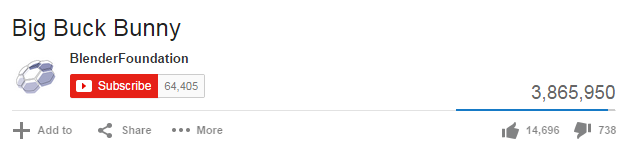
When you open your uploaded video in YouTube you will see something like the following figure at the bottom of the video. Browse and open your uploaded video in YouTube. Now look for the share button which is located just below the video as shown in the figure.
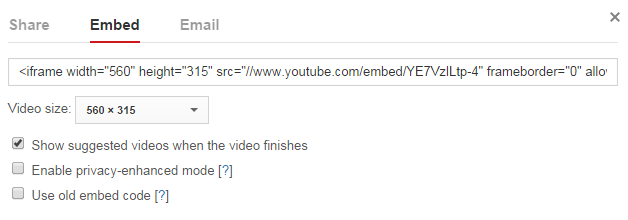
When you click the share button, a share panel will open displaying some more buttons. Now click on the Embed button, it will generate the HTML code to directly embed the video into the web pages. Just copy and paste that code into your HTML document where you want to display the video and you’re all set. By default video embedded inside an iframe.
You can further customize this embed code such as changing the video size by selecting the customization option given just below the embed-code input box.
The following example simply embeds a video from the YouTube. Let’s try it out:
Inserting audio onto a web page was not easy before, because web browsers did not have a uniform standard for defining embedded media files like audio.
In this chapter we’ll demonstrates some of the many ways to embed sound in your webpage, from the use of a simple link to the use of the latest HTML5 <audio> element.
Using the HTML5 audio Element
The newly introduced HTML5 <audio> element provides a standard way to embed audio in web pages. However, the audio element is relatively new but it works in most of the modern web browsers.
The following example simply inserts an audio into the HTML5 document, using the browser default set of controls, with one source defined by the src attribute.
Exampl
<audio controls="controls" src="media/birds.mp3">
    Your browser does not support the HTML5 Audio element.
</audio>
An audio, using the browser default set of controls, with alternative sources.
Example
<audio controls="controls">
    <source src="media/birds.mp3" type="audio/mpeg">
    <source src="media/birds.ogg" type="audio/ogg">
    Your browser does not support the HTML5 Audio element.
</audio>
The ‘ogg’ track in the above example works in Firefox, Opera and Chrome, while the same track in the ‘mp3’ format is added to make the audio work in Internet Explorer and Safari.
Linking Audio Files
You can make links to your audio files and play it by ticking on them.
Let’s try out the following example to understand how this basically works:
The <object> element is used to embed different kinds of media files into an HTML document. Initially, this element was used to insert ActiveX controls, but according to the specification, an object can be any media object such as audio, video, PDF files, Flash animations or even images.
The following example code embeds a simple audio file into a web page.
Warning: The <object> element is not supported widely and very much depends on the type of the object that’s being embedded. Other methods like HTML5 <audio> element or third-party HTML5 audio players could be a better choice in many cases.
Using the embed Element
The <embed> element is used to embed multimedia content into an HTML document.
The following code fragment embeds audio files into a web page.
The Scalable Vector Graphics (SVG) is an XML-based image format that is used to define two-dimensional vector based graphics for the web. Unlike raster image (e.g. .jpg, .gif, .png, etc.), a vector image can be scaled up or down to any extent without losing the image quality.
An SVG image is drawn out using a series of statements that follow the XML schema — that means SVG images can be created and edited with any text editor, such as Notepad. There are several other advantages of using SVG over other image formats like JPEG, GIF, PNG, etc.
SVG images can be searched, indexed, scripted, and compressed.
SVG images can be created and modified using JavaScript in real time.
SVG images can be printed with high quality at any resolution.
SVG content can be animated using the built-in animation elements.
SVG images can contain hyperlinks to other documents.
Tip: The vector images are composed of a fixed set of shapes defined by math, while the bitmap or raster images are composed of a fixed set of dots called pixels.
Embedding SVG into HTML Pages
You can embed SVG graphics directly into your document using the HTML5 <svg> element.
Let’s take a look at the following example to understand how it basically works:
Example
<!DOCTYPE html>
<html lang="en">
<head>
    <meta charset="utf-8">
    <title>Embedding SVG in HTML</title>
</head>
<body>
    <svg width="300" height="200">
        <text x="10" y="20" style="font-size:14px;">
            Your browser support SVG.
        </text>
        Sorry, your browser does not support SVG.
    </svg>
</body>
</html>
Note: All the major modern web browsers like Chrome, Firefox, Safari, and Opera, as well as Internet Explorer 9 and above support inline SVG rendering.
Drawing Path and Shapes with SVG
The following section will explain you how to draw basic vector-based paths and shapes on the web pages using the newly introduced HTML5 <svg> element.
Drawing a Line
The most basic path you can draw with SVG is a straight line. The following example will show you how to create a straight line using the SVG <line> element:
The attributes x1, x2, y1 and y2 of the <line> element draw a line from (x1,y1) to (x2,y2).
Drawing a Rectangle
You can create simple rectangle and square shapes using the SVG <rect> element. The following example will show you how to create and style a rectangular shape with SVG:
The attributes x and y of <rect> element defines the co-ordinates of the top-left corner of the rectangle. The attributes width and height specifies the width and height of the shape.
Drawing a Circle
You can also create the circle shapes using the SVG <circle> element. The following example will show you how to create and style a circular shape with SVG:
The attributes cx and cy of the <circle> element defines the co-ordinates of the center of the circle and the attribute r specifies the radius of the circle. However, if the attributes cx and cy are omitted or not specified, the center of the circle is set to (0,0).
Drawing Text with SVG
You can also draw text on the web pages with SVG. The text in SVG is rendered as a graphic so you can apply all the graphic transformation to it but it is still acts like text — that means it can be selected and copied as text by the user. Let’s try an example to see how this works:
Example
<svg width="300" height="200">
    <text x="20" y="30" style="fill:purple; font-size:22px;">
        Welcome to Our Website!
    </text>
    <text x="20" y="30" dx="0" dy="20" style="fill:navy; font-size:14px;">
        Here you will find lots of useful information.
    </text>
</svg>
The attributes x and y of the <text> element defines the location of the top-left corner in absolute terms whereas the attributes dx and dy specifies the relative location.
You can even use the <tspan> element to reformat or reposition the span of text contained within a <text> element. Text contained in separate tspans, but inside the same text element can all be selected at once — when you click and drag to select the text. However, the text in separate text elements cannot be selected at the same time. Let’s check out an example:
Example
<svg width="300" height="200">
    <text x="30" y="15" style="fill:purple; font-size:22px; transform:rotate(30deg);">
        <tspan style="fill:purple; font-size:22px;">
            Welcome to Our Website!
        </tspan>
        <tspan dx="-230" dy="20" style="fill:navy; font-size:14px;">
            Here you will find lots of useful information.
        </tspan>
    </text>
</svg>
Differences between SVG and Canvas
The HTML5 introduced the two new graphical elements <canvas> and <svg> for creating rich graphics on the web, but they are fundamentally different.
The following table summarizes some of the basic differences between these two elements, which will help you to understand how to use these elements effectively and appropriately.
SVG
Canvas
Vector based (composed of shapes)
Raster based (composed of pixel)
Multiple graphical elements, which become the part of the page’s DOM tree
Single element similar to <img> in behavior. Canvas diagram can be saved to PNG or JPG format
Modified through script and CSS
Modified through script only
Good text rendering capabilities
Poor text rendering capabilities
Give better performance with smaller number of objects or larger surface, or both
Give better performance with larger number of objects or smaller surface, or both
Better scalability. Can be printed with high quality at any resolution. Pixelation does not occur
Poor scalability. Not suitable for printing on higher resolution. Pixelation may occur