Category: Html 5

  • HTML Styles

    Styling HTML Elements

    HTML is quite limited when it comes to the presentation of a web page. It was originally designed as a simple way of presenting information. CSS (Cascading Style Sheets) was introduced in December 1996 by the World Wide Web Consortium (W3C) to provide a better way to style HTML elements.

    With CSS, it becomes very easy to specify the things like, size and typeface for the fonts, colors for the text and backgrounds, alignment of the text and images, amount of space between the elements, border and outlines for the elements, and lots of other styling properties.

    Adding Styles to HTML Elements

    Style information can either be attached as a separate document or embedded in the HTML document itself. These are the three methods of implementing styling information to an HTML document.

    • Inline styles — Using the style attribute in the HTML start tag.
    • Embedded style — Using the <style> element in the head section of the document.
    • External style sheet — Using the <link> element, pointing to an external CSS files.

    In this tutorial we will cover all these different types of style sheet one by one.

    Note: The inline styles have the highest priority, and the external style sheets have the lowest. It means if you specify styles for your paragraphs in both embedded and external style sheets, the conflicting style rules in the embedded style sheet would override the external style sheet.

    Inline Styles

    Inline styles are used to apply the unique style rules to an element, by putting the CSS rules directly into the start tag. It can be attached to an element using the style attribute.

    The style attribute includes a series of CSS property and value pairs. Each property: value pair is separated by a semicolon (;), just as you would write into an embedded or external style sheet. But it needs to be all in one line i.e. no line break after the semicolon.

    The following example demonstrates how to set the color and font-size of the text:

    Example

    <h1 style="color:red; font-size:30px;">This is a heading</h1>
    <p style="color:green; font-size:18px;">This is a paragraph.</p>
    <div style="color:green; font-size:18px;">This is some text.</div>

    Using the inline styles are generally considered as a bad practice. Because style rules are embedded directly inside the html tag, it causes the presentation to become mixed with the content of the document, which makes updating or maintaining a website very difficult.

    To learn about the various CSS properties in detail, please check out CSS tutorial section.

    Note: It’s become impossible to style pseudo-elements and pseudo-classes with inline styles. You should, therefore, avoid the use of style attributes in your markup. Using external style sheet is the preferred way to add style information to an HTML document.


    Embedded Style Sheets

    Embedded or internal style sheets only affect the document they are embedded in.

    Embedded style sheets are defined in the <head> section of an HTML document using the <style> tag. You can define any number of <style> elements inside the <head> section.

    The following example demonstrates how style rules are embedded inside a web page.

    Example

    <head>
        <style>
            body { background-color: YellowGreen; }
    		h1 { color: blue; }
            p { color: red; }
        </style>
    </head>

    External Style Sheets

    An external style sheet is ideal when the style is applied to many pages.

    An external style sheet holds all the style rules in a separate document that you can link from any HTML document on your site. External style sheets are the most flexible because with an external style sheet, you can change the look of an entire website by updating just one file.

    You can attach external style sheets in two ways — linking and importing:

    Linking External Style Sheets

    An external style sheet can be linked to an HTML document using the <link> tag.

    The <link> tag goes inside the <head> section, as shown here:

    Example

    <head>
        <link rel="stylesheet" href="css/style.css">
    </head>

    Importing External Style Sheets

    The @import rule is another way of loading an external style sheet. The @import statement instructs the browser to load an external style sheet and use its styles.

    You can use it in two ways. The simplest way is to use it within the <style> element in your <head> section. Note that, other CSS rules may still be included in the <style> element.

    Example

    <style>
        @import url("css/style.css");
        p {
            color: blue;
            font-size: 16px;
        }
    </style>

    Similarly, you can use the @import rule to import a style sheet within another style sheet.

    Example

    @import url("css/layout.css");
    @import url("css/color.css");
    body {
        color: blue;
        font-size: 14px;
    }
  • HTML Text Formatting

    Formatting Text with HTML

    HTML provides several tags that you can use to make some text on your web pages to appear differently than normal text, for example, you can use the tag <b> to make the text bold, tag <i> to make the text italic, tag <mark> to highlight the text, tag <code> to display a fragment of computer code, tags <ins> and <del> for marking editorial insertions and deletions, and more.

    The following example demonstrates the most commonly used formatting tags in action. Now, let’s try this out to understand how these tags basically work:

    Example

    <p>This is <b>bold text</b>.</p>
    <p>This is <strong>strongly important text</strong>.</p>
    <p>This is <i>italic text</i>.</p>
    <p>This is <em>emphasized text</em>.</p>
    <p>This is <mark>highlighted text</mark>.</p>
    <p>This is <code>computer code</code>.</p>
    <p>This is <small>smaller text</small>.</p>
    <p>This is <sub>subscript</sub> and <sup>superscript</sup> text.</p>
    <p>This is <del>deleted text</del>.</p>
    <p>This is <ins>inserted text</ins>.</p>

    By default, the <strong> tag is typically rendered in the browser as <b>, whereas the <em> tag is rendered as <i>. However, there is a difference in the meaning of these tags.

    Difference between <strong> and <b> tag

    Both <strong> and <b> tags render the enclosed text in a bold typeface by default, but the <strong> tag indicates that its contents have strong importance, whereas the <b> tag is simply used to draw the reader’s attention without conveying any special importance.

    Example

    <p><strong>WARNING!</strong> Please proceed with caution.</p>
    <p>The concert will be held at <b>Hyde Park</b> in London.</p>

    Difference between <em> and <i> tag

    Similarly, both <em> and <i> tags render the enclosed text in italic type by default, but the <em> tag indicates that its contents have stressed emphasis compared to surrounding text, whereas the <i> tag is used for marking up text that is set off from the normal text for readability reasons, such as a technical term, an idiomatic phrase from another language, a thought, etc.

    Example

    <p>Cats are <em>cute</em> animals.</p>
    <p>The <i>Royal Cruise</i> sailed last night.</p>

    Note: Use the <em> and <strong> tags when the content of your page requires that certain words or phrases should have strong emphasis or importance. Also, in HTML5 the <b> and <i> tags have been redefined, earlier they don’t have semantic meaning.


    Formatting Quotations

    You can easily format the quotation blocks from other sources with the HTML <blockquote> tag.

    Blockquotes are generally displayed with indented left and right margins, along with a little extra space added above and below. Let’s try an example to see how it works:

    Example

    <blockquote>
        <p>Learn from yesterday, live for today, hope for tomorrow. The important thing is not to stop questioning.</p>
        <cite>— Albert Einstein</cite>
    </blockquote>

    Tip: The cite tag is used to describe a reference to a creative work. It must include the title of that work or the name of the author (people or organization) or an URL reference.

    For short inline quotations, you can use the HTML <q> tag. Most browsers display inline quotes by surrounding the text in quotation marks. Here’s an example:

    Example

    <p>According to the World Health Organization (WHO): <q>Health is a state of complete physical, mental, and social well-being.</q></p>

    Showing Abbreviations

    An abbreviation is a shortened form of a word, phrase, or name.

    You can use the <abbr> tag to denote an abbreviation. The title attribute is used inside this tag to provide the full expansion of the abbreviation, which is displayed by the browsers as a tooltip when the mouse cursor is hovered over the element. Let’s try out an example:

    Example

    <p>The <abbr title="World Wide Web Consortium">W3C</abbr> is the main international standards organization for the <abbr title="World Wide Web">WWW or W3</abbr>. It was was founded by Tim Berners-Lee.</p>

    Marking Contact Addresses

    Web pages often include street or postal addresses. HTML provides a special tag <address> to represent contact information (physical and/or digital) for a person, people or organization.

    This tag should ideally used to display contact information related to the document itself, such as article’s author. Most browsers display an address block in italic. Here’s an example:

    Example

    <address>
    Mozilla Foundation<br>
    331 E. Evelyn Avenue<br>
    Mountain View, CA 94041, USA
    </address>
  • HTML Links

    Creating Links in HTML

    A link or hyperlink is a connection from one web resource to another. Links allow users to move seamlessly from one page to another, on any server anywhere in the world.

    A link has two ends, called anchors. The link starts at the source anchor and points to the destination anchor, which may be any web resource, for example, an image, an audio or video clip, a PDF file, an HTML document or an element within the document itself, and so on.

    By default, links will appear as follows in most of the browsers:

    • An unvisited link is underlined and blue.
    • A visited link is underlined and purple.
    • An active link is underlined and red.

    However, you can overwrite this using CSS. Learn more about styling links.

    HTML Link Syntax

    Links are specified in HTML using the <a> tag.

    A link or hyperlink could be a word, group of words, or image.

    <a href=”url“>Link text</a>

    Anything between the opening <a> tag and the closing </a> tag becomes the part of the link that the user sees and clicks in a browser. Here are some examples of the links:

    Example

    <a href="https://www.google.com/">Google Search</a>
    <a href="https://www.tutorialrepublic.com/">Tutorial Republic</a>
    <a href="images/kites.jpg">
        <img src="kites-thumb.jpg" alt="kites">
    </a>

    The href attribute specifies the target of the link. Its value can be an absolute or relative URL.

    An absolute URL is the URL that includes every part of the URL format, such as protocol, host name, and path of the document, e.g., https://www.google.com/https://www.example.com/form.php, etc. While, relative URLs are page-relative paths, e.g., contact.htmlimages/smiley.png, and so on. A relative URL never includes the http:// or https:// prefix.


    Setting the Targets for Links

    The target attribute tells the browser where to open the linked document. There are four defined targets, and each target name starts with an underscore(_) character:

    • _blank — Opens the linked document in a new window or tab.
    • _parent — Opens the linked document in the parent window.
    • _self — Opens the linked document in the same window or tab as the source document. This is the default, hence it is not necessary to explicitly specify this value.
    • _top — Opens the linked document in the full browser window.

    Try out the following example to understand how the link’s target basically works:

    Example

    <a href="/about-us.php" target="_top">About Us</a>
    <a href="https://www.google.com/" target="_blank">Google</a>
    <a href="images/sky.jpg" target="_parent">
        <img src="sky-thumb.jpg" alt="Cloudy Sky">
    </a>

    Tip: If your web page is placed inside an iframe, you can use the target="_top" on the links to break out of the iframe and show the target page in full browser window.


    Creating Bookmark Anchors

    You can also create bookmark anchors to allow users to jump to a specific section of a web page. Bookmarks are especially helpful if you have a very long web page.

    Creating bookmarks is a two-step process: first add the id attribute on the element where you want to jump, then use that id attribute value preceded by the hash sign (#) as the value of the href attribute of the <a> tag, as shown in the following example:

    Example

    <a href="#sectionA">Jump to Section A</a>
    <h2 id="sectionA">Section A</h2>
    <p>Lorem ipsum dolor sit amet, consectetur adipiscing elit...</p>

    Tip: You can even jump to a section of another web page by specifying the URL of that page along with the anchor (i.e. #elementId) in the href attribute, for example, <a href="mypage.html#topicA">Go to TopicA</a>.


    Creating Download Links

    You can also create the file download link in exactly the same fashion as placing text links. Just point the destination URL to the file you want to be available for download.

    In the following example we’ve created the download links for ZIP, PDF and JPG files.

    Example

    <a href="downloads/test.zip">Download Zip file</a>
    <a href="downloads/masters.pdf">Download PDF file</a>
    <a href="downloads/sample.jpg">Download Image file</a>
  • HTML Paragraphs

    Creating Paragraphs

    Paragraph element is used to publish text on the web pages.

    Paragraphs are defined with the <p> tag. Paragraph tag is a very basic and typically the first tag you will need to publish your text on the web pages. Here’s an example:

    Example

    <p>This is a paragraph.</p>
    <p>This is another paragraph.</p>

    Note: Browsers built-in style sheets automatically create some space above and below the content of a paragraph (called margin), but you can override it using CSS.


    Closing a Paragraph Element

    In HTML 4 and earlier versions, it was enough to initiate a new paragraph using the opening tag. Most browsers will display HTML correctly even if you forget the end tag. For example:

    Example

    <p>This is a paragraph.
    <p>This is another paragraph.

    The HTML code in the example above will work in most of the web browsers, but don’t rely on it. Forgetting the end tag can produce unexpected results or errors.

    Note: For the purposes of forwards-compatibility and good coding practice, it’s advisable to use both the opening and closing tags for the paragraphs.


    Creating Line Breaks

    The <br> tag is used to insert a line break on the web page.

    Since the <br> is an empty element, so there is no need of corresponding </br> tag.

    Example

    <p>This is a paragraph <br> with line break.</p>
    <p>This is <br>another paragraph <br> with line breaks.</p>

    Note: Don’t use the empty paragraph i.e. <p></p> to add extra space in your web pages. The browser may ignore the empty paragraphs since it is logical tag. Use the CSS margin property instead to adjust the space around the elements.


    Creating Horizontal Rules

    You can use the <hr> tag to create horizontal rules or lines to visually separate content sections on a web page. Like <br>, the <hr> tag is also an empty element. Here’s an example:

    Example

    <p>This is a paragraph.</p>
    <hr>
    <p>This is another paragraph.</p>

    Managing White Spaces

    Normally the browser will display the multiple spaces created inside the HTML code by pressing the space-bar key or tab key on the keyboard as a single space. Multiple line breaks created inside the HTML code through pressing the enter key is also displayed as a single space.

    The following paragraphs will be displayed in a single line without any extra space:

    Example

    <p>This paragraph contains  multiple   spaces    in the source code.</p>
    <p>
        This paragraph
        contains multiple tabs and line breaks
        in the source code.
    </p>

    Insert &nbsp; for creating extra consecutive spaces, while insert <br> tag for creating line breaks on your web pages, as demonstrated in the following example:

    Example

    <p>This paragraph has multiple&nbsp;&nbsp;&nbsp;spaces.</p>
    <p>This paragraph has multiple<br><br>line<br><br><br>breaks.</p>

    Defining Preformatted Text

    Sometimes, using &nbsp;<br>, etc. for managing spaces isn’t very convenient. Alternatively, you can use the <pre> tag to display spaces, tabs, line breaks, etc. exactly as written in the HTML file. It is very helpful in presenting text where spaces and line breaks are important like poem or code.

    The following example will display the text in the browser as it is in the source code:

    Example

    <pre>
        Twinkle, twinkle, little star, 
        How I wonder what you are! 
        Up above the world so high, 
        Like a diamond in the sky.
    </pre>
  • HTML Headings

    Organizing Content with Headings

    Headings help in defining the hierarchy and the structure of the web page content.

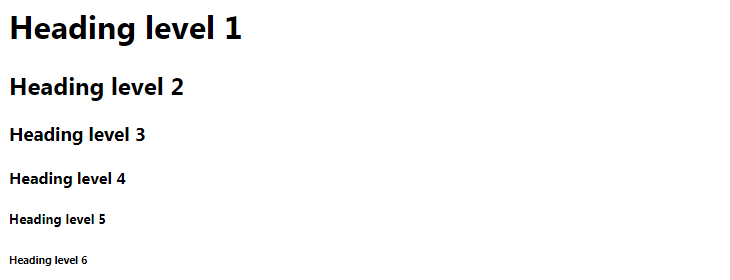
    HTML offers six levels of heading tags, <h1> through <h6>; the lower the heading level number, the greater its importance — therefore <h1> tag defines the most important heading, whereas the <h6> tag defines the least important heading in the document.

    By default, browsers display headings in larger and bolder font than normal text. Also, <h1> headings are displayed in largest font, whereas <h6> headings are displayed in smallest font.

    Example

    <h1>Heading level 1</h1>
    <h2>Heading level 2</h2>
    <h3>Heading level 3</h3>
    <h4>Heading level 4</h4>
    <h5>Heading level 5</h5>
    <h6>Heading level 6</h6>

    — The output of the above example will look something like this:

    HTML Headings
  • HTML Attributes

    What are Attributes

    Attributes define additional characteristics or properties of the element such as width and height of an image. Attributes are always specified in the start tag (or opening tag) and usually consist of name/value pairs like name="value". Attribute values should always be enclosed in quotation marks.

    Also, some attributes are required for certain elements. For instance, an <img> tag must contain a src and alt attributes. Let’s take a look at some examples of the attributes usages:

    Example

    <img src="images/smiley.png" width="30" height="30" alt="Smiley">
    <a href="https://www.google.com/" title="Search Engine">Google</a>
    <abbr title="Hyper Text Markup Language">HTML</abbr>
    <input type="text" value="John Doe">

    In the above example src inside the <img> tag is an attribute and image path provided is its value. Similarly href inside the <a> tag is an attribute and the link provided is its value, and so on.

    Tip: Both single and double quotes can be used to quote attribute values. However, double quotes are most common. In situations where the attribute value itself contains double quotes it is necessary to wrap the value in single quotes, e.g., value='John "Williams" Jr.'

    There are several attributes in HTML5 that do not consist of name/value pairs but consist of just a name. Such attributes are called Boolean attributes. Examples of some commonly used Boolean attributes are checkeddisabledreadonlyrequired, etc.

    Example

    <input type="email" required>
    <input type="submit" value="Submit" disabled>
    <input type="checkbox" checked>
    <input type="text" value="Read only text" readonly>

    You will learn about all these elements in detail in upcoming chapters.

    Note: Attribute values are generally case-insensitive, except certain attribute values, like the id and class attributes. However, World Wide Web Consortium (W3C) recommends lowercase for attributes values in their specification.


    General Purpose Attributes

    There are some attributes, such as idtitleclassstyle, etc. that you can use on the majority of HTML elements. The following section describes their usage.

    The id Attribute

    The id attribute is used to give a unique name or identifier to an element within a document. This makes it easier to select the element using CSS or JavaScript.

    Example

    <input type="text" id="firstName">
    <div id="container">Some content</div>
    <p id="infoText">This is a paragraph.</p>

    Note: The id of an element must be unique within a single document. No two elements in the same document can be named with the same id, and each element can have only one id.

    The class Attribute

    Like id attribute, the class attribute is also used to identify elements. But unlike id, the class attribute does not have to be unique in the document. This means you can apply the same class to multiple elements in a document, as shown in the following example:

    Example

    <input type="text" class="highlight">
    <div class="box highlight">Some content</div>
    <p class="highlight">This is a paragraph.</p>

    Tip: Since a class can be applied to multiple elements, therefore any style rules that are written for that class will be applied to all the elements having that class.

    The title Attribute

    The title attribute to is used to provide advisory text about an element or its content. Try out the following example to understand how this actually works.

    Example

    <abbr title="World Wide Web Consortium">W3C</abbr>
    <a href="images/kites.jpg" title="Click to view a larger image">
        <img src="images/kites-thumb.jpg" alt="kites">
    </a>

    Tip: The value of the title attribute (i.e. title text) is displayed as a tooltip by the web browsers when the user place mouse cursor over the element.

    The style Attribute

    The style attribute allows you to specify CSS styling rules such as color, font, border, etc. directly within the element. Let’s check out an example to see how it works:

    Example

    <p style="color: blue;">This is a paragraph.</p>
    <img src="images/sky.jpg" style="width: 300px;" alt="Cloudy Sky">
    <div style="border: 1px solid red;">Some content</div>

    You will learn more about styling HTML elements in HTML styles chapter.

    The attributes we’ve discussed above are also called global attributes. For more global attributes please check out the HTML5 global attributes reference.

    A complete list of attributes for each HTML element is listed inside HTML5 tag reference.

  • HTML 5 Example

    Let’s see a simple example of HTML5.

    1. <!DOCTYPE>  
    2. <html>  
    3. <body>  
    4. <h1>Write Your First Heading</h1>  
    5. <p>Write Your First Paragraph.</p>  
    6. </body>  
    7. </html>
  • Why use HTML5

    It is enriched with advance features which makes it easy and interactive for designer/developer and users.

    It allows you to play a video and audio file.

    It allows you to draw on a canvas.

    It facilitate you to design better forms and build web applications that work offline.

    It provides you advance features for that you would normally have to write JavaScript to do.

    The most important reason to use HTML 5 is, we believe it is not going anywhere. It will be here to serve for a long time according to W3C recommendation.

  • HTML5 Tutorial

    HTML5 tutorial provides details of all 40+ HTML tags including audio, video, header, footer, data, datalist, article etc. This HTML tutorial is designed for beginners and professionals.

    HTML5 is a next version of HTML. Here, you will get some brand new features which will make HTML much easier. These new introducing features make your website layout clearer to both website designers and users. There are some elements like <header>, <footer>, <nav> and <article> that define the layout of a website.