Posts allow you to write a blog and post it on your site. They are listed in reverse chronological order in front page of your blog.
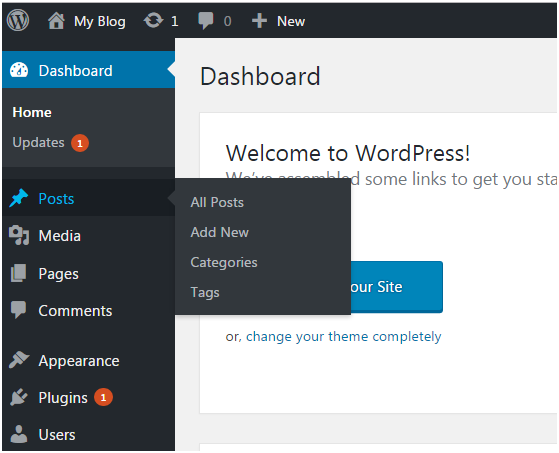
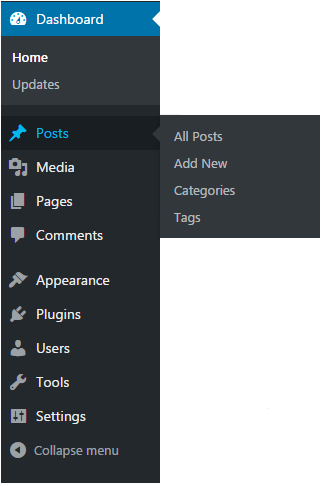
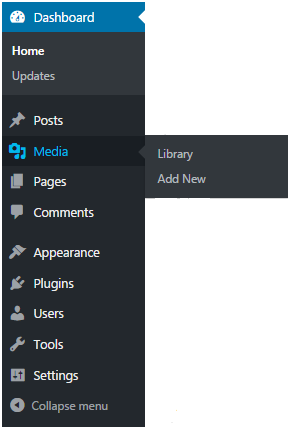
Look at the above snapshot, these are the sub-menus of posts.
How to Adding new Post
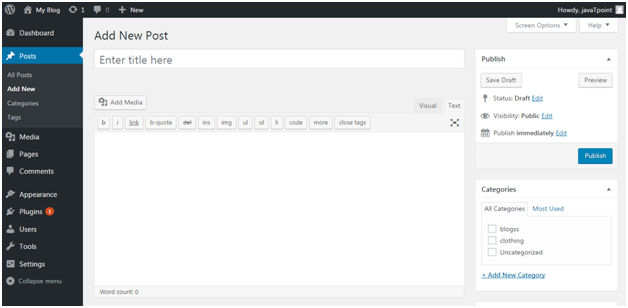
Go to Posts > Add New.
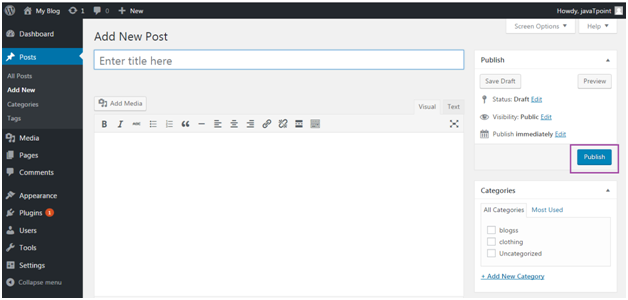
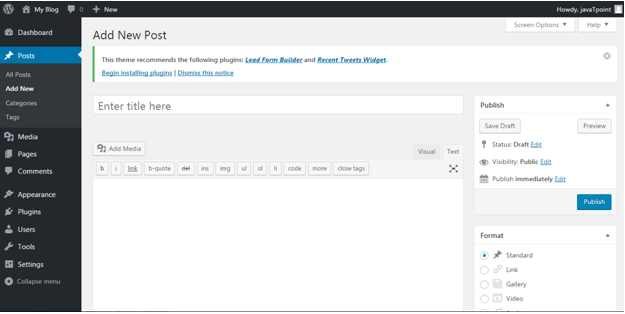
Look at the above snapshot, editor page will appear in front of you. There are two fields,
Title – Enter the title of your post
Content – Here you have to write content of your post.
In Visual mode, you can write in normal format.
In Text mode, you can write in HTML format.
Preview – This button allows you to have a look on your post before publishing it.
How to Publishing Post
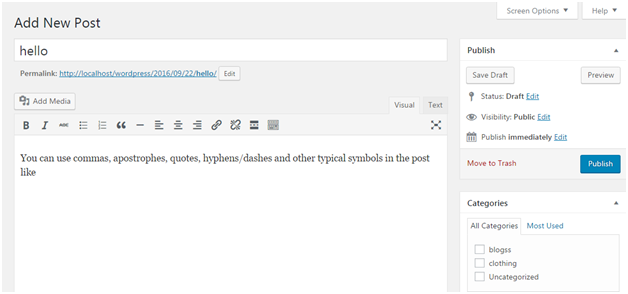
After filling above two fields click on Publish button. It means you are ready to publish your blog on your site.
Look at the above snapshot, there are some other options available in publish section.
Preview Post/Preview – Let you see a preview of your post before publishing it
Permalink – It stands for permanent link. It contains a user-friendly post name derived from post title. This can be edited using “Edit” button.
Save Draft – A post can be saved here
Status – Let you change the status of your post to Pending and Draft.
Visibility – Change visibility to Public, Password protected and Private.
Publish – Change the post publish date and time
How to Edit Post
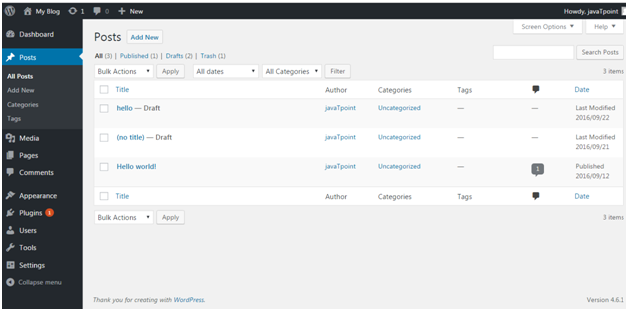
To edit post, go to Posts > All Posts.
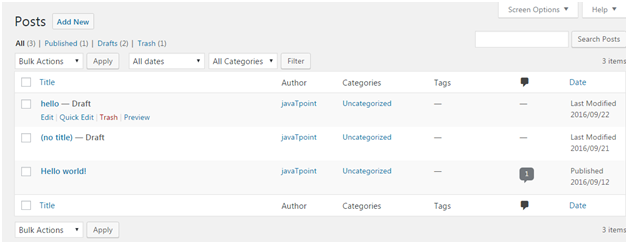
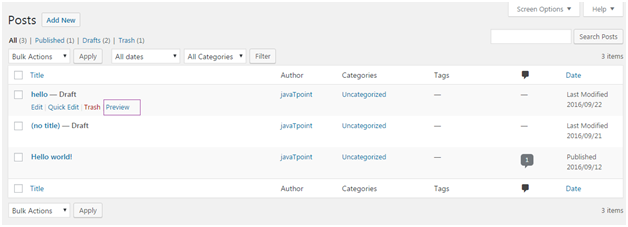
Look at the above snapshot, this is the list of all the created posts. Bring your mouse above a post, following options will appear.
Look at the above snapshot, there are two options to edit. One is Edit and other one is Quick Edit.
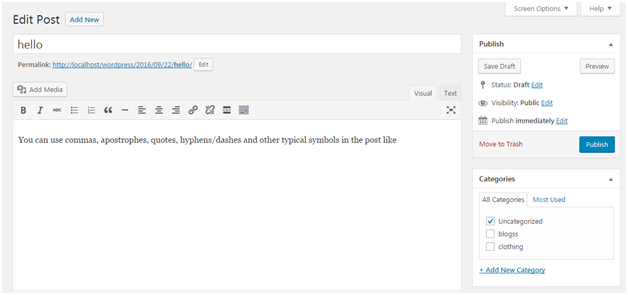
On clicking Edit, following page will appear.
Look at the above snapshot, here you can edit title or content of your post.
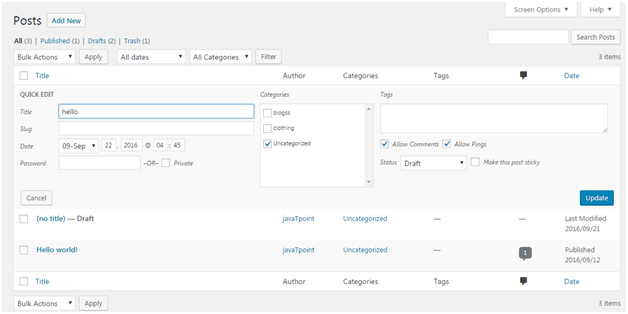
On clicking Quick Edit, following page will appear.
Look at the above snapshot, here you can edit title, date and slug of your post. And if want, you can also change category for your post.
How to Deleting a Post
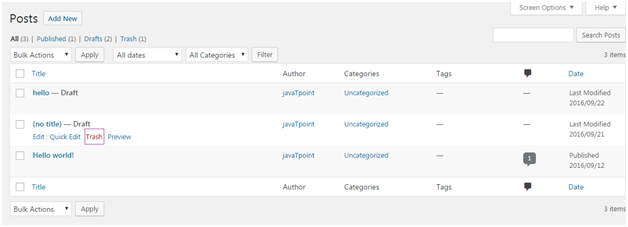
To delete a post, go to Posts > All Posts
Look at the above snapshot, Trash option will let you delete the respective post.
How to Preview Post
Preview option helps to see you your post before publishing it to the public. It is better to have a look on your post that how it looks before publishing it to the world.
Go to Posts > All Posts
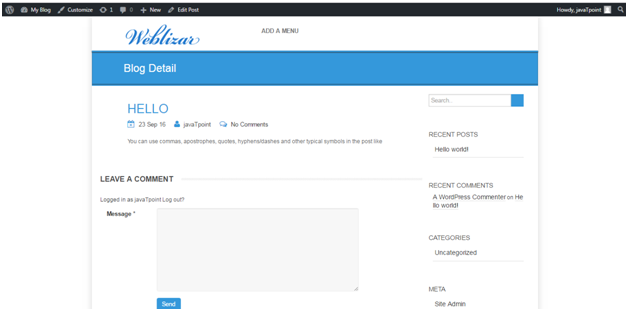
Look at the above snapshot, on clocking Preview, following page will appear.
Look at the above snapshpot, this is the preview of our post. It gives you an idea whether your post need an edit or not.
How to Publish Post
From Publish button you can make your post available to your viewers.
Go to Posts > Add New
Look at the above snapshot, after writing your post click on Publish button. And your post will be published publically.
Creating a site on WordPress is very easy. WordPress is designed in such a way that even non-tech users can also design their own websites easily and attractively.
Here, we’ll discuss each and every step involved in creating a WordPress site.
Selecting a right platform
Choosing a domain name and host
Choosing a theme/template
Creating new pages
Adding Content
Adding Media
Installing plugins
Selecting a right platform
First you have to decide a suitable platform to build your website with. Here platform means either you want to create your website using HTML, CSS or using a CMS (Content Management Systems).
There are various popular CMS in the market like WordPress, Drupal, Joomla, DotNetNuke, etc.
Why choosing WordPress
For a beginner WordPress will be the best as it doesn’t need any technical skills and due to its flexibility it is suited for all type of users.
You’ll get a lot of options to select a theme as a wide range of community design themes for WordPress. It can handle any type of website whether large or small. Most known websites like CNN, NASA, eBay use WordPress.
Above all, it gives you a responsive site which makes it compatible with small screen devices like mobile phones and tablets.
Shared hosting is best choice for beginners. You can later upgrade your site’s hosting according to the site’s traffic.
Choosing a domain name and host
You need a domain name and a hosting space to get your website online.
Domain name enables you to give your site your own name while hosting gives a space to your site on a server which makes sure your website loads quickly and won’t go down for hours.
Domain name should be short and easy to remember, brand able and catchy which defines your business.
Choosing a domain name is not easy with fulfilling all the criteria as million of domain names are active.
Choosing a theme/template
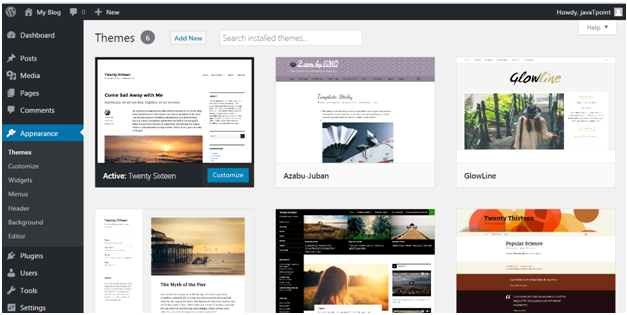
After installing WordPress, a site appears very plain. To make it more attractive, users install best suitable themes for their site. It adds visuals and views to the front page.
First of all, login to your WordPress site. By default, first screen will be your dashboard.
Accessing Free themes
After login, you’ll get access for 150 free themes.
At the end we all will come to this point to make our site popular. We need to post different things to increase the popularity of our site.
Clicking on Post > Add New option, the above page will appear on the screen.
There are two ways to write a post, either you may write in Visual editor or in Text editor (in HTML format). Currently this snapshot is of Text editor.
Adding Categories
You can divide your content in different categories by adding categories to them. This tool is handy when you are publishing content for more than one field.
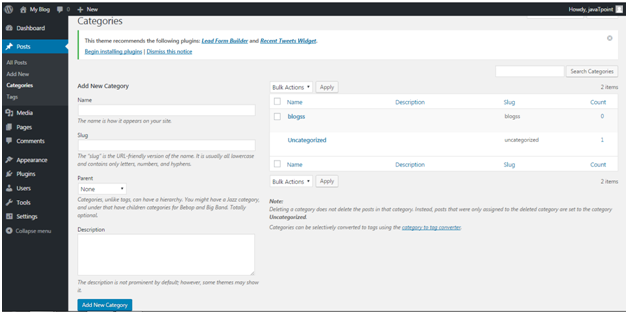
Click on Posts > Categories, you will be directed to the above page.
Here, in Name add a title to your new category. In Slug, you can add some words which will become part of URL while searching.
Tags
Tags are very much similar to Categories with only one difference that each post has its own set of tags.
Enabling or Disabling Comment
Comment creates a debate on some posts or sites. Some users don’t want their visitors to comment. They can shut comment off in WordPress.
To disable a comment for a particular page
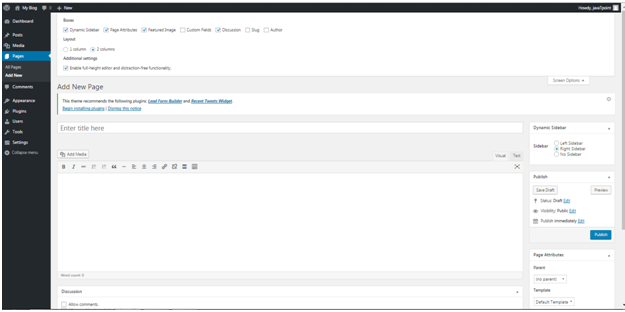
Go to Pages > Add New
Click on Screen Options on top right
Tick on Discussions box
Scroll down, untick Allow Comments option
Go to Settings > Discussions
Untick “Allow people to post comments on new articles”
Sidebar which generally appears on the right side (sometimes appears on left) contains widgets like Archives, Categories and Meta, etc.
To edit the side bar, go to Appearance > Widgets
Use drag n drop method to either use a widget or remove a widget.
Adding Media
Every website needs some photos and videos to describe its content and value. WordPress also provide functionality to add a media. You can add image caption, title and description along with media. Also add alt text helps search engine to identify the image.
Installing plugins
Plugins are the extensions in the WordPress with certain piece of coding expanding specific function to you site. They are not built-in.
There are almost 25,000 different plugins options to choose from.
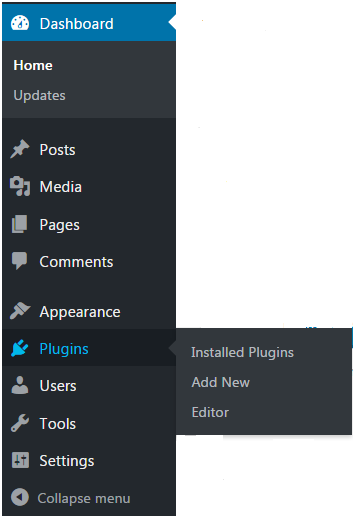
Installation a plugin is very simple. Click Plugins. You will see three options, as shown in the snapshot below.
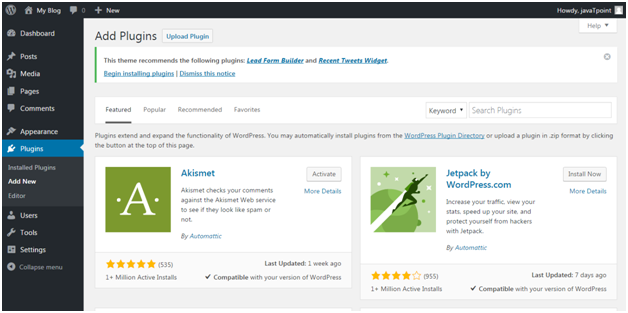
Click on Plugins > Add New. Following screen will appear in front of you.
You can choose a plugin from the given options. Just click Install Now and you will be able to use it.
WordPress Dashboard allows full access to manage a website behind the scenes. It is the default page in admin panel which comes right after the login page. It mainly represents everything that is happening with your blog. You can check everything here related to your post. It gives you the updates about your website. If you want to change your password or change any type of setting this is the place where you need to come.
All the content of dashboard is grouped into widgets. You can be hide/show these widgets as per your requirement. Their positions can also be changed using drag and drop action.
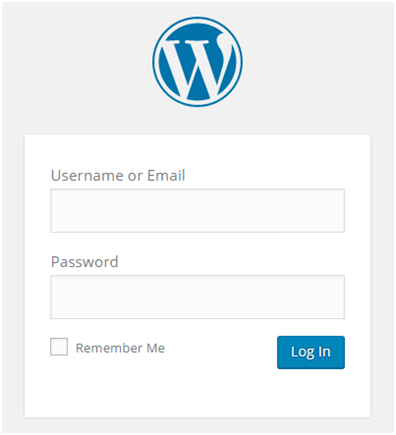
Look at the above snapshot, this is the login page for WordPress. After filling information click on Log In button, you will be directed to Dashboard screen which is shown below.
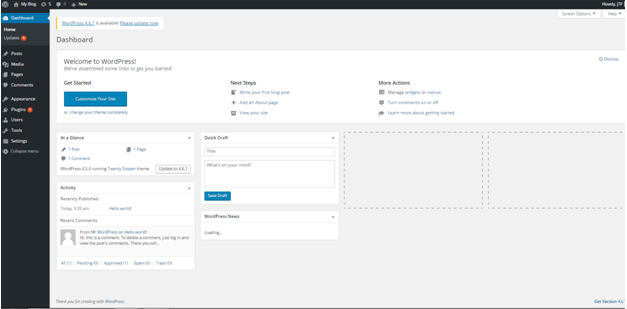
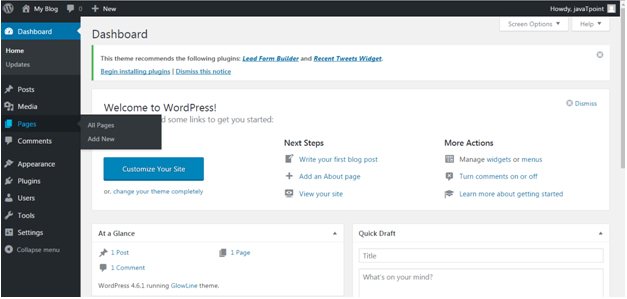
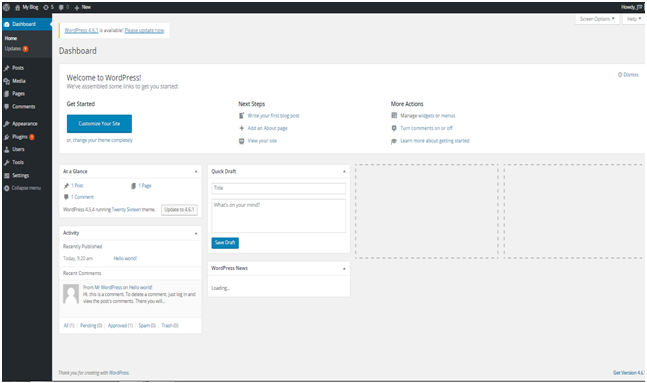
The above snapshot is the dashboard of WordPress.
We’ll explain following points from the dashboard.
Admin bar
Sidebar Menu
Welcome to WordPress
At a Glance
Activity
Quick Draft
WordPress News
Screen Options
Admin Bar
The black bar at the top represents admin bar. It only displays when admin is logged in. That’s why this is called admin bar.
Look at the above snapshot, this is the admin bar displayed at our account.
It contains the following items:
A WordPress icon – It contains information about WordPress, WordPress.org, documentation, etc.
Home of your site – It brings you to the Home page of your site
Notifications – All the notifications will be shown here. We have 5 notifications here.
Comments – Display comments on your blog where you can edit, reply or delete a comment.
New – You can add up a new page, post, media or user.
Admin name – It is displayed at the right end of the admin bar showing logged in user name (currently logged in user name is JTP). You can edit your profile and Logout from here.
Sidebar Menu
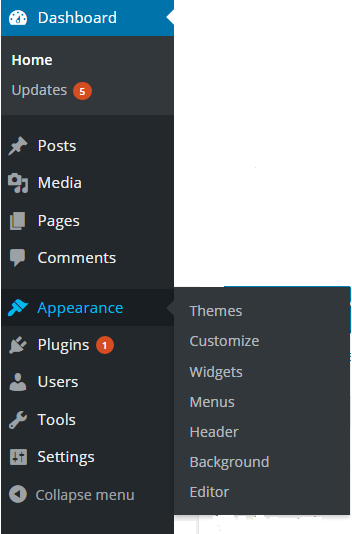
Look at the above snapshot, it is the side menu of the dashboard which contains full menu of options. These options allow easy access to different areas of your site.
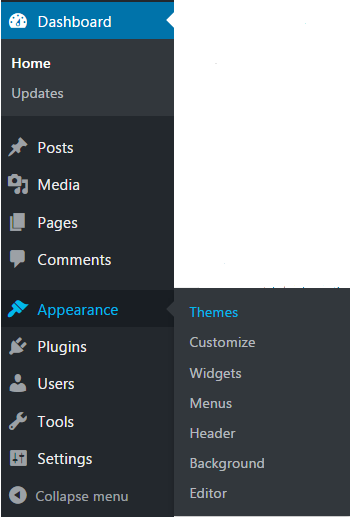
A sub-menu list may appear on selecting an option. Like here we have shown sub-menu list of Appearance.
Menu content:
Dashboard – Display received updates
Posts – Manage posts on your blog
Media – Manage media content library like images, audio and video
Pages – creating and managing pages
Comments – display all the comments on your blog
Appearance – change the appearance of your site
Plugins – extend capabilities of the website and manage them
Users – shows all your site’s users. Allows editing your site by changing password and name
Tools – setting of website
Welcome to WordPress
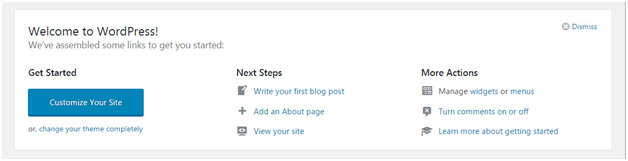
This is displayed at the top middle of the dashboard. There is a button to customize your site using different themes. It contains different links to create blog, view your site and many more as shown above.
There is an option at the top right corner to remove this widget. If you want to remove it you can. But if you want it back, click on screen options drop-down menu.
At a Glance
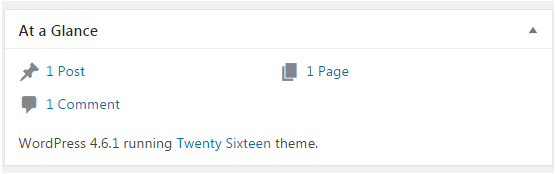
You can have a look on how many posts, pages and comments are there in your site. These comments also include spammed comments. It tells about which theme is currently running on your site.
It also tells about some additional information if some plugins are installed.
Activity
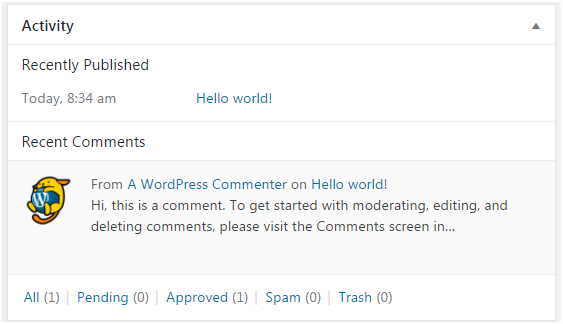
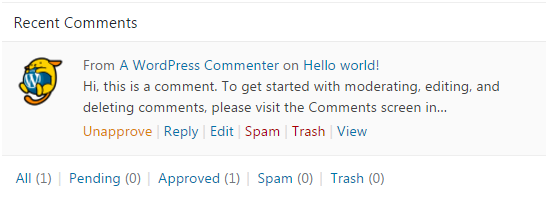
This widget provides you information about some of your recent posts. It displays the recent comment on your post.
Look at the above snapshot, there is one recent comment in our activity widget.
On doing hover with mouse at a comment, different actions appear below the comment like editing, deleting, replying, etc.
Quick Draft
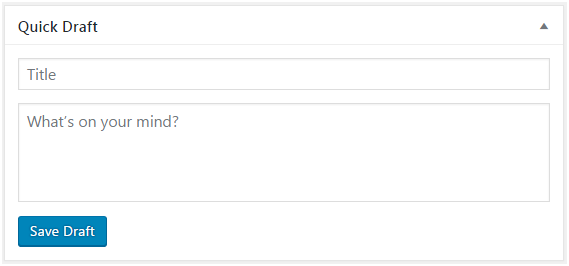
Quick draft widget is a way through which you can write your ideas and save it in a draft form. Later you can write a blog on it.
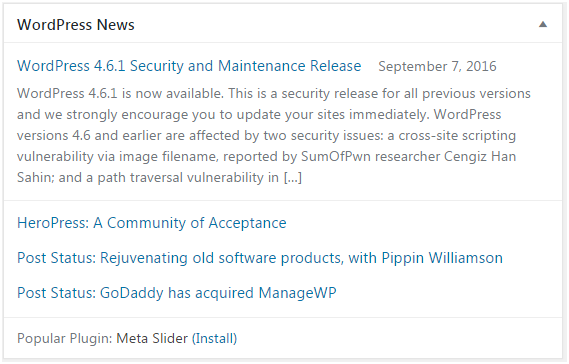
WordPress News
This widget displays latest blog posts from the WordPress official blogs. Look at the top right corner if you’ll click on this arrow, this widget will hide.
Screen Options
As you already know each of the widget can be enabled and disabled in your dashboard area. To do so, there is Screen Options widget which allows you to enable or disable different widgets.
You can also minimize or drag a widget according to your need.
Installing WordPress is very easy and takes less than five minutes to complete. It is best known for its ease of installation. All web hosting companies allow WordPress installation within few clicks.
There are different methods to install WordPress on a system.
Methods to install WordPress
Using cPanel
This is the fastest and easiest way to install WordPress on your system using cPanel software. The most common tools available to automatically install WordPress are Softaculous, SimpleScripts, Fantastico and De Luxe. All the web hosts allow one-click installation through these tools.
You only have to choose one WordPress host and use installation script in cPanel. You will get your login details and URL link of cPanel via email after signing up for hosting plan.
Using MS Webmatrix
There is a free software program named Microsoft Webmatrix which allows WordPress installation on local system. But this installation is only for Microsoft users.
This software creates a local server, database and everything else needed for the WordPress installation on the system itself and hence, it doesn’t need any live server.
After installation through this method you can easily switch to live web server after choosing a web host.
On local server
To install WordPress on local server you can use software like XAMPP, WAMP and MAMP (for Mac users). These software provide you a server generally Apache, database MySQL on PhpMyAdmin which is required for the installation.
Here, you only have to create a WordPress database using PhpMyAdmin and edit wp config file.
Manually using cPanel or FTP
Manually WordPress can be installed using either cPanel or FTP. It creates a new database to connect your files and database by uploading WordPress files to the root directory on your web server.
This process involves a bit technical knowledge and hence this is not recommended for the beginners level.
Prerequisites before installing WordPress
Before installing WordPress you need to make sure the availability of certain things.
They are as follows:
Downloaded latest version of WordPress
A good web hosting company’s hosting account with FTP access
WordPress.com is the site where you don’t have to do anything. All the developing work will be handled itself. You don’t have to purchase software, manage web server or pay for hosting.
There are some limitations with this site. For example, by default your domain name includes wordpress.com, you can’t modify your site’s coding, upload any themes or plugins. Your site will be free for the lifetime, but you have to pay to upgrade it for more specifications.
Upgrades also allow you to use a custom domain like you can use anything as the domain. Further upgradation also enhances appearance of your site, upload videos or photos and many more.
Your site will be secured and spam free as it will be under WordPress security. You only have to sign in and choose your blog name and focus on your content.
This site is preferred by everyone but mostly bloggers, photographers, artists, etc.
WordPress.org
WordPress.org is the site where you have to manage your own blog or website. You can find free WordPress software and install on your web server.
It gives full control and freedom over your site including the WordPress software. Most of the WordPress showcase sites are made on self hosting.
With full control it also places full responsibility of the site upon the user. From technical dealing to security issues each and everything has to be managed by the user itself.
WordPress.com vs WordPress.org
Features
WordPress.com
WordPress.org
Definition
Fully hosted version
Self hosted version
Cost
Charges required for upgradation
No charges for upgradation
Freedom and limitations
Include more limitations
Include less limitation
Maintenance
No responsibility to maintain the site
All responsibilities comes on user
Advantage
Security and backups are provided
You need to find a host to provide backup and security
Themes
Choose a theme and use it with the help of custom design
Need to install custom themes then use it with PHP and CSS
WordPress is licensed under GPLv2 (GNU General Public License) which makes it free and open-source software. Each copy of WordPress has a license copy with it.
Predecessor version of WordPress b2/cafelog was also licensed under the GPLv2.
GPL is very popular in licensing open-source software under it. It allows free installation, modification and distribution of its source-code to others. Although, it maintains some rules and regulations under it.
Here free is referred to freedom and not price. It may apply some minimal charges on certain stages.
What is GPL
GNU software was written by Richard Stallman.
The GNU General Public License is called GPL in short. It has some terms and conditions to copy, modify and distribute the software licensed under its name.
GNU makes sure that any software source-code licensed under it has to make originating source code open and freely available to all its users. Here, freely doesn’t mean by cost but it means that it is freely available to users to distribute and modify the code, but they can’t impose any restrictions on further distribution, source code has to be made available.
Software allowing these facilities comes under the category of Free Software. And if those rights need to be retained, then these are called Copylefted. The GPL demands both.
On 29th June 2007, the third version GNU GPLv3 (version 3) was released. It was discovered to deal with some problems that were present in the second version.
There are many reasons to use WordPress in today’s scenario as it provides a great help to its users in all respect.
Creating a website without logical skill
The most interesting and best part about WordPress is that anyone can create his/her own website on this without any coding or designing skills. Out of million users on WordPress, most of them are neither designers nor programmers.
To create a website on WordPress you only need an Internet connection and a web browser.
Provide a range of Themes
It gives thousand types of template options to give any type of feel and look to a website. They are very easy to customize as they come with their own option panel which allows users to select colors, background, sliders, fonts, logos and many more.
Plugins to add functionality
It provides both free and premium types of plugins. These plugins add extra functionality or may give a whole new platform to a website. It allows a user to add photo galleries, shopping carts and much more.
WordPress is a free and open-source software. It is free to install and use. As a new user you can easily create a website of your own that too absolutely free. It never has any type of hidden charges once a user started using it.
Being an open-source, you can alter the source-code according to your need. Anyone can become a contributor to WordPress by answering questions, creating themes or writing plugins.
Adding a blog is very easy
WordPress came into existence with blogging and still mostly consider it as a blogging site. It provides all type of blog solutions from designing, styling to the anti spam solutions. It will meet your demands in all possible ways.
More secure
It only takes 5 minutes to install, and is really fast in updating for security and new functionality. Upgrading to a new version is automatic and very fast as it provides a one link click upgradation. It constantly updates its site and software to prevent from hacking.
Google and WordPress
In a press conference in 2009, Matt Cutts, the head of Google’s web spam team said that “Google loves WordPress”. Even WordPress simple plugins and themes are also really attractive to Google. WordPress is a better option when doing SEO due to its framework which is easy to crawl.
Inserting Multimedia
A user whether writing a blog or creating a website, need to insert videos, pictures to make its content more powerful. WordPress makes it very easy to upload a multimedia file or to make some editing in files like images.
Mobile-Friendly
A website needs to be responsive for small screens like tablets, smartphones to reach all its users. WordPress is mobile-friendly as its themes are made responsive.
Easy to use
WordPress dashboard always look the same. You don’t need to hire an expert to learn how to use WordPress.
Till now many versions of WordPress has launched. Some of them are older versions, some are older but still supported, some are latest and some are still not launched.
The name of WordPress versions are kept on the United States musicians name.
Older Versions
Version
Released date
Musician
Purpose
0.7
May 27, 2003
none
Numbering is continued with last release of b2
1.0
Jan 3, 2004
Davis
Additions of search engine friendly links
1.2
May 22, 2004
Mingus
Plugin support added
1.5
Feb 17, 2005
Strayhorn
Added features to manage static page and theme system
2.0
Dec 31, 2005
Duke
Added features like rich editing, faster posting, image uploading and many more
2.1
Jan 22, 2007
Ella
Redesigned interface, corrected security issues, improved editing tools and content management system
2.2
May 16, 2007
Getz
Widget support for templates were added
2.3
Sept 24, 2007
Dexter
Some security fixes, added native tagging support and brought easy notification of updates
2.5
Mar 29, 2008
Brecker
Improved systems like plugin, editor, multi-file upload, extended search
2.6
Jul 15, 2008
Tyner
Made WordPress as more powerful CMS, enables track changes to every post and page and allows posting from anywhere
The b2/cafelog, a blogging tool was launched in 2001 by a French programmer Michel Valdrighi.
The programming language used to develop b2 was PHP along with MySQL. It was specifically designed to write blogs.
The major innovation in b2 was generating a page dynamically from the contents of MySQL database instead of static web pages.
It also made use of MySQL for database which provides a search option among the blogs present in the database.
It was licensed under GPL which made its source-code open for all.
It was an unmaintained site. He worked on b2 till December 2002, and suddenly vanished. All the b2 users community was concerned about the developing work of b2.
Michel reappeared in 2003 and later joined WordPress as a contributing developer.
Birth of WordPress
WordPress is the successor and fork (copy of source code) of b2/cafelog founded by Mike Little and Matt Mullenweg. It is also written in PHP language with MySQL.
Matt Mullenweg, son of a software engineer, was a user community member of b2. In 2002, he was a college student when installed b2 for his personnel use.
When Michel Valdrighi stopped updating b2, then Matt decided to fork the b2 software to do his blogging. He wrote a blog announcing to fork b2 source-code, and got a reply from Mike Little stating that he is also interested in forking and would like to work with him.
On 1st April 2003, they created a less than 10 member team to create their own version.
WordPress name
The name WordPress was suggested by a friend of Matt Mullenweg, Christine Selleck Tremoulet.
The name was completely her idea.
Releasing WordPress
After thousands of commits to the official SVN repository, WordPress first version 0.7 was released on May 27, 2003.
Next version 0.1 was released in January 2004 which is also called Davis version. Name Davis was given by Matt as he has affection towards jazz. From now on, all the updates are named on jazz.
Matt also used to include a plugin called Hello Dolly, in every release. This name is a tribute to Louis Armstrong.
AD
After few months of announcing work on b2, some other developers also forked b2. They were, b2evolution by Francois planque from France and b2++ by Donncha O Caoimh from Ireland.
Due to various forks Michel decided to make WordPress the official branch of b2. On 29th May 2003, Matt invited both b2++ and b2evolution to join hands with WordPress. Donncha of b2++ joined readily but other one didn’t.
WordPress in current scenario
WordPress is expanding day by day. It is adding some more features in its each version.
Currently it is the largest self-hosted blogging tool in the world with millions of users every day. According to a survey, WordPress encounters 22.5% of all websites on the Internet. Today these millions of users who may be developer, writer, blogger or designer make a living out of it.
WordPress yet doesn’t provide best use for mobile users. Currently, very few large enterprises use WordPress as their CMS. This number is gradually increasing day by day.
All in all, we can say that future of WordPress is very bright. Matt himself said that he envisioned WordPress as the leading Operating System in coming years.
WordPress is a free and open-source Content Management System (CMS). It is an online site based on PHP and MySQL. It was mainly designed as a blogging tool but now it has evolved into a versatile CMS. Where, you can use it to create a simple blog as well as a fully operationable website and mobile applications. It is even used to create an online store using some WordPress plugins.
But some people still misunderstand it just as a blogging platform.
It is considered as the easiest and most popular CMS tool due to its features. The main feature of WordPress is its versatility and feasibility to use. There is no use of coding and designing skills for creating a website on this. Even a non-technical person can also create a website with the help of WordPress easily.
WordPress is an open-source community that implies thousands of people from all over the world work on it. It is free software. You are free to download, install, modify and use it. Although, there might be some cost involved during web hosting.
There are more than 26,000 themes and 31,000 plugins to create a website.