Blog

  • Bootstrap Tabs

    Creating Tabs with Bootstrap

    Tab based navigations provides a powerful mechanism to handle huge amount of content within a small area through separating content into different panes where each pane is viewable one at a time.

    User can quickly access the content through switching between the panes without leaving the page. The following example will show you how to create the basic tabs using the Bootstrap tab component.

    Example

    Try this code »

    <ul class="nav nav-tabs">
        <li class="nav-item">
            <a href="#" class="nav-link active">Home</a>
        </li>
        <li class="nav-item">
            <a href="#" class="nav-link">Profile</a>
        </li>
        <li class="nav-item">
            <a href="#" class="nav-link">Messages</a>
        </li>
    </ul>

    — The output of the above example will look something like this:

    Bootstrap Tabs

    The tabs plugin also works with pills nav. To create pill nav just replace the class .nav-tabs with .nav-pills in the tab markup, as shown in the following example:

    Example

    Try this code »

    <ul class="nav nav-pills">
        <li class="nav-item">
            <a href="#" class="nav-link active">Home</a>
        </li>
        <li class="nav-item">
            <a href="#" class="nav-link">Profile</a>
        </li>
        <li class="nav-item">
            <a href="#" class="nav-link">Messages</a>
        </li>
    </ul>

    — The output of the above example will look something like this:

    Bootstrap Pills

    Creating Dynamic Tabs via Data Attributes

    You can activate a tab or pill navigation without writing any JavaScript code — simply specify the data-bs-toggle="tab" on each tab, or data-bs-toggle="pill" on each pill, as well as create a .tab-pane with unique ID for every tab and wrap them in .tab-content.

    Let’s take a look at an example to understand how to create dynamic tabs via data attributes.

    Example

    Try this code »

    <ul class="nav nav-tabs">
        <li class="nav-item">
            <a href="#home" class="nav-link active" data-bs-toggle="tab">Home</a>
        </li>
        <li class="nav-item">
            <a href="#profile" class="nav-link" data-bs-toggle="tab">Profile</a>
        </li>
        <li class="nav-item">
            <a href="#messages" class="nav-link" data-bs-toggle="tab">Messages</a>
        </li>
    </ul>
    <div class="tab-content">
        <div class="tab-pane fade show active" id="home">
            <p>Home tab content ...</p>
        </div>
        <div class="tab-pane fade" id="profile">
            <p>Profile tab content ...</p>
        </div>
        <div class="tab-pane fade" id="messages">
            <p>Messages tab content ...</p>
        </div>
    </div>

    Tip: The .fade class is added to each .tab-pane to make tabs fade in while showing new tab content. Also, you must add .active class to a .nav-link, as well as .show and .active classes to the corresponding .tab-pane to make it initially visible.


    Creating Dynamic Tabs via JavaScript

    You may also enable tabs via JavaScript. Each tab needs to be activated individually.

    Example

    jQuery JavaScript

    Try this code »

    <script>
    $(document).ready(function(){
        $("#myTab a").click(function(e){
            e.preventDefault();
            $(this).tab("show");
        });
    });
    </script>

    You can activate individual tabs in several ways. Let’s take a look at the following example:

    Example

    jQuery JavaScript

    Try this code »

    $('#myTab a[href="#profile"]').tab("show"); // show tab targeted by the selector
    $("#myTab a:first").tab("show"); // show first tab
    $("#myTab a:last").tab("show"); // show last tab
    $("#myTab li:eq(1) a").tab("show"); // show second tab (0-indexed, like an array)

    Methods

    This is the standard bootstrap’s tab method:

    show

    Activates the given tab and shows its associated pane. Any other tab that was previously selected becomes unselected and its associated pane is hidden.

    Example

    jQuery JavaScript

    Try this code »

    <script>
    $(document).ready(function(){
        $("#myTab a:last").tab("show"); // show last tab
    });
    </script>

    dispose

    This method destroys an element’s tab (i.e. removes stored data on the DOM element).

    Example

    jQuery JavaScript

    Try this code »

    <script>
    $(document).ready(function(){
        $("#myBtn").click(function(){
            var lastTab = bootstrap.Tab.getInstance($("#myTab a:last")[0]);
            console.log(lastTab);
            // {_element: a.nav-link}
    
            $("#myTab a:last").tab("dispose");
            console.log(lastTab);
            // {_element: null}
        });
    });
    </script>

    getInstance

    This is a static method which allows you to get the tab instance associated with a DOM element.

    Example

    jQuery JavaScript

    Try this code »

    <script>
    $(document).ready(function(){
        // Get tab instance on button click
        $("#myBtn").click(function(){
            var lastTab = bootstrap.Tab.getInstance($("#myTab a:first")[0]);
            console.log(lastTab);
            // {_element: a.nav-link.active}
        });
    });
    </script>

    getOrCreateInstance

    This is a static method which allows you to get the tab instance associated with a DOM element, or create a new one in case if the tab wasn’t initialized.

    Example

    jQuery JavaScript

    Try this code »

    <script>
    $(document).ready(function(){
        // Get or create tab instance on button click
        $("#myBtn").click(function(){
            var lastTab = bootstrap.Tab.getOrCreateInstance($("#myTab a:first")[0]);
            console.log(lastTab);
            // {_element: a.nav-link.active}
        });
    });
    </script>

    Events

    These are the standard Bootstrap events to enhance the tab functionality.

    EventDescription
    show.bs.tabThis event fires on tab show, but before the new tab has been shown. You can use the event.target and event.relatedTarget to target the active tab and the previous active tab (if available) respectively.
    shown.bs.tabThis event fires on tab show after a tab has been shown. You can use the event.target and event.relatedTarget to target the active tab and the previous active tab (if available) respectively.
    hide.bs.tabThis event fires when the current active tab is to be hidden and thus a new tab is to be shown. You can use the event.target and event.relatedTarget to target the current active tab and the new tab which is going to be active very soon, respectively.
    hidden.bs.tabThis event fires after the previous active tab is hidden and a new tab is shown. You can use the event.target and event.relatedTarget to target the previous active tab and the new active tab, respectively.

    The following example displays the names of active tab and previous tab to the user when transition of a tab has been fully completed.

    Example

    jQuery JavaScript

    Try this code »

    <script>
    $(document).ready(function(){
        $('a[data-bs-toggle="tab"]').on("shown.bs.tab", function(e){
            console.log(e.target); // newly activated tab
            console.log(e.relatedTarget); // previous active tab
        });
    });
    </script>
  • Bootstrap Dropdowns

    Creating Dropdown Menus with Bootstrap

    The dropdown menu is typically used inside the navigation header to display a list of related links when a user mouse hover or click on the trigger element.

    You can use the Bootstrap dropdown plugin to add toggleable dropdown menus (i.e. open and close on click) to almost anything such as links, buttons or button groups, navbar, tabs and pills nav etc. without even writing a single line of JavaScript code.

    Adding Dropdowns via Data Attributes

    Bootstrap provides an easy and elegant mechanism for adding the dropdown menu to an element via data attributes. The following example will show you the minimum markup required for adding a dropdown menu to the hyperlink via data attributes.

    Example

    <div class="dropdown">
        <a href="#" class="dropdown-toggle" data-bs-toggle="dropdown">Dropdown</a>
        <div class="dropdown-menu">
            <a href="#" class="dropdown-item">Action</a>
            <a href="#" class="dropdown-item">Another action</a>
        </div>
    </div>

    The above example demonstrates the most basic form of the Bootstrap dropdowns. Let’s understand each part of the Bootstrap dropdown component one by one.

    Explanation of Code

    The Bootstrap dropdown has basically two components — the dropdown trigger element which can be a hyperlink or button, and the dropdown menu itself.

    • The .dropdown class specifies a dropdown menu.
    • The .dropdown-toggle class defines the trigger element, which is a hyperlink in our case, whereas the attribute data-bs-toggle="dropdown" is required on the trigger element to toggle the dropdown menu.
    • The <div> element with the class .dropdown-menu is actually building the dropdown menu that typically contains the related links or actions.

    Similarly, you can add the dropdowns to the buttons and nav components. The following section will show you some common implementation of the Bootstrap dropdown.


    Dropdowns within a Navbar

    The following examples will show you how to add dropdowns to navbar.

    Example

    <nav class="navbar navbar-expand-sm navbar-light bg-light">
        <div class="container-fluid">
            <a href="#" class="navbar-brand">Brand</a>
            <button type="button" class="navbar-toggler" data-bs-toggle="collapse" data-bs-target="#navbarCollapse">
                <span class="navbar-toggler-icon"></span>
            </button>
            <div id="navbarCollapse" class="collapse navbar-collapse">
                <ul class="nav navbar-nav">
                    <li class="nav-item">
                        <a href="#" class="nav-link">Home</a>
                    </li>
                    <li class="nav-item">
                        <a href="#" class="nav-link">Profile</a>
                    </li>
                    <li class="nav-item dropdown">
                        <a href="#" class="nav-link dropdown-toggle" data-bs-toggle="dropdown">Messages</a>
                        <div class="dropdown-menu">
                            <a href="#" class="dropdown-item">Inbox</a>
                            <a href="#" class="dropdown-item">Drafts</a>
                            <a href="#" class="dropdown-item">Sent Items</a>
                            <div class="dropdown-divider"></div>
                            <a href="#"class="dropdown-item">Trash</a>
                        </div>
                    </li>
                </ul>
                <ul class="nav navbar-nav ms-auto">
                    <li class="nav-item dropdown">
                        <a href="#" class="nav-link dropdown-toggle" data-bs-toggle="dropdown">Admin</a>
                        <div class="dropdown-menu dropdown-menu-end">
                            <a href="#" class="dropdown-item">Reports</a>
                            <a href="#" class="dropdown-item">Settings</a>
                            <div class="dropdown-divider"></div>
                            <a href="#" class="dropdown-item">Logout</a>
                        </div>
                    </li>
                </ul>
            </div>
        </div>
    </nav>

    — The output of the above example will look something like this:

    Bootstrap Dropdowns within Navbar

    Tip: You can draw a divider line to separate the links inside a dropdown menu by adding the class .dropdown-divider on a blank <div> element.


    Dropdowns within Navs

    The following example will show you how to add dropdowns to pills navs.

    <ul class="nav nav-pills">
        <li class="nav-item">
            <a href="#" class="nav-link active">Home</a>
        </li>
        <li class="nav-item">
            <a href="#" class="nav-link">Profile</a>
        </li>
        <li class="nav-item dropdown">
            <a href="#" class="nav-link dropdown-toggle" data-bs-toggle="dropdown">Messages</a>
            <div class="dropdown-menu">
                <a href="#" class="dropdown-item">Inbox</a>
                <a href="#" class="dropdown-item">Drafts</a>
                <a href="#" class="dropdown-item">Sent Items</a>
                <div class="dropdown-divider"></div>
                <a href="#" class="dropdown-item">Trash</a>
            </div>
        </li>
        <li class="nav-item dropdown ms-auto">
            <a href="#" class="nav-link dropdown-toggle" data-bs-toggle="dropdown">Admin</a>
            <div class="dropdown-menu dropdown-menu-end">
                <a href="#" class="dropdown-item">Reports</a>
                <a href="#" class="dropdown-item">Settings</a>
                <div class="dropdown-divider"></div>
                <a href="#" class="dropdown-item">Logout</a>
            </div>
        </li>
    </ul>

    — The output of the above example will look something like this:

    Bootstrap Dropdowns within Nav

    You can simply convert the above example to a tab dropdown by replacing the class .nav-pills with the .nav-tabs, without any further change in markup.


    Dropdowns within Buttons

    The following examples will show you how to add dropdowns to a primary button.

    Example

    <div class="btn-group">
        <button type="button" class="btn btn-primary dropdown-toggle" data-bs-toggle="dropdown">Primary</button>
        <div class="dropdown-menu">
            <a href="#" class="dropdown-item">Action</a>
            <a href="#" class="dropdown-item">Another action</a>
            <div class="dropdown-divider"></div>
            <a href="#" class="dropdown-item">Separated link</a>
        </div>
    </div>

    — Similarly you can add dropdowns to other variants of the buttons, as shown here:

    Bootstrap Dropdowns within Buttons

    Bootstrap Split Button Dropdowns

    The following examples will show you how to add dropdowns to split buttons.

    Example

    <div class="btn-group">
        <button type="button" class="btn btn-primary">Primary</button>
        <button type="button" class="btn btn-primary dropdown-toggle dropdown-toggle-split" data-bs-toggle="dropdown">
            <span class="visually-hidden">Toggle Dropdown</span>
        </button>
        <div class="dropdown-menu">
            <a href="#" class="dropdown-item">Action</a>
            <a href="#" class="dropdown-item">Another action</a>
            <div class="dropdown-divider"></div>
            <a href="#" class="dropdown-item">Separated link</a>
        </div>
    </div>

    — Similarly you can add dropdowns to other variants of the buttons, as shown here:

    Bootstrap Split Button Dropdowns

    Tip: You can use the Bootstrap’s button relative sizing classes like .btn-lg and .btn-sm on the .btn element to further resizing the buttons dropdowns.


    Dropdowns Inside Button Groups

    To create dropdown menus inside a button group just place a .btn-group along with the dropdown markup within another .btn-group, as shown in the following example:

    Example

    <div class="btn-group">
        <button type="button" class="btn btn-primary">Button</button>
        <button type="button" class="btn btn-primary">Another Button</button>
        <div class="btn-group">
            <button type="button" class="btn btn-primary dropdown-toggle" data-bs-toggle="dropdown">Dropdown</button>
            <div class="dropdown-menu">
                <a href="#" class="dropdown-item">Action</a>
                <a href="#" class="dropdown-item">Another action</a>
                <div class="dropdown-divider"></div>
                <a href="#" class="dropdown-item">Separated link</a>
            </div>
        </div>
    </div>

    — The output of the above example will look something like this:

    Bootstrap Dropdowns within Button Groups

    Similarly, you can crate dropdown inside vertically stacked button groups, like this:

    Example

    <div class="btn-group-vertical">
        <button type="button" class="btn btn-primary">Button</button>
        <button type="button" class="btn btn-primary">Another Button</button>
        <div class="btn-group">
            <button type="button" class="btn btn-primary dropdown-toggle" data-bs-toggle="dropdown">Dropdown</button>
            <div class="dropdown-menu">
                <a href="#" class="dropdown-item">Action</a>
                <a href="#" class="dropdown-item">Another action</a>
                <div class="dropdown-divider"></div>
                <a href="#" class="dropdown-item">Separated link</a>
            </div>
        </div>
    </div>

    Creating Dropup, Dropleft and Dropright Menus

    You can even trigger the dropdown menus above, as well as, at the left and right of the elements by adding an extra class .dropup.dropstart and .dropend, respectively to the parent element (i.e. the .btn-group element), as shown in the following example.

    Example

    Try this code »

    <!-- Dropup menu -->
    <div class="btn-group dropup">
        <button type="button" class="btn btn-primary dropdown-toggle" data-bs-toggle="dropdown">Dropup</button>
        <div class="dropdown-menu">
            <a href="#" class="dropdown-item">Action</a>
            <a href="#" class="dropdown-item">Another action</a>
            <div class="dropdown-divider"></div>
            <a href="#" class="dropdown-item">Separated link</a>
        </div>
    </div>
    
    <!-- Dropleft menu -->
    <div class="btn-group dropstart">
        <button type="button" class="btn btn-primary dropdown-toggle" data-bs-toggle="dropdown">Dropleft</button>
        <div class="dropdown-menu">
            <a href="#" class="dropdown-item">Action</a>
            <a href="#" class="dropdown-item">Another action</a>
            <div class="dropdown-divider"></div>
            <a href="#" class="dropdown-item">Separated link</a>
        </div>
    </div>
    
    <!-- Dropright menu -->
    <div class="btn-group dropend">
        <button type="button" class="btn btn-primary dropdown-toggle" data-bs-toggle="dropdown">Dropright</button>
        <div class="dropdown-menu">
            <a href="#" class="dropdown-item">Action</a>
            <a href="#" class="dropdown-item">Another action</a>
            <div class="dropdown-divider"></div>
            <a href="#" class="dropdown-item">Separated link</a>
        </div>
    </div>

    — The output of the above example will look something like this:

    Bootstrap Dropup, Dropleft and Dropright Menus

    Creating the Right Aligned Dropdown Menus

    By default, the top-left corner of the dropdown menu is positioned at the bottom-left corner of its parent element i.e. 100% from the top and along the left side. To right align the dropdown menu just add an extra class .dropdown-menu-end to the .dropdown-menu base class.

    Example

    <div class="btn-group">
        <button type="button" class="btn btn-primary dropdown-toggle" data-bs-toggle="dropdown">Right-aligned Dropdown Menu</button>
        <div class="dropdown-menu dropdown-menu-end">
            <a href="#" class="dropdown-item">Action</a>
            <a href="#" class="dropdown-item">Another action</a>
            <div class="dropdown-divider"></div>
            <a href="#" class="dropdown-item">Separated link</a>
        </div>
    </div>

    — The output of the above example will look something like this:

    Bootstrap Right-aligned Dropdown Menus

    Adding Headers to Dropdown Items

    You can optionally add a menu header to label a section of menu items inside a dropdown menu by adding the class .dropdown-header to the <div> element, like this:

    Example

    <div class="btn-group">
        <button type="button" class="btn btn-primary dropdown-toggle" data-bs-toggle="dropdown">Products</button>
        <div class="dropdown-menu">
            <div class="dropdown-header">ELECTRONICS</div>
            <a href="#" class="dropdown-item">Mobiles</a>
            <a href="#" class="dropdown-item">Tablets</a>
            <a href="#" class="dropdown-item">Laptops</a>
            <div class="dropdown-header">FASHION</div>
            <a href="#" class="dropdown-item">Clothing</a>
            <a href="#" class="dropdown-item">Sunglasses</a>
        </div>
    </div>

    Disable Items within a Dropdown

    You can apply the class .disabled to the menu items in the dropdown to make them look like disabled. However, the link is still clickable, to disable this you can typically remove the anchor’s href attribute either using the JavaScript or manually.

    Example

    <div class="btn-group">
        <button type="button" class="btn btn-primary dropdown-toggle" data-bs-toggle="dropdown">Reports</button>
        <div class="dropdown-menu">
            <a href="#" class="dropdown-item">View</a>
            <a href="#" class="dropdown-item">Download</a>
            <a href="#" class="dropdown-item disabled" tabindex="-1">Edit / Delete</a>
        </div>
    </div>

    Adding Dropdowns via JavaScript

    You may also add dropdowns manually using the JavaScript — just call the dropdown() Bootstrap method with the id or class selector of the link or button element in your JavaScript code.

    Example

    jQuery JavaScript

    <script>
    $(document).ready(function(){
        $(".dropdown-toggle").dropdown();
    });
    </script>

    Note: The data-bs-toggle="dropdown" is still required for the dropdown’s trigger element regardless of whether you call the dropdown via JavaScript or data-api.


    Options

    There are certain options which can be passed to dropdown() Bootstrap method to customize the functionality of a dropdown. Options can be passed via data attributes or JavaScript.

    For setting the dropdown options via data attributes, just append the option name to data-bs-, like data-bs-display="static", and so on. Also, when passing the options via data attributes make sure to change the case type of the option name from camelCase to kebab-case. For example, instead of using data-bs-autoClose="false", use data-bs-auto-close="false".

    NameTypeDefault ValueDescription
    boundarystring | element‘clippingParents’Overflow constraint boundary of the dropdown menu (applies only to Popper’s preventOverflow modifier). It can also accept an HTMLElement reference (via JavaScript only).
    referencestring | element | object‘toggle’Reference element of the dropdown menu. Accepts the values of 'toggle''parent', an HTMLElement reference or an object providing getBoundingClientRect.
    displaystring‘dynamic’By default, Bootstrap use Popper for dynamic positioning. You can disable this with 'static'.
    offsetarray | string | function[0, 2]Specify the offset of the dropdown relative to its target. You can pass a string in data attributes with comma separated values like: data-bs-offset="10,20".
    autoCloseboolean | stringtrueConfigure the auto close behavior of the dropdown:true – the dropdown will be closed by clicking outside or inside the dropdown menu.false – the dropdown will be closed by clicking the toggle button and manually calling the hide or toggle method. Also, dropdown will not be closed by pressing esc key.'inside' – the dropdown will be closed (only) by clicking inside the dropdown menu.'outside' – the dropdown will be closed (only) by clicking outside the dropdown menu.
    popperConfignull | object | functionnullAllows you to change Bootstrap’s default Popper config, see Popper’s configuration.

    See the Popper.js’s documentation for more information on options mentioned above.


    Methods

    This is the standard bootstrap’s dropdown method:

    toggle

    This method toggles the dropdown menu of a given navbar or tabbed navigation.

    Example

    jQuery JavaScript

    <script>
    $(document).ready(function(){
        $("#myBtn").click(function(){
            $("#myDropdown").dropdown("toggle");
        });
    });
    </script>

    show

    This method shows the dropdown menu of a given navbar or tabbed navigation.

    Example

    jQuery JavaScript

    <script>
    $(document).ready(function(){
        $("#myBtn").click(function(){
            $("#myDropdown").dropdown("show");
        });
    });
    </script>

    hide

    This method hides the dropdown menu of a given navbar or tabbed navigation.

    Example

    jQuery JavaScript

    <script>
    $(document).ready(function(){
        $("#myBtn").click(function(){
            $("#myDropdown").dropdown("hide");
        });
    });
    </script>

    update

    This method updates the position of an element’s dropdown.

    Example

    jQuery JavaScript

    <script>
    $(document).ready(function(){
        $("#myBtn").click(function(){
            $("#myDropdown").dropdown("update");
        });
    });
    </script>

    dispose

    This method destroys an element’s dropdown (i.e. removes stored data on the DOM element).

    Example

    jQuery JavaScript

    <script>
    $(document).ready(function(){
        $("#myBtn").click(function(){
            $("#myDropdown").dropdown("dispose");
        });
    });
    </script>

    getInstance

    This is a static method which allows you to get the dropdown instance associated with a DOM element.

    Example

    jQuery JavaScript

    <script>
    $(document).ready(function(){
        $("#myBtn").click(function(){
            var myDropdown = bootstrap.Dropdown.getInstance($("#myDropdown")[0]);
            console.log(myDropdown);
            // {_element: button#myDropdown.btn.btn-primary.dropdown-toggle, _popper: {…}, _config: {…}, _menu: div.dropdown-menu, _inNavbar: false}
        });
    });
    </script>

    getOrCreateInstance

    This is a static method which allows you to get the dropdown instance associated with a DOM element, or create a new one in case if the dropdown wasn’t initialized.

    Example

    jQuery JavaScript

    <script>
    $(document).ready(function(){
        $("#myBtn").click(function(){
            var myDropdown = bootstrap.Dropdown.getOrCreateInstance($("#myDropdown")[0]);
            console.log(myDropdown);
            // {_element: button#myDropdown.btn.btn-primary.dropdown-toggle, _popper: null, _config: {…}, _menu: div.dropdown-menu, _inNavbar: false}
        });
    });
    </script>

    Events

    These are the standard Bootstrap events to enhance the dropdown functionality.

    All dropdown events are fired at the toggling element and then bubbled up. So you can also add event listeners on the .dropdown-menu‘s parent element. Also, you can use the event.relatedTarget to target the toggling anchor element.

    EventDescription
    show.bs.dropdownThis event fires immediately when the show instance method is called.
    shown.bs.dropdownThis event is fired when the dropdown has been made visible to the user and CSS transitions have completed.
    hide.bs.dropdownThis event is fired immediately when the hide instance method has been called.
    hidden.bs.dropdownThis event is fired when the dropdown has finished being hidden from the user and CSS transitions have completed.

    The following example displays the text content of dropdown link when the users click on it.

    Example

    jQuery JavaScript

    <script>
    $(document).ready(function(){
        $(".dropdown").on("show.bs.dropdown", function(e){
            var linkText = $(e.relatedTarget).text(); // Get the link text
            alert("Click on OK button to view the dropdown menu for - " + linkText);
        });
    });
    </script>
  • Bootstrap Modals

    Creating Modals with Bootstrap

    Modal is basically a dialog box or popup window that is used to provide important information to the user or prompt user to take necessary actions before moving on. Modals are widely used to warn users for situations like session time out or to receive their final confirmation before going to perform any critical actions such as saving or deleting important data.

    You can easily create very smart and flexible dialog boxes with the Bootstrap modal plugin. The following example oulines the basic structure to create a simple modal with a header, message body and the footer containing action buttons for the user.

    Example

    jQuery JavaScript

    <!-- jQuery Code (to Show Modal on Page Load) -->
    <script>
    $(document).ready(function() {
        $("#myModal").modal("show");
    });
    </script>
    
    <!-- Modal HTML -->
    <div id="myModal" class="modal fade" tabindex="-1">
        <div class="modal-dialog">
            <div class="modal-content">
                <div class="modal-header">
                    <h5 class="modal-title">Confirmation</h5>
                    <button type="button" class="btn-close" data-bs-dismiss="modal"></button>
                </div>
                <div class="modal-body">
                    <p>Do you want to save changes to this document before closing?</p>
                    <p class="text-secondary"><small>If you don't save, your changes will be lost.</small></p>
                </div>
                <div class="modal-footer">
                    <button type="button" class="btn btn-secondary" data-bs-dismiss="modal">Cancel</button>
                    <button type="button" class="btn btn-primary">Save changes</button>
                </div>
            </div>
        </div>
    </div>

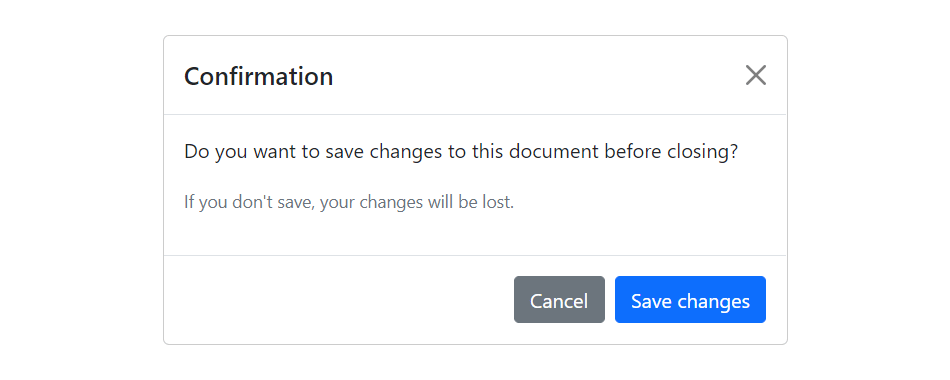
    — If you try out the above example, it will launches the modal window automatically when the DOM is fully loaded via JavaScript. The output will look something like this:

    Bootstrap Modal Popup
  • Backbone.js Utility

    The utility class consists of a set of methods for implementing Backbone utility. Following are two methods that can be used to manipulate the Backbone.js utility:

    1) Backbone.noConflict: It returns the Backbone objects back to its original value and provides a facility to store reference to a backbone. It can be used to embed backbone on third-party websites, where you don’t want to thrash the existing backbone.

    1. var localBackbone = Backbone.noConflict();  
    2. var model = localBackbone.Model.extend(…);  

    2) Backbone.$: This property is used when you have multiple copies of jQuery on the page, or simply want to tell Backbone to use a particular object as its DOM / Ajax library.

    1. Backbone.$ = require(‘jquery’);  

  • Backbone.js View

    The Backbone.js Views specify how your data looks like. They represent model’s data to the users. They can be used with any JavaScript template library. They handle users input events, bind events and methods, render model and collection and interact with users.

    Following is a list of methods that can be used to manipulate the Backbone.js views:

    IndexndexMethodDescription
    1.extendIt is used to extend the Backbone.view class to create a custom view class.
    2.initializeIt is used to instantiate the view by using new keyword.
    3.elIt defines which element to be used as the view reference.
    4.$elIt represents the jQuery object for the view’s element.
    5.setElementIt specifies existing DOM element to a different DOM element.
    6.attributesThey can be used as DOM element attributes on the view class.
    7.$(jQuery)It is used as selector that contains $ function and runs queries within the view’s element.
    8.templateWhile rendering the view, template creates reusable copies of markup and provides access to instance data.
    9.renderIt contains the logic for rendering a template.
    10.removeIt is used to remove a view from the dom.
    11.delegateEventsIt binds elements to the specified DOM elements with callback methods to handle events.
    12.undelegateEventsIt is used to remove delegate events from the view.
  • Backbone.js History

    The backbone.js history serves as a global router, keeps track of the history, matches the appropriate route and triggers callbacks to handle events and enable routing in the application.

    There is only method named “start” can be used to manipulate the Backbone.js history.

    start:

    The start method listens to routes and manages the history for bookmarkable URL’s. When all of your Routers have been created, and all of the routes are set up properly then Backbone.history.start() is called to begin monitoring the hashchange events, and dispatching routes.

    Syntax:

    1. Backbone.history.start(options)   

    Parameter explanation:

    options: The “options” specifies the parameters like pushState and hashChange used with history.

    Let’s take an example.

    See this example:

    <!DOCTYPE html>  
    
       <head>  
    
          <title>Backbone.js History Example</title>  
    
             <script src="https://code.jquery.com/jquery-2.1.3.min.js" type="text/javascript"></script>  
    
             <script src="https://cdnjs.cloudflare.com/ajax/libs/underscore.js/1.8.2/underscore-min.js" type="text/javascript"></script>  
    
             <script src="https://cdnjs.cloudflare.com/ajax/libs/backbone.js/1.1.2/backbone-min.js" type="text/javascript"></script>  
    
       </head>  
    
       <script type="text/javascript">  
    
          var Router = Backbone.Router.extend({  
    
             routes: {  
    
                "myroute" : "myFunc"  
    
             },  
    
             myFunc: function (myroute) {  
    
                document.write(myroute);  
    
             }  
    
          });  
    
          var router = new Router();  
    
         Backbone.history.start({ pushState: true });    
    
      </script>  
    
      <body>  
    
         <a href="#route1">Route1 </a>  
    
         <a href="#route2">Route2 </a>  
    
         <a href="#route3">Route3 </a>  
    
      </body>  
    
    </html>
    
    Output:

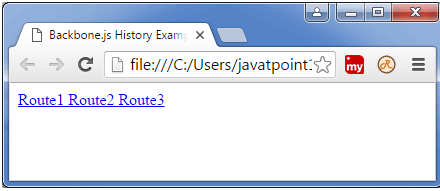
    Save the above code in get.html file and open this file in a new browser.

    BackboneJS History
  • Backbone.js Router

    Backbone.js Router is used for routing client side applications and connecting them to actions and events. It also defines the URL representation of application?s object when web applications provide linkable, bookmarkable, and sharable URL.

    Following is list of methods which can be used to manipulate the Backbone.js router:

    IndexMethodDescription
    1.extendIt is used to extend the backbone’s router class.
    2.routesIt is used to define the URL representation of application’s objects.
    3.initializeIt creates new constructor for the router installation.
    4.routeIt creates route for the router.
    5.navigateIt updates URL in the applications.
    6.executeIt is used when a route matches its corresponding callback.

  • Backbone.js Collection

    A collection is an ordered set of models.

    It is used to deal with a group of related models.

    It handles the loading and saving of new models to the server.

    It provides helper functions to perform aggregation and computation against a list of models.

    You can create your own collection by extending the backbone’s collection class.

    If an event is triggered on a model in a collection then this will also be triggered on the collection directly. It facilitates you to listen for changes to specific attributes in any model in a collection.

    Following is a list of methods that can be used to manipulate the Backbone.js collection:

    IndexMethodDescription
    1.extendIt is used to extend the backbone’s collection class to create an own collection.
    2.modelIt is used to specify the model class. You need to override the model property of the collection class.
    3.initializeInitialize function is defined to create a model instance.
    4.modelsIt specifies the array of models which are created inside of the collection.
    5.toJSONIt returns the copy of the attributes of a model using JSON format in the collection.
    6.syncIt specifies the state of the model and uses backbone.sync to display the state of the collection.
    7.addIt is used to add a model or array of models to the collection.
    8.removeIt removes a model or array of models from the collection.
    9.resetIt resets the collection and populates with new array of models or empty the entire collection.
    10.setIt is used to update the collection with set of items in a model. If any new model is found, the items will be added to that model.
    11.getIt is used to retrieve the model from a collection by using id or Cid.
    12.atIt is used to retrieve the model form a collection by using specified index.
    13.pushIt is similar to add() method which takes array of models and push the models to the collection.
    14.popIt is similar to remove() method which takes array of models and remove the models from the collection.
    15.unshiftIt is used to add specified model at the beginning of a collection.
    16.shiftIt is used to remove the first item from the collection.
    17.sliceIt is used to display the shallow copy of the elements from the collection model.
    18.lengthIt is used to count the number of models in the collection.
    19.comparatorIt sorts the items in the collection.
    20.sortIt is used to sort the items in the collection. it also uses comparator property in order to sort the items.
    21.pluckIt is used to retrieve the attributes from the model in the collection.
    22.whereIt is used to display the model by using the matched attribute in the collection.
    23.findWhereIt is used to return the model that matches the specified attribute in the collection.
    24.urlIt creates an instance of the collection and returns where resource is located.
    25.parseIt returns the collection’s data by passing through the response object and represents the data in JSON format.
    26.cloneIt is used to return the shallow copy of the specified object.
    27.fetchIt uses the sync method to extract data from the model in the collection.
    28.createIt creates new instance of the model in the collection.

    Underscore Methods:

    The following table specifies underscore.js methods which provide their functionality to be used on the Backbone.Collection.

    IndexMethodDescription
    1._.each(list, iteratee, [context])It iterates each of the elements in the collection using iteratee function.
    2._.map(list, iteratee, [context])It maps each value and displays them in a new array of values using iteratee function.
    3._.reduce(list, iteratee, memo, [context])It is used to reduce list of values into single value. It is also known as inject and foldl.
    4._.reduceright(list, iteratee, memo, [context])It is right associative version of reduce.
    5._.find(list, predicate, [context])It finds each value and returns the first one which passes the predicate or test.
    6._.filter(list, predicate, [context])It filters each value and returns the array of values which passes the predicate or test.
    7._.reject(list, predicate, [context])It returns the rejected elements in the list which doesn’t pass the predicted values.
    8._.every(list, predicate, [context])It returns true, if elements in the list pass the predicted values.
    9._.some(list, predicate, [context])It returns true, if elements in the list pass the predicted values.
    10._.contains(list, value, [fromindex])It returns true, if value present in the list.
    11._.invoke(list, methodname, *arguments)It invokes the method name using method name() on each value in the list.
    12._.max(list, [iteratee], [context])It specifies the maximum value in the list.
    13._.min(list, [iteratee], [context])It specifies the minimum value in the list.
    14._.sortby(list, [iteratee], [context])It returns the sorted elements in ascending order by using iteratee in the list.
    15._.groupby(list, [iteratee], [context])It divides the collection values into sets, grouped by using iteratee in the list.
    16._.shuffle(list)It returns shuffled copy of the list.
    17._.toarray(list)It defines an array of the list.
    18._.size(list)It defines the number of values in the list.
    19._.first(array, [n])It specifies the first element of the array in the list.
    20._.initial(array, [n])It returns everything, but specifies the last entry of the array in the list.
    21._.last(array, [n])It specifies the last element of the array in the list.
    22._.rest(array, [index])It defines rest of the elements in the array.
    23._.without(array, *values)It returns values of all instances which are removed in the list.
    24._.indexof(array, value, [issorted])It returns value if it found at specified index or returns -1, if it is not found.
    25._.indexof(array, value, [fromindex])It returns last occurrence of the value in the array or returns -1, if it is not found.
    26._.isempty(object)It returns true if there are no values in the list.
    27._.chain(obj)It is used to return a wrapped object.

  • Backbone.js Model

    Backbone.js models are the most important building blocks used to build backbone.js applications. It is also known as the heart of the JavaScript application. Model contains dynamic data and its logic. It performs various types of action on the data like validation, conversion, computed properties, access control etc.

    Following is a list of methods that can be used to manipulate the Backbone.js Model:

    IndexMethodDescription
    1.extendIt extends Backbone.model class while creating your own backbone model.
    2.initializeWhen model instance is created, the class’s constructor gets called and it is invoked
    By defining initialize function when model is created.
    3.getIt gets value of an attribute on the model.
    4.setIt sets the value of an attribute in the model.
    5.escapeIt is similar to get function, but returns the html-escaped version of a model’s attribute.
    6.hasIt returns true, if attribute value defined with non-null value or non-undefined value.
    7.unsetIt removes an attribute from a backbone model.
    8.clearIt removes all attributes, including id attribute from a backbone model.
    9.idIt is used to identify model entity uniquely.It can be set manually when model is created or populated and saved on the server.
    10.idattributeIt defines the model’s unique identifier which contains the name of the class member that will be used as id.
    11.cidIt is auto generated client id by backbone which uniquely identify the model on the client.
    12.attributesIt is used to define the property of a model.
    13.changedIt changes all the attributes that have changed after setting the attributes using set() method.
    14.defaultsIt sets a default value to a model and simply states that if the user doesn’t specify any data, the model won’t fall with empty property.
    15.toJSONIt returns copy of the attributes as an object for JSON stringification.
    16.syncIt is used to communicate with the server and to represents state of a model.
    17.fetchIt accepts the data from the server by delegating sync() method in the model.
    18.saveIt saves the data of the model by delegating to sync() method which reads and save the model every time when backbone calls it.
    19.destroyIt is used to destroy or remove the model from the server by using the Backbone.sync method which releases http “delete” request.
    20.validateIf input is invalid, it returns specified error message or if input is valid, it doesn’t specify anything and simply display the result.
    21.validationErrorIt display validation error, if validation fails or after the invalid event is triggered.
    22.isValidIt checks the model state by using validate() method and also checks validations for each attributes.
    23.urlIt is used for the instance of the model and returns URL where model’s resource is located.
    24.urlRootIt enables the URL function by using the model id to generate the URL.
    25.parseThe returns the model?s data by passing through the response object and represents the data in JSON format.
    26.cloneIt is used to create deep copy of a model or to copy one model object to another object.
    27.hasChangedIt returns TRUE, if the attributes have changed since the last set.
    28.isNewIt determines whether the model is a new or existing one.
    29.changedAttributesIt returns the model’s attributes that have changed since the last set or becomes false, if there is no attribute.
    30.previousIt determines the previous value of the changed attribute.
    31.previousAttributesIt returns state of the all attributes prior to last change event.

  • Backbone.js Events

    Backbone.js Events are the modules that can be mixed in to any object. It facilitates the objects to bind and trigger the custom events by using desired name of our choice.

    Following is a list of methods that can be used to manipulate the Backbone.js Events:

    IndexMethodDescription
    1.onIt binds an event to an object and executes the callback whenever an event is fired.
    2.offIt removes callback functions or all events from an object.
    3.triggerIt invokes the callback functions for the given events.
    4.onceIt extends backbone.model class while creating your own backbone model.
    5.listentoIt informs one object to listen an event on another object.
    6.stoplisteningIt can be used to stop listening to events on the other objects.
    7.listentoonceIt causes the listento occur only once before the callback function is being removed.

    Backbone.js Built-in Events

    Backbone.js facilitates you to use global events when it is needed in your application. It consist of some of the built-in events with arguments as shown in the below table:

    IndexEventDescription
    1.“add”(model, collection, options)It is used to add model to the collection.
    2.“remove”(model, collection, options)It removes the model from the collection.
    3.“reset”(collection, options)It is used to reset the collection contents.
    4.“sort”(collection, options)It is used when collection needs to resorted.
    5.“change”(model, options)It is used when changes occur in model?s attribute.
    6.“change:[attribute]”(model, value, options)It is used when there is an update in an attribute.
    7.“destroy”(model, collection, options)It fires when model is destroyed.
    8.“request”(model_or_collection, xhr, options)It is used when model or collection starts requesting to the server.
    9.“sync”(model_or_collection, resp, options)It is used when model or collection synced successfully with server.
    10.“error”(model_or_collection, resp, options)It is activated when there is an error in requesting to the server.
    11.“invalid”(model, error, options)It returns invalid when a failure occurs in model validation.
    12.“route:[name]”(params)This event can be used when there is a specific rote match.
    13.“route”(route,params)It is used when there is a match with any route.
    14.“route”(router, route, params)It is used by history when there is a match with any route.
    15.“all”It is used to fire for all triggered events by passing event name as first argument.